Display Xslt Viewv5
This action displays a file in HTML format using the specified XML and XSLT files.

Properties
Description: Specifies a description for the action.
Heading: Defines the name displayed in the Form Action list.
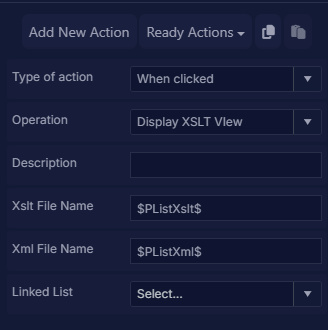
XSLT File Name: Specifies the name of the XSLT file. The value can be retrieved from a form field or a linked list.
C:\inetpub\wwwroot\XpodaClient\Uploads\e-Government\Xslt
XML File Name: Specifies the name of the XML file. The value can be retrieved from a form field or a linked list.
C:\inetpub\wwwroot\XpodaClient\Uploads\e-Government\Xml
Linked List: Selects a list from the form. The action is performed using the information from the selected row in the linked list.
Run Condition: If the query entered in this field returns '0', the action will not be executed.
Request Confirmation: Determines whether confirmation is required before executing the action. When enabled, the Confirmation Message property becomes available, allowing you to define the message displayed to the user.
Example 1
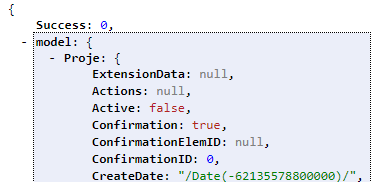
This example displays the XML or XSLT representation of a SQL table in a new window.
For example, add a Button to the form and assign the Display XSLT View action to its When Clicked event. In the XML File Name property, specify the XML file path as shown below:
C:\inetpub\wwwroot\XpodaClient\Uploads\e-Government\Xml
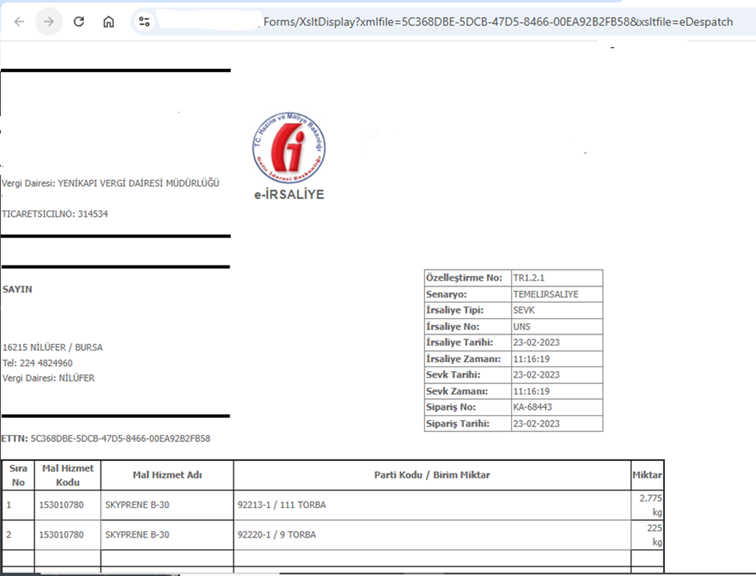
When the button is clicked, the generated HTML is displayed in a new window.
Example 2


The XML and XSLT files must be located in the directories specified above.
Studio Configuration;
The XML and XSLT file names can be obtained either from a List component or directly from Form fields. In the example below, the List component displays the XML and XSLT file names (without file extensions) using a SQL query. When a row is selected, the corresponding XML and XSLT file names are transferred to the Text Box controls. The referenced files must exist in the specified directories.
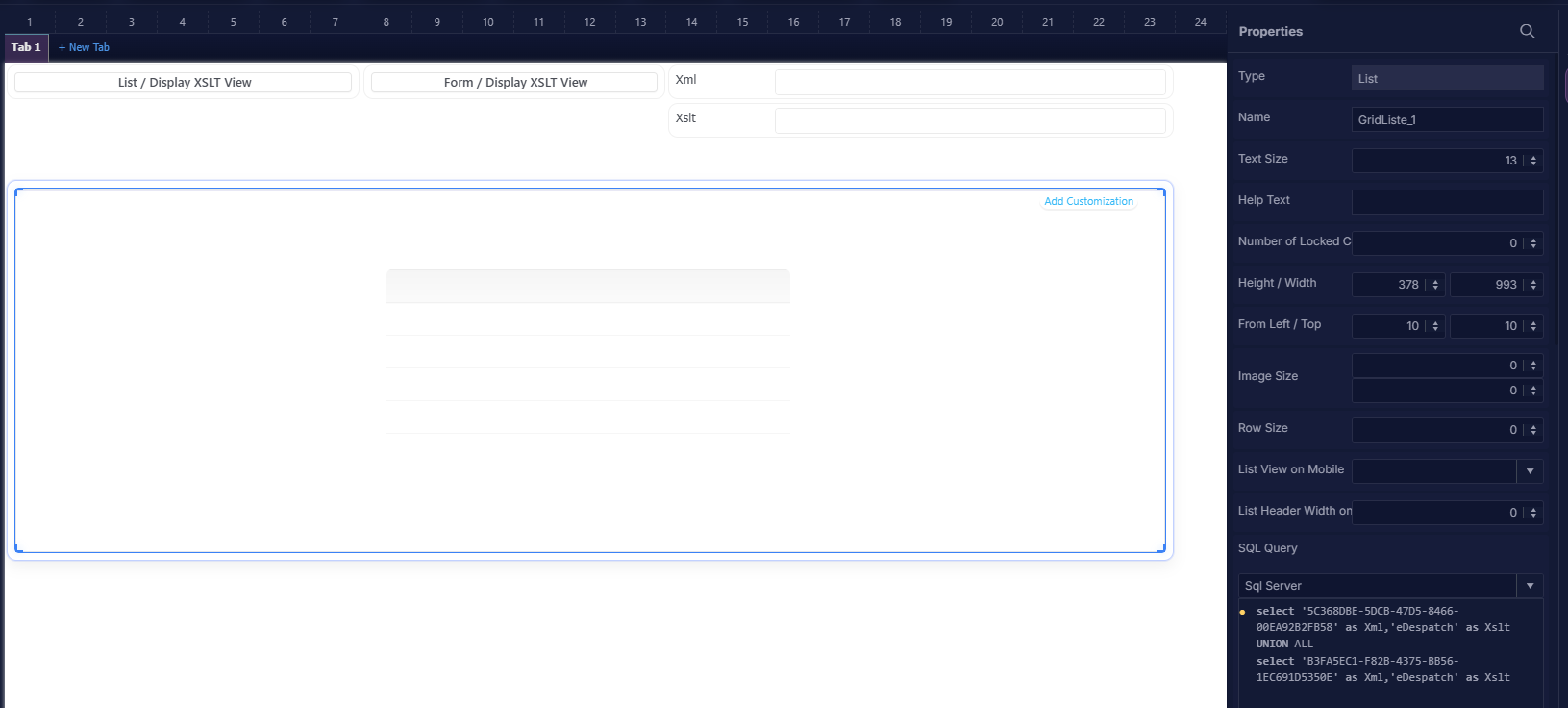
If the Display XSLT View action is executed from a List, assign the corresponding list columns to the XML File Name and XSLT File Name properties, and select the appropriate Linked List.
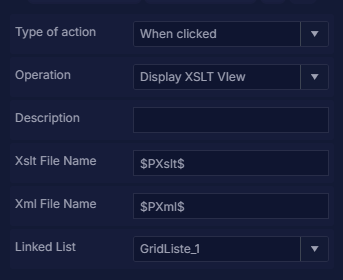
If the action is executed directly from Form fields without using a List component, assign the relevant form controls to the XML File Name and XSLT File Name properties, and leave the Linked List property empty.
Client view;
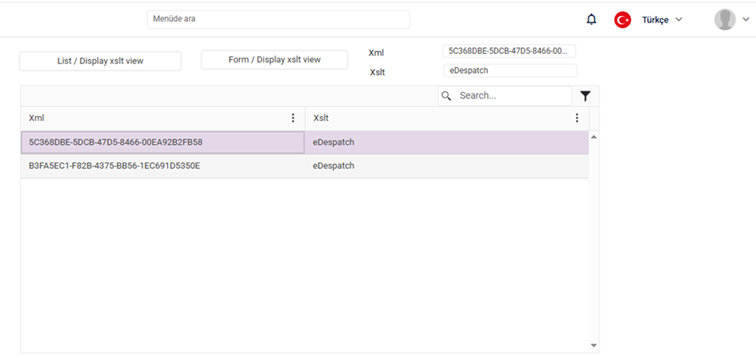
Clicking either the List / Display XSLT View button or the Form / Display XSLT View button opens the generated HTML view in a new window.
 AI Assistant