Grid – Row Updatev5
The Grid – Row Update action transfers the data from the selected row in a grid to the corresponding form controls.

Properties
Description:
Enter a description for the action.
Heading:
Specifies the name displayed in the action list when the action is added as a Form Action.
Run Condition:
If the SQL query entered in this field returns '0', the action will not be executed.
Request Confirmation:
Determines whether the user is prompted for confirmation before the action is executed. When enabled, the Confirmation Message property becomes available, allowing you to specify the message displayed to the user.
Example Usage
For example:
Add several form controls to your workspace. Then create two buttons:
- Assign the Grid – Add Row action to the first button using the When Clicked event.
- Assign the Grid – Row Update action to the second button using the When Clicked event.
Configure the Grid – Add Row action by filling in the required fields.
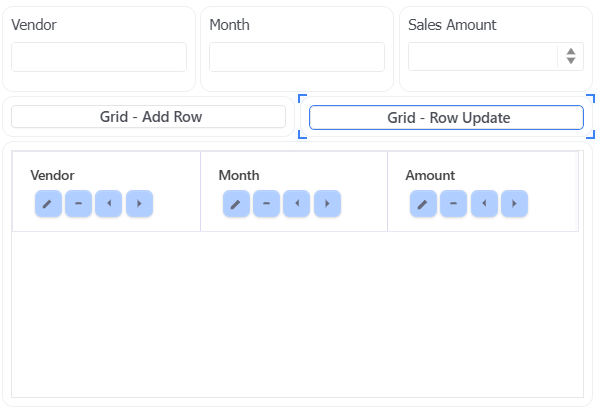
The Grid – Row Update action is configured as shown below.
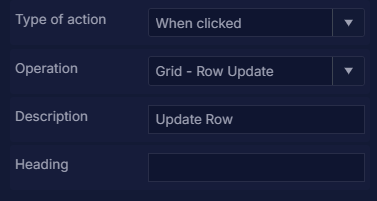
To edit data already added to the grid, select a row and then click the Grid – Row Update button. The values from the selected row are loaded into the corresponding form controls.

Client view
After modifying the values in the form controls, click the Grid – Add Row button again. The selected grid row will be updated with the new values.

Client view
 AI Assistant