Printv5
The Print action is used to print the information created on a form. It supports printing using a predefined form design, printing records selected from a linked list, and dynamically selecting different print templates.

Properties
Description
Enter a description of the action. This field is intended as a reference note for developers to describe the purpose of the action.
Heading
Specifies the name displayed in the Form Actions list when the action is added to a form.
Design File
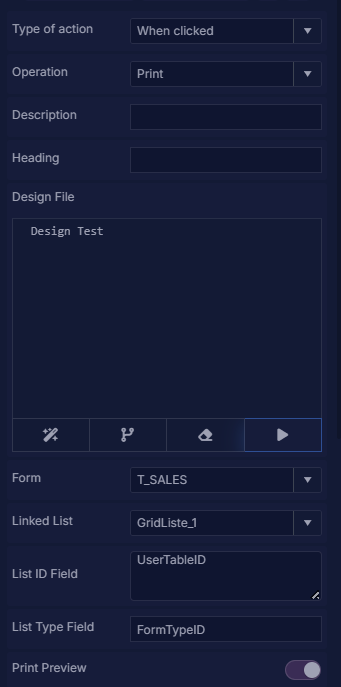
Specifies the name of the print template to be used. This value can be entered directly or retrieved dynamically using an SQL query.
Form
Select the form that will be used for printing.
Linked List
Select the list if the print operation should be performed for the selected record in a list.
List ID Field
Select the UserTableID field from the linked list.
List Type Field
Select the FormTypeID field from the linked list.
Print Preview
Determines whether a print preview should be displayed before printing.
- Yes: Opens the print preview screen.
- No: Sends the document directly to the default printer configured on the server.
Run Condition
If the SQL query entered in this field returns 0, the action will not be executed.
Request Confirmation
Determines whether the user should be asked for confirmation before the action is executed.
When enabled, the Confirmation Message property becomes available, allowing you to define the message displayed to the user.
Example Usage
To print a form:
Open the desired form in the Client.
Click the Form button in the bottom-right corner.
Create and save a new print design.
Return to Studio.
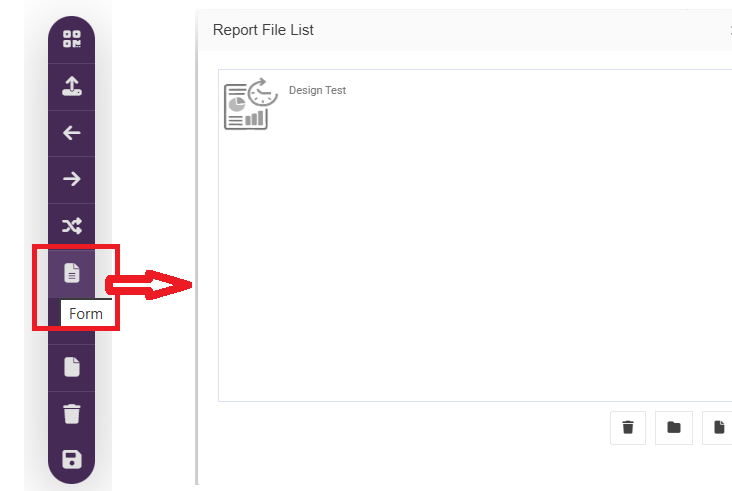
Add a button to the form.
Assign the Print action to the button's When Clicked event.Enter the name of the print design in the Design File field.
Select the form to be printed.Set Print Preview to Yes if you want to display a preview before printing.
Printing from a Linked List
To print the currently selected record from a linked list:
- Select the appropriate list in the Linked List property.
- Set List ID Field to UserTableID.
- Set List Type Field to FormTypeID.
Note: The linked list query must include the UserTableID and FormTypeID fields. Otherwise, the selected record cannot be printed.
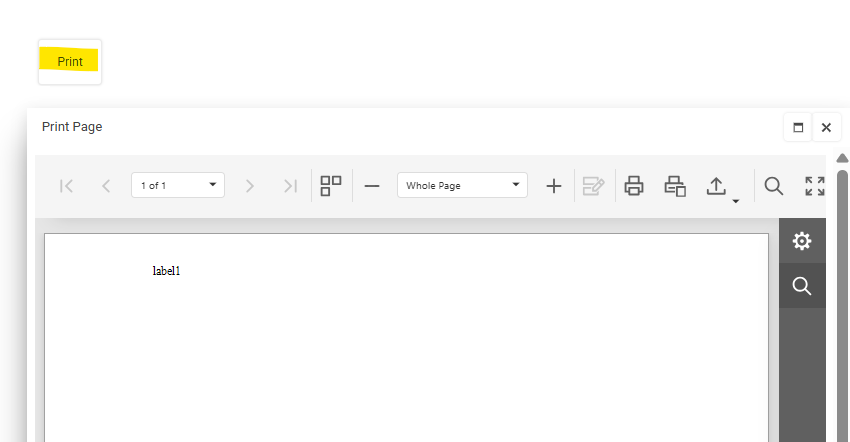
Client view
Using a Dynamic Design File
A single Print action can be configured to use different print templates dynamically.
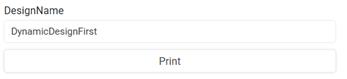
For example, assume the form contains a TextBox named DesignName.
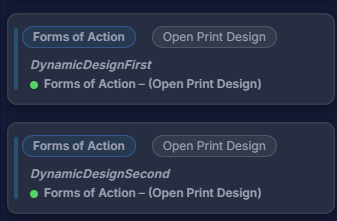
In the Design File property, enter the following SQL query:
SELECT '$PDesignName$'
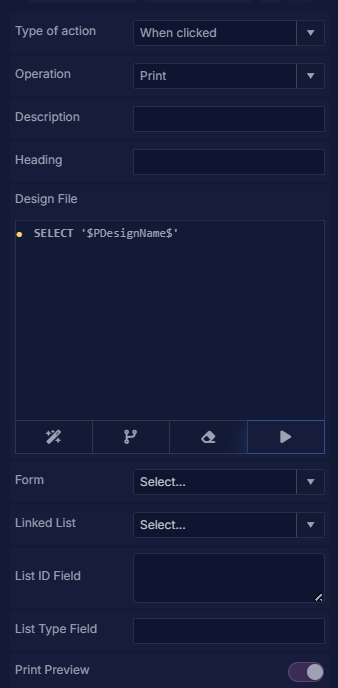
Here, $PDesignName$ refers to the value of the DesignName TextBox.
For example, if the user enters one of the following values:
- DynamicDesignFirst
- DynamicDesignSecond
the Print action will automatically use the corresponding print template when generating the output.
Note: Dynamic design selection allows multiple print templates to be managed through a single Print action, making maintenance and customization much easier.
 AI Assistant