Run Reportv5
The Run Report action executes a report that has been configured within the action.

Run Report Action in the Toolbox
Properties
Description: Enter a description for the action.
Report Title: Enter the title that will be displayed for the report.
Report: Select one of the report forms created within the project.
Report ID Field: Specify the ID field used in the report query.
Report Type Field: Specify the Type field used in the report query.
Run Condition: If the query entered in this field returns 0, the action will not be executed.
Request Confirmation: Select whether confirmation should be requested before the action is executed. When Request Confirmation is enabled, the Confirmation Message property becomes available, allowing you to specify the message displayed in the confirmation dialog.
Example
You need two forms. One of them must be a Report form. Set the Type property of this form to Report.
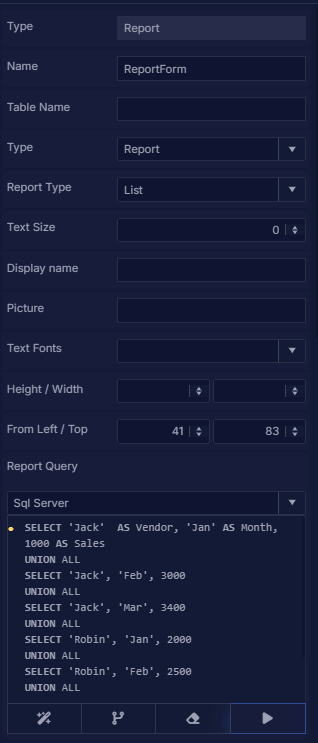
SELECT 'Jack' AS Vendor, 'Jan' AS Month, 1000 AS Sales
UNION ALL
SELECT 'Jack', 'Feb', 3000
UNION ALL
SELECT 'Jack', 'Mar', 3400
UNION ALL
SELECT 'Robin', 'Jan', 2000
UNION ALL
SELECT 'Robin', 'Feb', 2500
UNION ALL
SELECT 'Robin', 'Mar', 4000;
In another form, add a Button and configure it with the When Clicked → Run Report action.
Select the report form and enter a title in the Report Title property.
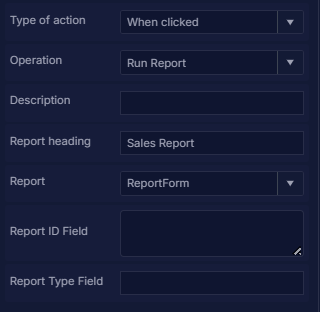
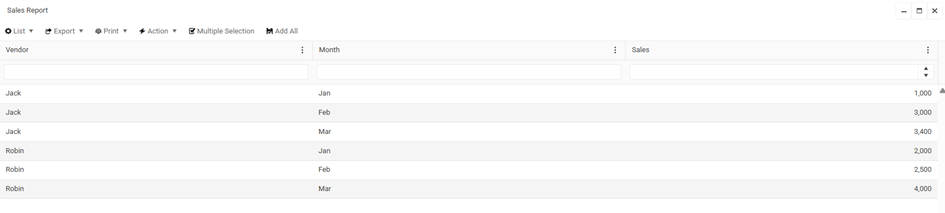
When the user clicks the Sales Report button, the report opens as a Report List.
 AI Assistant