Xpoda Client Ready Buttonsv5
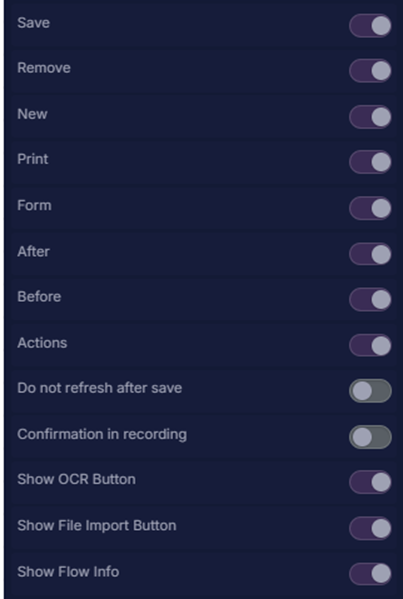
The Xpoda Client Ready Buttons are located in the bottom-right corner of the Client screen. These buttons provide quick access to commonly used operations such as creating new records, saving, deleting, printing, navigating between records, uploading files, and monitoring workflows. The visibility of these buttons can be configured from the Form Settings section in Xpoda Studio according to project requirements.
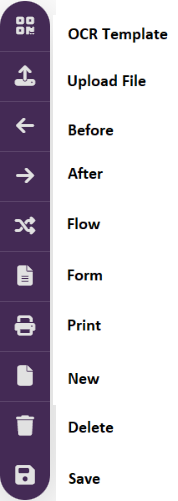
- OCR Template : Opens the ready button used to create OCR Templates. Click here to access the OCR documentation.
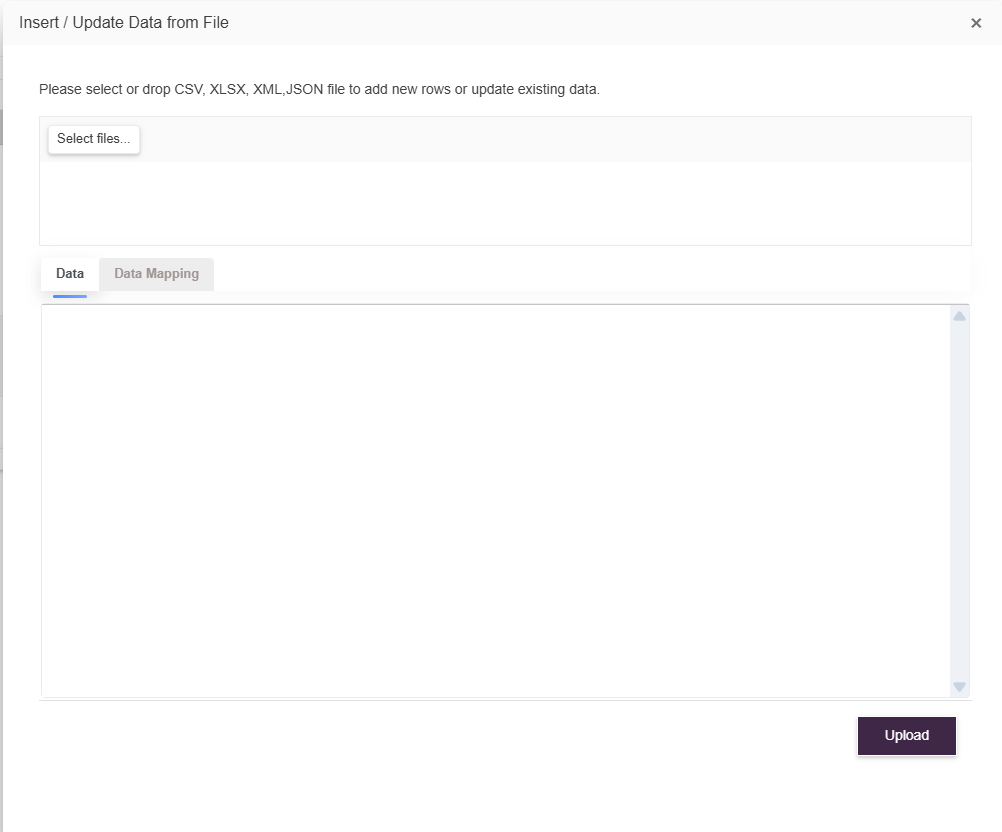
- Upload File : Allows you to import files containing your data and perform bulk record upload operations. Click here to access the related documentation.
- Before : Displays the previous record relative to the currently viewed record each time it is clicked.
- After : Displays the next record relative to the currently viewed record each time it is clicked.
- Flow : If a workflow action exists for the selected record, this button opens the workflow tracking form. Click here to access the related documentation.
- Form : Opens the form design screen of the current form for design and development purposes. Click here to access the related documentation.
- Print : Prints the information entered on the form. Click here to access the related documentation.
- New : Opens a new blank form page without saving the current record. This button can also be used as an action. Click here to access the related documentation.
- Delete: Deletes the current document or record from the form. This button can also be used as an action. Click here to access the related documentation.
- Save : Saves the current document or record on the form. This button can also be used as an action. Click here to access the related documentation.
These ready buttons can be enabled or disabled from the Form Settings section in Xpoda Studio, depending on project requirements.
 AI Assistant