Xpoda Lite Ready Buttonv5
The Quick Access Buttons feature allows you to add shortcut buttons to the Xpoda Lite application, enabling users to quickly access frequently used forms.
| | This feature is available in Xpoda version 4.0 and later. If you are using an earlier version, you must upgrade your Xpoda installation before using this feature. |
To configure quick access buttons, open the Users & Rights tab in the Administration Panel and select the user who will receive the quick access buttons from the User Information section.
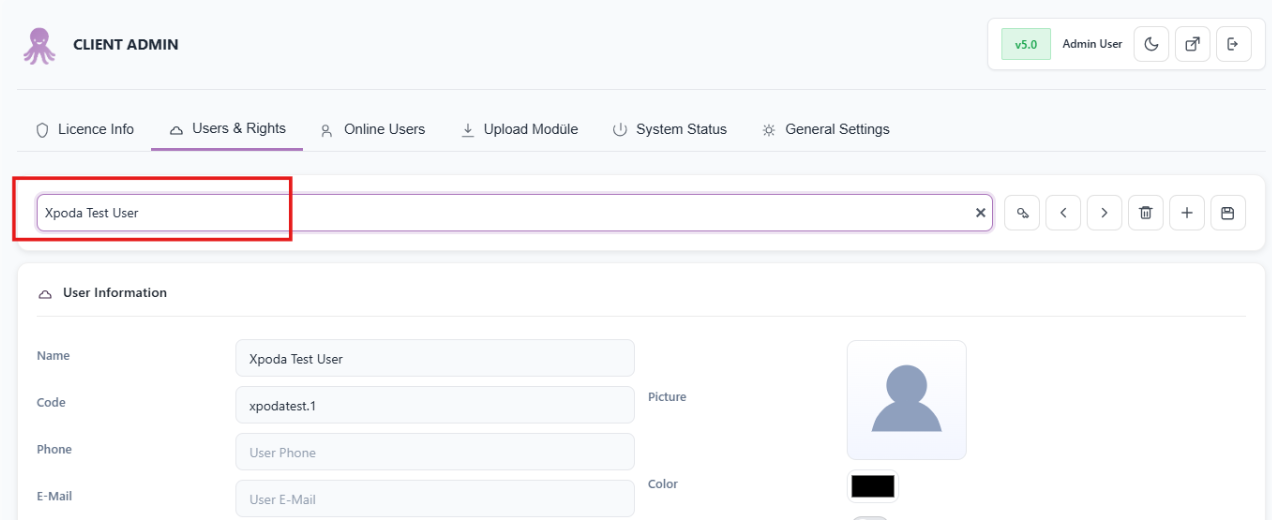
Next, scroll down within the same page to the Mobile Quick Access Menu section.
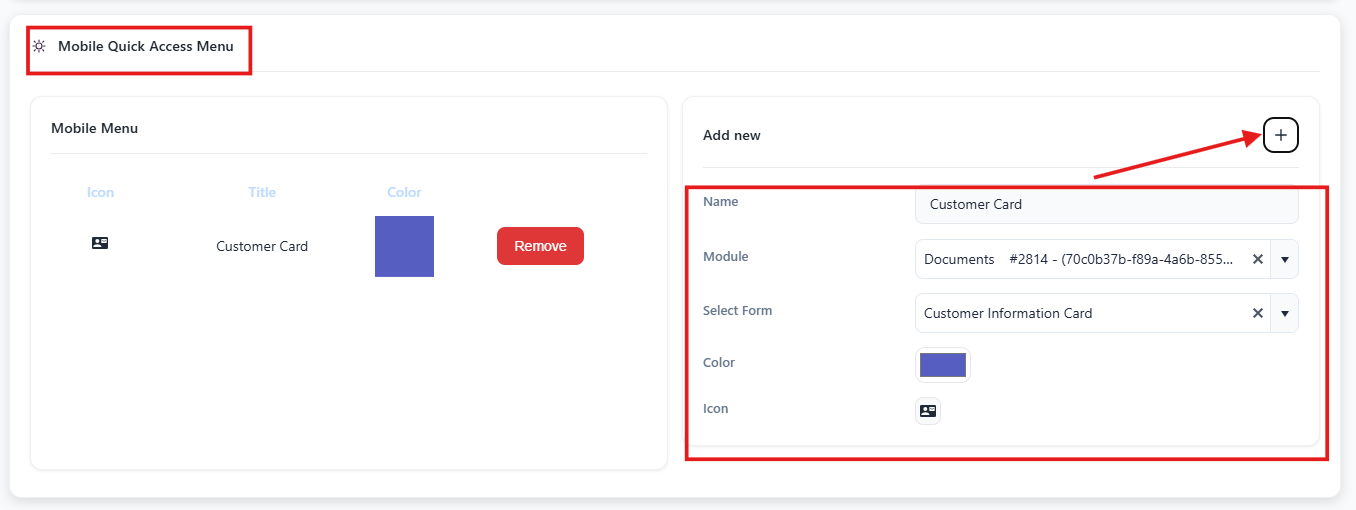
Module : Select the project module that contains the form you want to open with the quick access button.
Select Form : Select the form within the chosen module that will be opened when the button is tapped.
Name : Enter the text that will be displayed on the quick access button.
Color : Choose the background color of the quick access button.
Icon : Optionally select an icon to be displayed on the button.
After completing the required fields, click Add New.
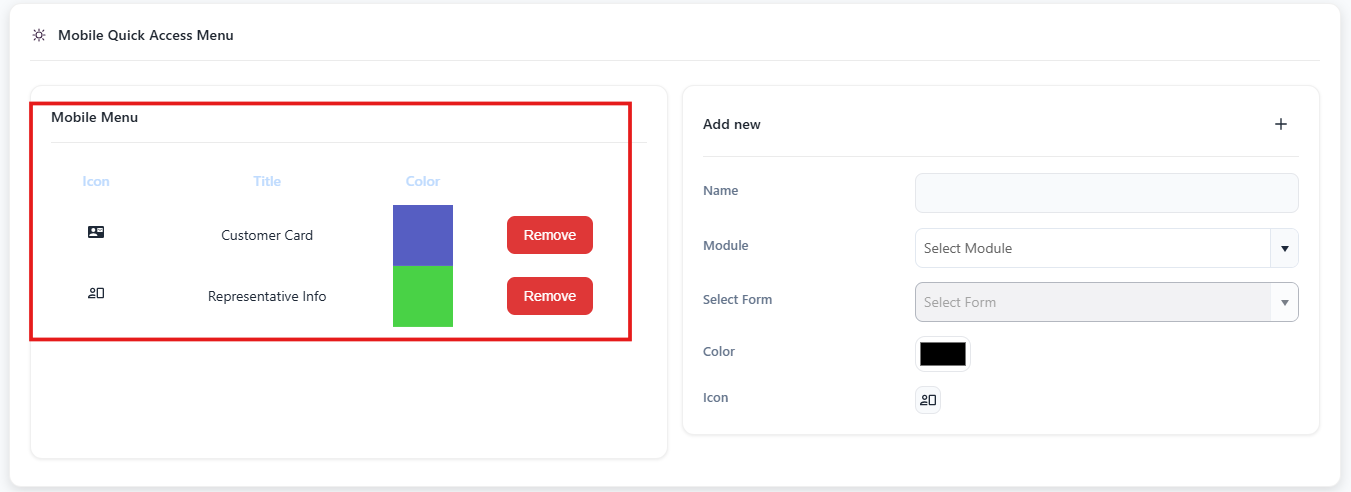
| | At least two quick access buttons must be defined. If more than three buttons are added, some mobile operating systems may automatically resize the buttons and hide their labels. |
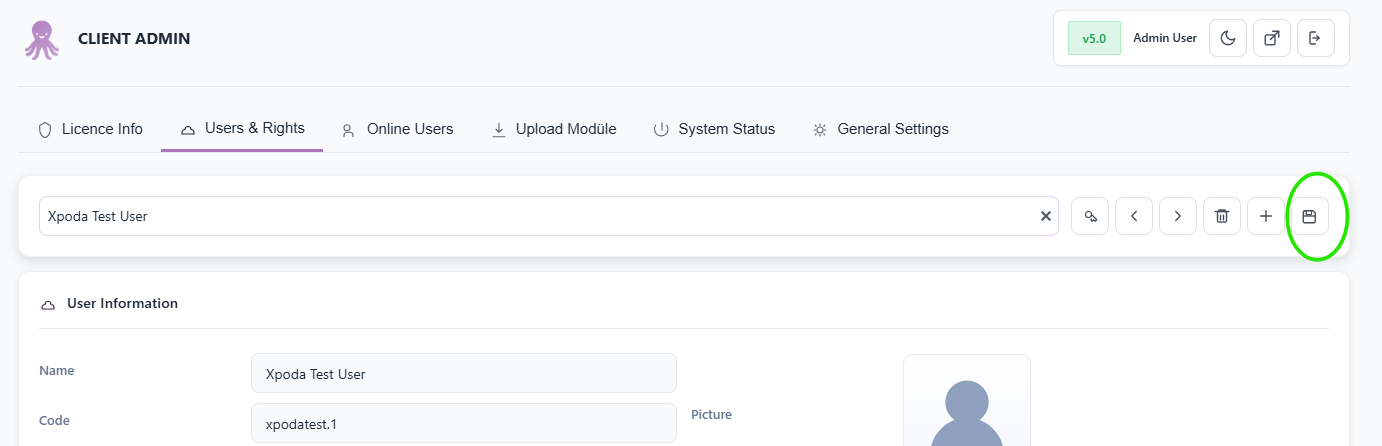
After configuring the quick access buttons, click the Save button to save your changes.
If you click Go Application without saving, the changes will not be applied.
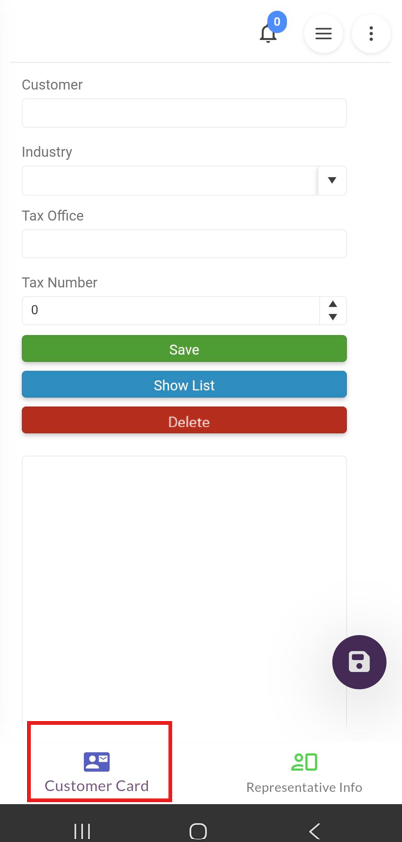
Once the configuration has been saved, open the Xpoda Mobile Lite application on your mobile device and sign in. The configured quick access buttons will be available on the application's home screen.
 AI Assistant