Floating Boxv5
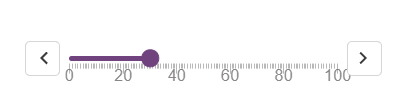
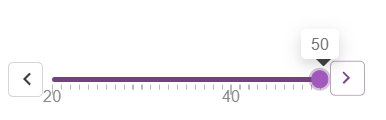
This tool, added to the form page, lets users choose a value between two defined numeric values.
|
Appearance in Toolbox |
Appearance in Free Form |
Appearance in Responsive Form |
Appearance in Flexible Form |
|
|
|
|
|


Compatibility
|
Free Form |
Responsive Form |
Flexible Form |
Mobile |
|
|
|
|
|

Properties of the Floating Box tool |
Type (Field Type): Shows the field type of the added form tool. This value cannot be changed. Name (Field Name): The name of the field to be created in the database is written here. Default Value: The value written here appears in the field on the Client screen by default.
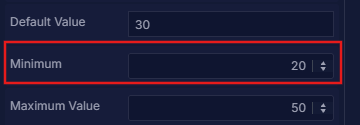
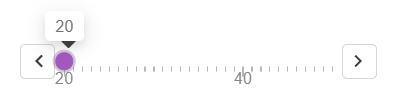
Minimum: Sets the start value for the form tool.
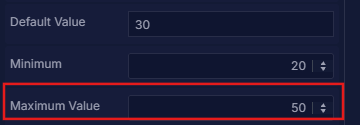
Maximum Value: Sets the end value for the form tool.
Help Text: Text shown as a description when the mouse is moved over the form tool. Maximum Value Sql Query: An SQL query is written to determine the maximum value. Pin Right:Pins the form tool to the right. Display: Hides the form tool on the Client screen. |

Actions that can be used in Floating Box
Each form tool added to the form page has different actions. To see the actions defined for the Floating Box tool, first select the Floating Box field, then open the actions menu in the right panel.
The actions that can be used in Floating Box and their details are as follows.
On Value Change: Runs when the value in the Floating Box field changes.
Example:
When the value in this form tool changes, you may want to update another field. In this example a number box is added and its value should change according to the value in Floating Box. To do this, go to the Floating Box field and add a new action. The action must be On Value Change - Update Value, and the number box must be chosen in the value field section.
This way, when the value in the floating box changes, the number box field changes too.
 AI Assistant