Measurev5
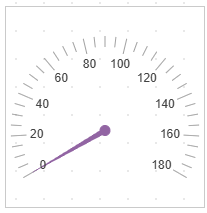
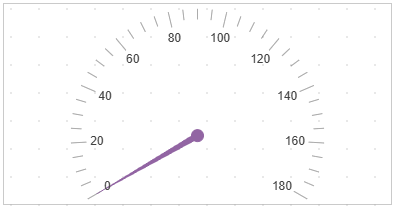
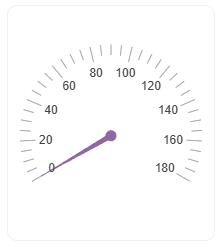
It is a form component that visually displays the position of a numerically provided value between two values using a gauge chart.
|
Appearance in Toolbox |
Appearance in Free Form |
Appearance in Responsive Form |
Appearance in Flexible Form |
|
|
|
|
|
Compatibility
Free Form | Responsive Form | Flexible Form | Mobile |
|
|
|
|

Features of the Measure Component |
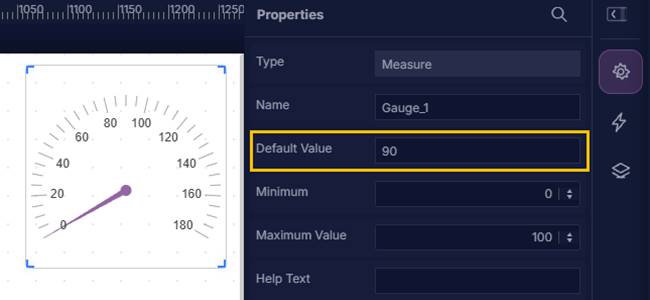
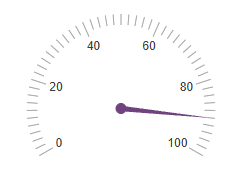
Type: Displays the field type of the added form component. This value cannot be changed. Name: Specifies the name of the field that will be created in the database. Default Value: The value entered in this field is displayed as the default value in the field on the Client screen.
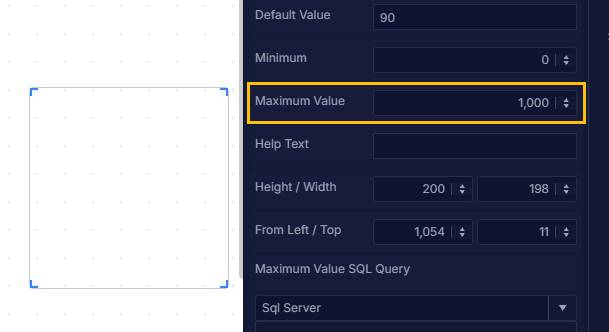
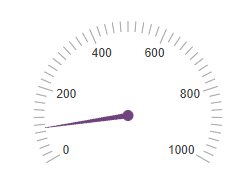
Minimum: Defines the starting value for the form component. Maximum Value: Defines the ending value for the form component.
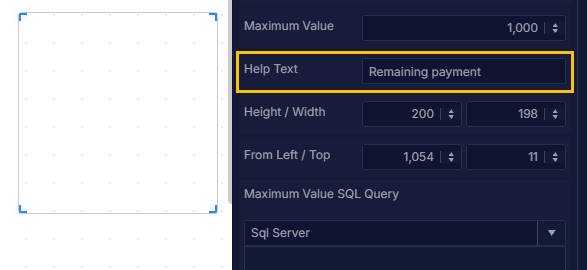
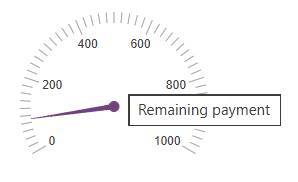
Help Text: The text entered to display a description when the mouse hovers over the form component.
Height: Adjusts the height of the form component (the Width field has been removed from Responsive Forms). From Left/Top: Specifies the offset distance of the form component from the left or top edge of the container/page where it is located. Maximum Value SQL Query: Specifies the SQL query used to determine the maximum value. Pin Right: Fixes the form component to the right side. Display: Prevents the form component from being displayed on the Client screen. |
Actions Available Within the Measure Component
Different actions are available for each form element added to the Form page. There are no actions defined for the Measure component.
Example Usage:
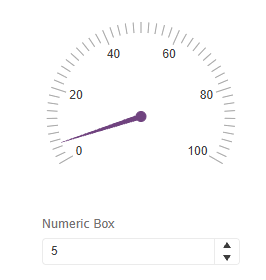
The value of the Measure component may need to be changed based on the value entered in a Number Box. To achieve this, a Number Box should be added to the Form page, and the Update Value action should be assigned to the Number Box under the On Value Change event. In the Value Field section, the Measure component should be selected.
 AI Assistant