Picture Listv5
This form element is used to display images stored in Xpoda tables as a slideshow.
Navigation between images is performed using the left and right arrow controls available within the form element.
|
Appearance in Toolbox |
Appearance in Free Form |
Appearance in Responsive Form |
Appearance in Flexible Form |
|
|
|
|
|



Compatibility
Free Form | Responsive Form | Flexible Form | Mobile |
|
|
|
|


Picture List Tool Features |
Type: Indicates the field type of the added form control. The value in this field cannot be changed. Name: Specifies the name of the field that will be created in the database. Help Text: The text entered to display a tooltip when hovering over the form control with the mouse.
Height: Adjusts the height of the form control. (The width field has been removed from responsive forms.) From Left/Top: Specifies the offset of the form control from the left or top edge of its container/page. SQL Query: Images are loaded into this form element through a query. The query used to retrieve the desired images from a specific table should be entered in this field. Display: Controls whether the form element is displayed on the client screen. When disabled, the element is hidden from view. |
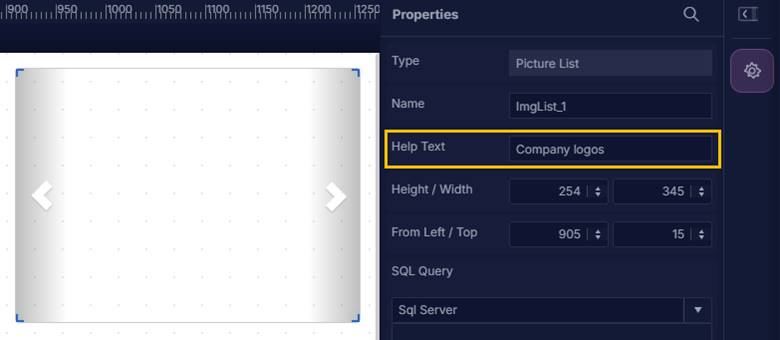
Usage Example:
In a Picture List element added to a form page, the images of records stored in the Products table are intended to be displayed.
To achieve this, navigate to the SQL Query field in the properties section of the Picture List element and define the required query.
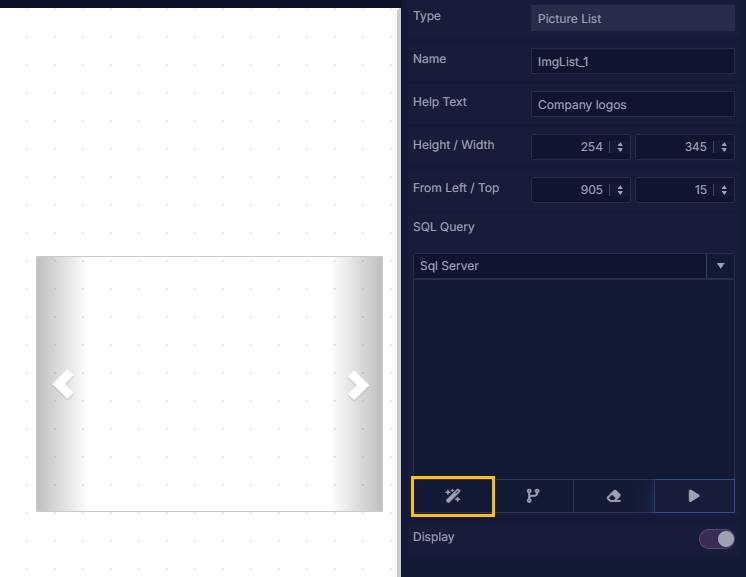
In this example, the Query Wizard is used to create the query. However, the query can also be written manually if preferred.
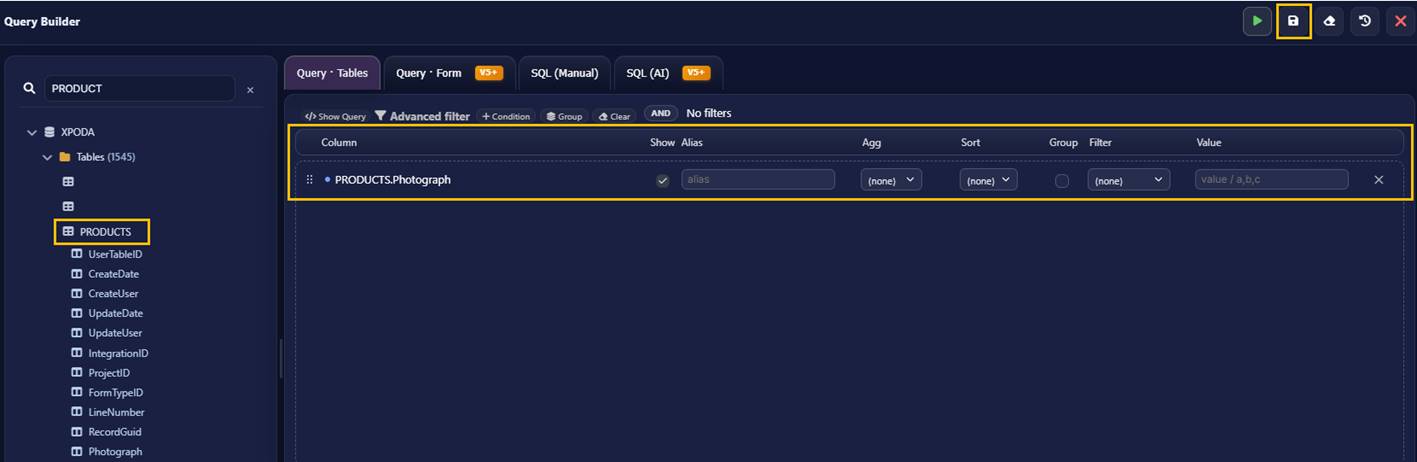
The required field from the relevant table is dragged and dropped into the Query Builder section and then saved.
After the form page is saved, switch to the client screen. Navigation between the images displayed in the Picture List is performed using the left and right arrow controls.
By right-clicking on an image, you can add a new image, view the selected image in its original size, delete the image, or download it.
Actions Available in the Picture List Tool
Each form element added to the form page has its own set of actions. However, there are no actions defined for the Picture List tool.
 AI Assistant