Progress Barv5
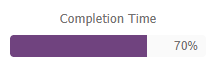
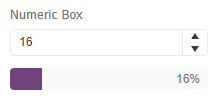
This form element displays progress in the form of a percentage chart on the form screen. It can be used to visualize process tracking in percentage terms.
|
Appearance in Toolbox |
Appearance in Free Form |
Appearance in Responsive Form |
Appearance in Flexible Form |
|
|
|
|
|


Compatibility
Free Form | Responsive Form | Flexible Form | Mobile |
|
|
|
|

Progress Bar Tool Features |
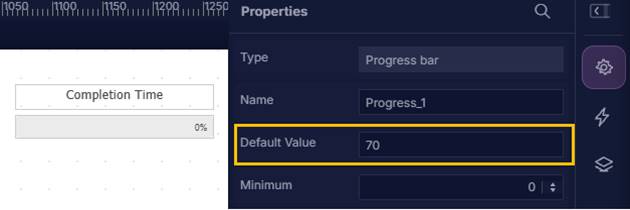
Type: Indicates the field type of the added form control. The value in this field cannot be changed. Name: Specifies the name of the field that will be created in the database. Default Value: The value entered in this field is displayed as the default value in the client screen field.
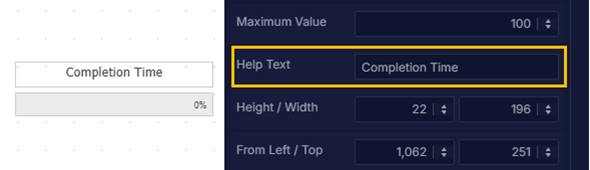
Minimum: Specifies the starting value of the form element. Maximum Value: Specifies the ending value of the form element. Help Text: The text entered to display a tooltip when hovering over the form control with the mouse.
Height: Adjusts the height of the form control. (The width field has been removed from responsive forms.) From Left/Top: Specifies the offset of the form control from the left or top edge of its container/page. Maximum Value SQL Query: Dynamically sets the maximum value using an SQL query. Pin Right: Anchors the form control to the right side. Display: Controls whether the form element is displayed on the client screen. When disabled, the element is hidden from view. |
Actions Available in the Progress Bar Tool
Each form element added to the form page has its own set of actions. To view the actions defined for the Progress Bar tool, first select the Progress Bar field, then open the Actions menu located in the right panel.
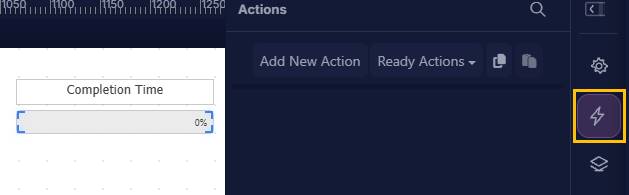
The actions that can be used within the Progress Bar tool and their details are listed below.
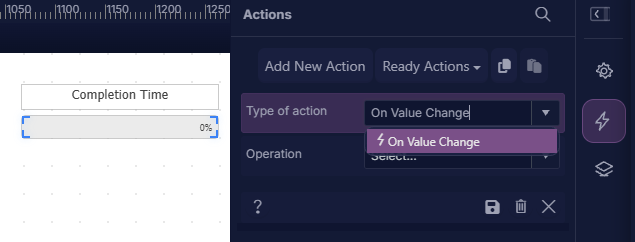
On Value Change: Triggered when the value of the Progress Bar field is changed.
Usage Examples:
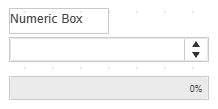
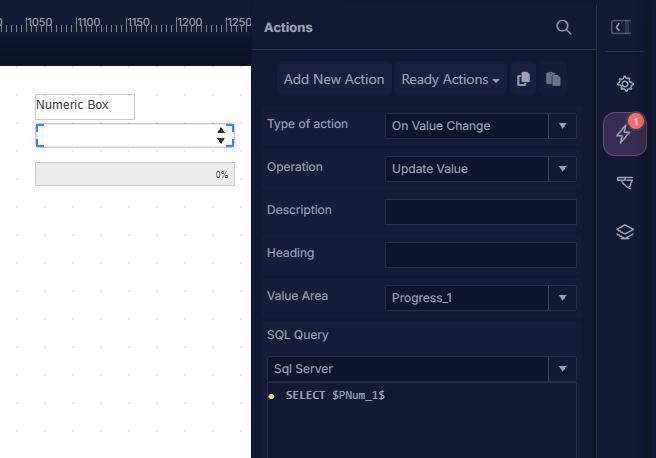
To change the value of the Progress Bar tool, a Figures Box can be used. By adding the “Update Value” action to its “When the value changes” event, the Progress Bar tool is triggered.
 AI Assistant