Send E-Mailv5
This control allows an e-mail to be sent within the flow.

Flow Items view

Design screen view
Notes
This control has one Connection at the end of this step.
The Resource Results of the connection is selected as No Requirement. After the connection is made, the next step can be specified using any flow control once the e-mail has been sent. For example, the End flow control can be used.
Properties
Text: The text displayed on the screen is entered here.
File Format: Select the format of the attached file that will be sent by e-mail.
File Name: Enter the name of the attachment to be sent by e-mail or retrieve it using an SQL query. The output design name can also be entered directly.
Subject: Enter the main subject directly or retrieve it using an SQL query.
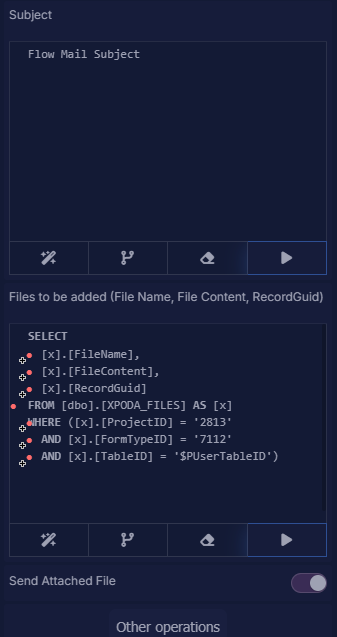
Files to be Added (File Name, File Content, Record GUID): This field specifies the files to be included as e-mail attachments.
Send Attached File: Specifies whether the attachment will be sent with the e-mail.
Other Operations: Enter the e-mail content, select the users, and if the flow contains an Object control for this e-mail, select it here.
Example Usage
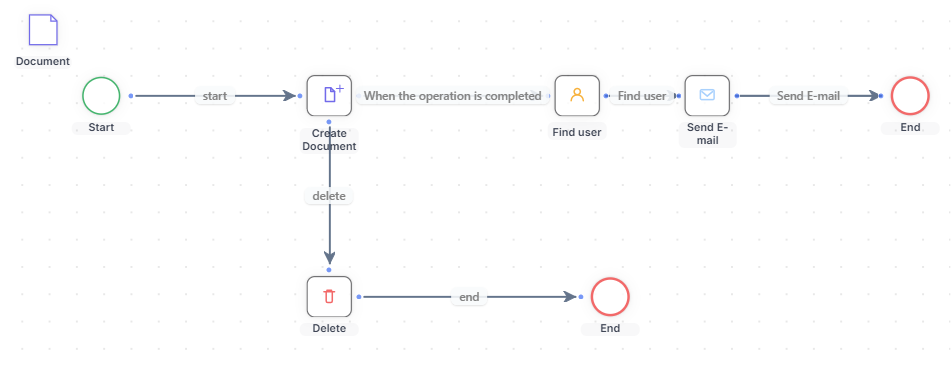
This example includes an attachment in the Send E-mail flow control. After the user is identified using the Find User control, an e-mail is sent to the user. This control sends an e-mail to the selected users.
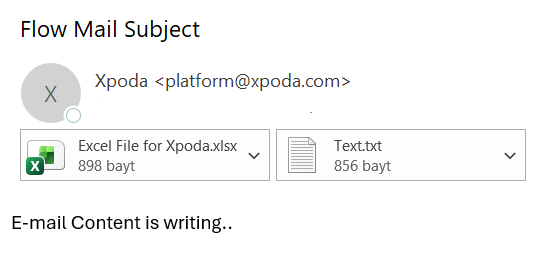
The file is attached as shown below. In addition, the Send Attached File property is selected as active.
 AI Assistant