Send to Approvalv5
The Send to Approval flow item contains the step for submitting the incoming flow for approval. When this flow element is used, the user receives two separate notifications. A notification is displayed in the notification drawer on the client screen, and an informational e-mail is sent to the e-mail address of the user who will perform the approval.

Flow Items view
Design screen view
Notes
This control has two connections at the end of this step so that the process can continue differently when the approval is granted or when the incoming flow is rejected.
A link is sent to the user within the e-mail. By using this link, the user can navigate to the form page where the flow was started and view the details of the record.
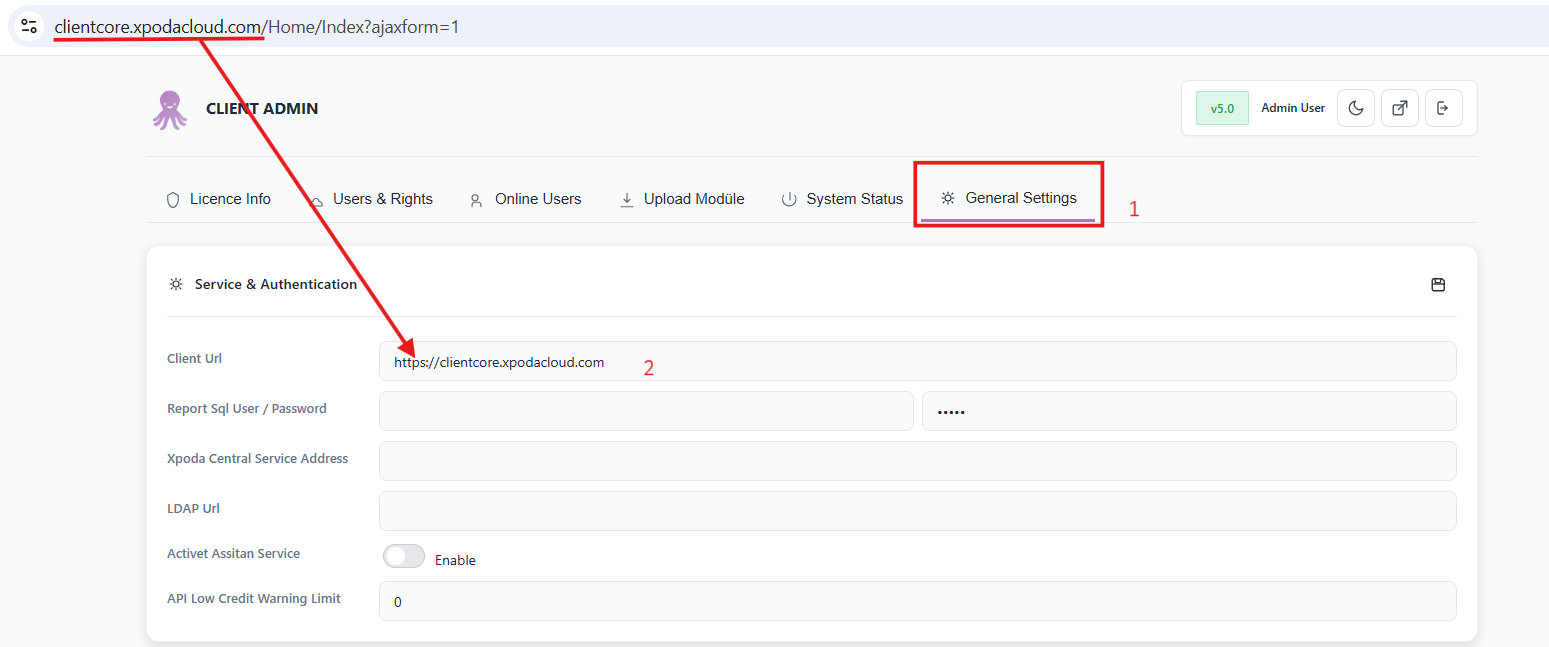
To ensure that the link is sent with the correct URL, some configurations must be completed in the Client interface. Open the Management Panel from the Client screen, navigate to the Settings menu, and fill in the Client URL field.
An example configuration is shown below.
Properties
Text: The text displayed on the screen is entered here.
File Format: Select the format of the attached file that will be sent by e-mail.
File Name: Enter the name of the attachment to be sent by e-mail or retrieve it using an SQL query. The output design name can also be entered directly.
Description: This section contains the text information related to the approval process and lists the user tasks. It can be populated using an SQL query.
Subject: Enter the main subject directly or retrieve it using an SQL query.
Send Attached File: Specifies whether the attached file will be sent with the e-mail.
Linked Text: Enter the text for the approval link that will be included in the e-mail content.
Not Send E-mail: E-mail sending can be disabled.
Make Mobile Notification: Mobile notifications can be enabled or disabled.
Make Sms Notification: SMS notifications can be enabled or disabled.
Notification Message: Defines the content of the notification.
Re-Notification Tap (min.): Enter the number of minutes after which a reminder notification will be sent if no action is taken on the task form.
Number of Information: Enter the number of times the notification will be sent.
Routing the following user when the number of information: When the specified notification count is exceeded, the task form is routed to the selected user.
User Actions: This section contains the users to whom the approval will be sent. Users can be selected using the Find User control.
E-mail Content: Enter the e-mail content.
Example Usage
This flow control can be used after a document has been created. Users can be selected from the User Actions property of the control. Then, two End controls are created. (You can also select users using the Find User control.)
This control sends the saved data to users for approval.
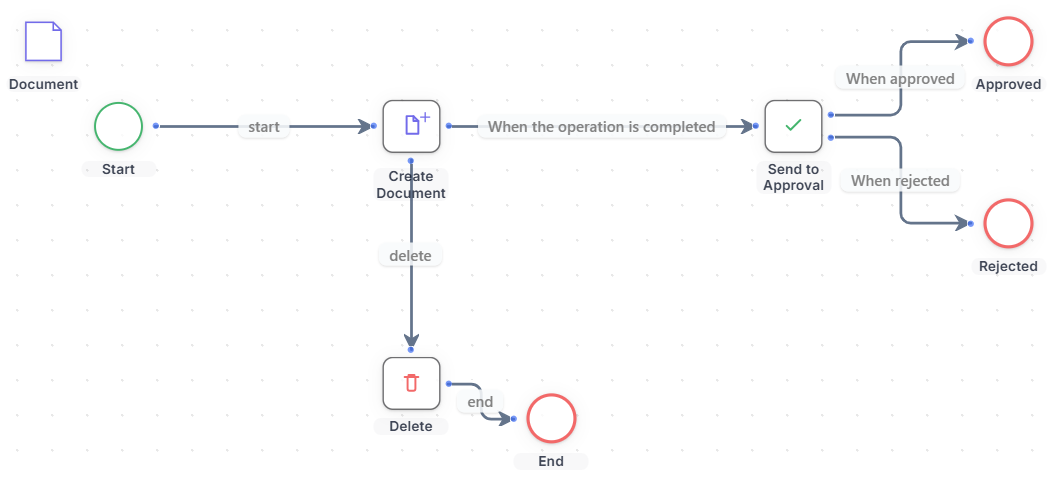
Flow screen
Since the Find User control is not included in this flow, users can be selected from the User Actions property located at the bottom of the Send to Approval control.

When the User Actions button is clicked, the following screen is displayed.
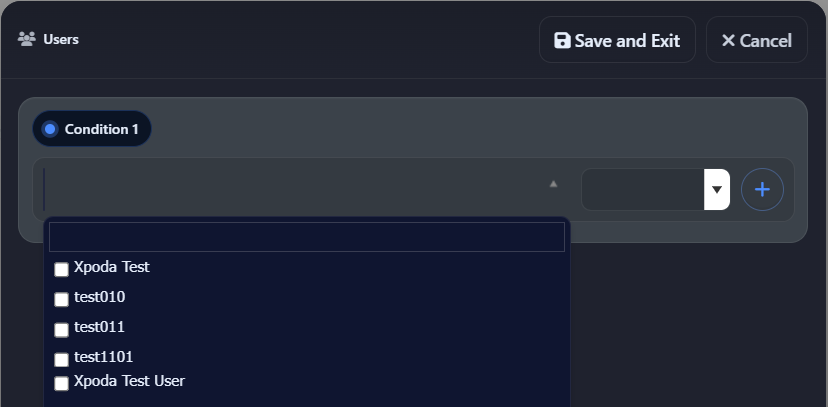
User Actions property
 AI Assistant