Subflowv5
This flow tool is the process of starting a new flow — a subflow — within the designed flow and continuing the flow accordingly. Subflows allow you to design your flows in a modular way.
A flow can have multiple subflows.

Flow Items view

Design screen view
Properties
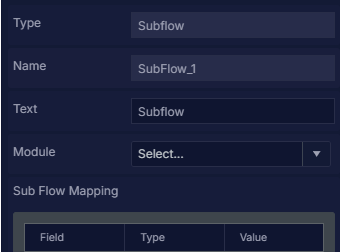
Text: The visible name of the Subflow element can be changed from this field.
Module: The module containing the flow to be started as a subflow is selected.
Sub Flow Mapping: Within the selected module, a flow and a document connected to this flow are selected. The information from the main flow that will be transferred to the form fields in this document must be selected.
The form fields will be displayed in the Form Field selection. If an Object entity is used, the values on the object can also be used here. If a value is to be retrieved through an Object, the Field section must be selected as Object.
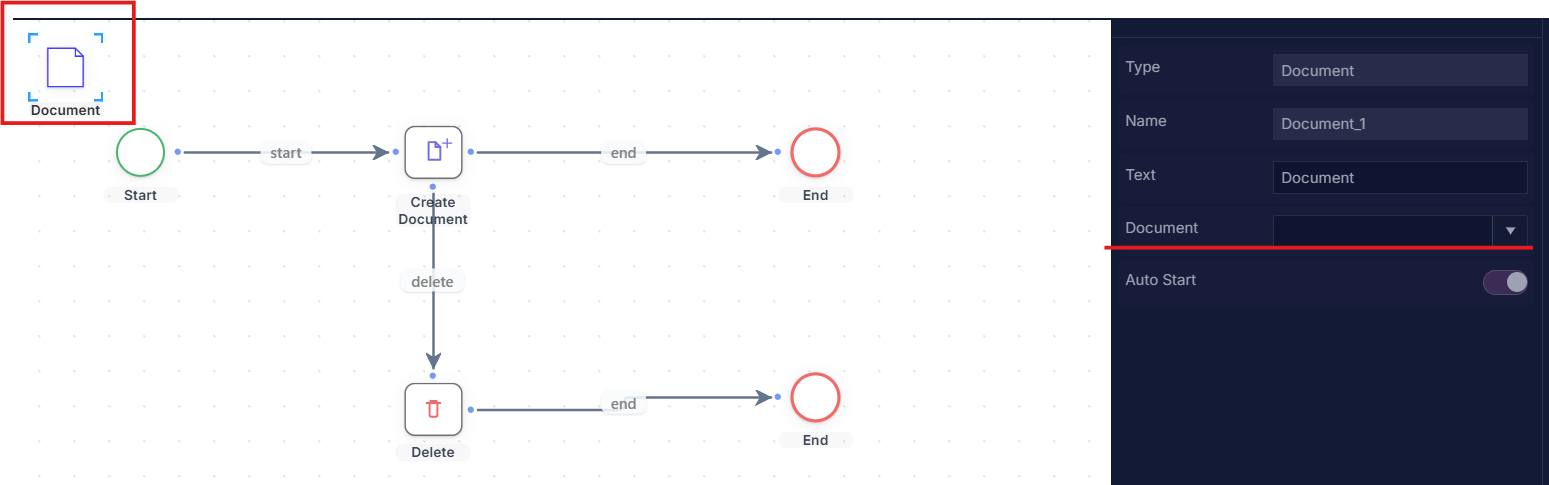
In order for these selections to be available, the relevant form selection must be made from the Document flow element for each flow (and also to ensure that the flow can run under normal conditions).
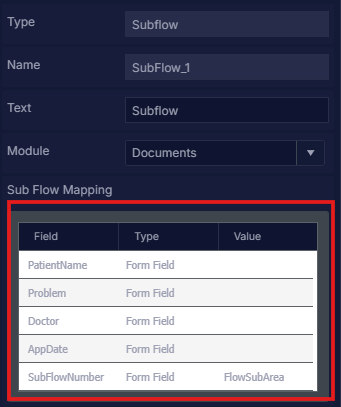
After selecting the module, the fields of the connected form will be displayed in the Sub Flow Mapping section. These fields are located in the Field section. The values within the main flow are displayed in the Value section.
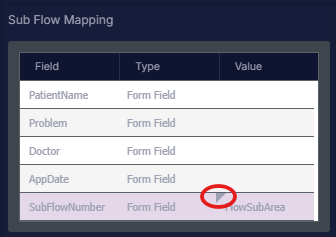
After making a selection, triangular indicators should appear in the Value fields. Otherwise, the selection cannot be saved.
After selecting from the Value field, the Type field must be checked and set as either Form Field or Object. This allows the selection to be saved.
Example Usage
There are two separate form pages and two separate flow processes in two different modules.
Main Form:
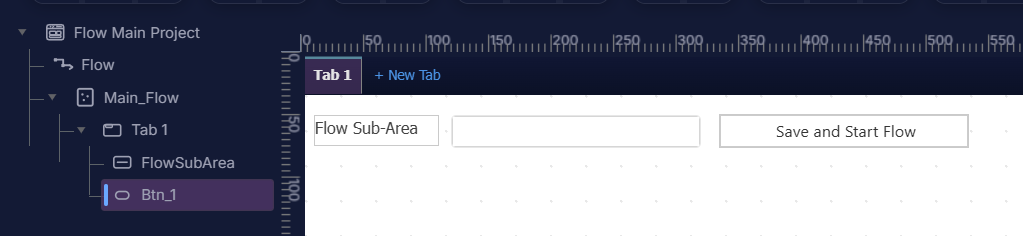
The form page named Main_Flow is the main form page. The user is expected to enter information after obtaining the sequence number here and start the flow by clicking the Save and Start Flow button.
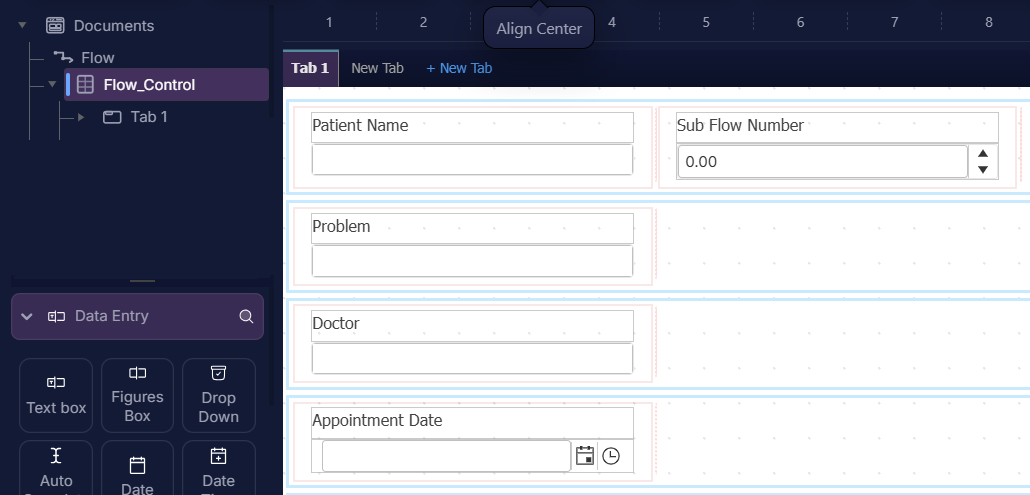
A new module and form page are created. The form page and fields are as follows. The sequence number obtained from the Sub Flow Number field is retrieved, and an automatic name is created according to the sequence number.
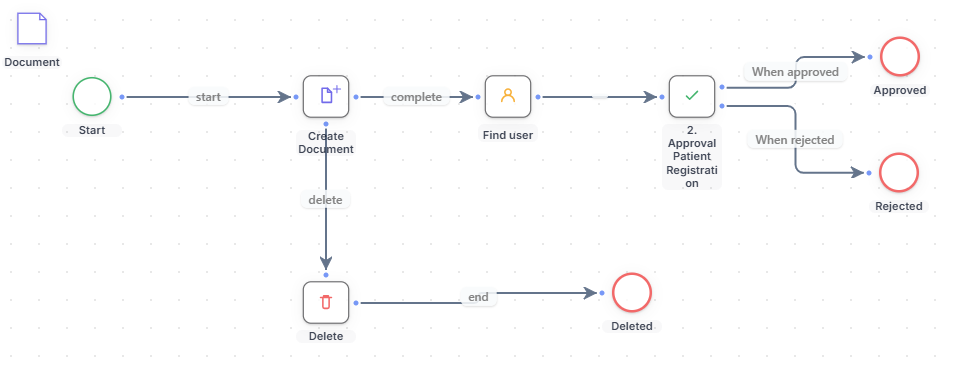
The flow processes in the two modules are different from each other. At this point, after the flow starts within the Main Form and the required flow steps are completed, it is desired that the flow process on this form page becomes active.
The flow process of this form page is as follows:
After making the necessary configurations related to this flow, the main module is accessed again and the main flow is designed.
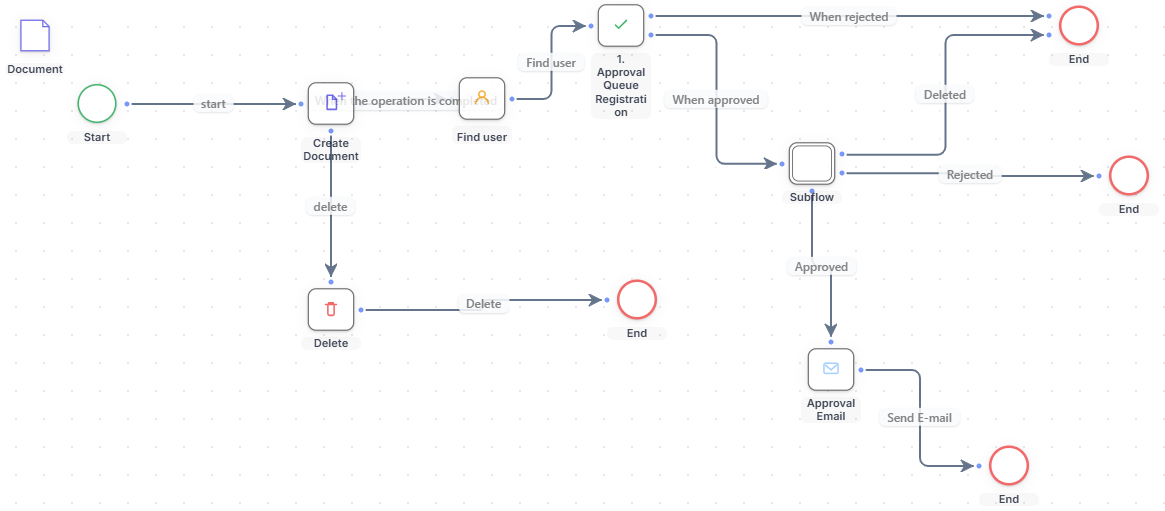
Through this flow, after the document is saved on the form page, it goes to the approval process for 1st Approval Sequence Record. During the approval process, if the document received for the 1st Approval is approved, the flow included in the Sub Flow is activated. Depending on the response given within the Sub Flow, the 2nd Approval can be rejected or approved. After approval, an approval e-mail is sent and the flow is terminated. After rejection, the flow ends directly.
Note: Multiple Sub Flow elements can be used within a single flow design.
The SubFlow result varies according to the termination parameters defined in the subflow. In other words, the options on the arrows will change according to the number of termination statuses available within the subflow.
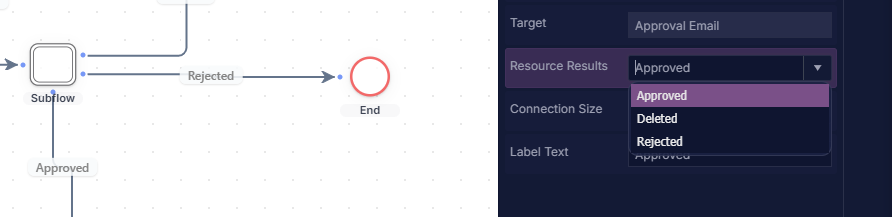
After all operations are completed, the flow is saved.
The client screen is opened, and a record is created for the main form.
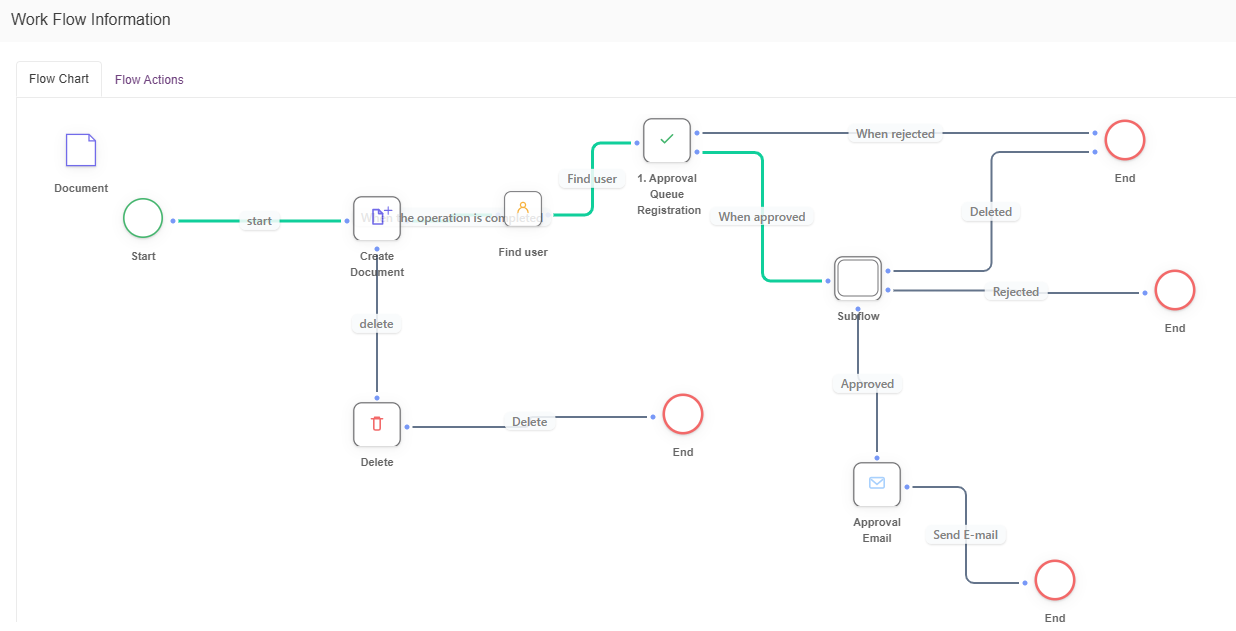
After the record is created, the first approval process is completed (the user approves the document). Then, the flow continues with the next step. The next step is the transition to the Sub Flow element.
After the entire flow process is completed, the Workflow diagram will appear as follows:
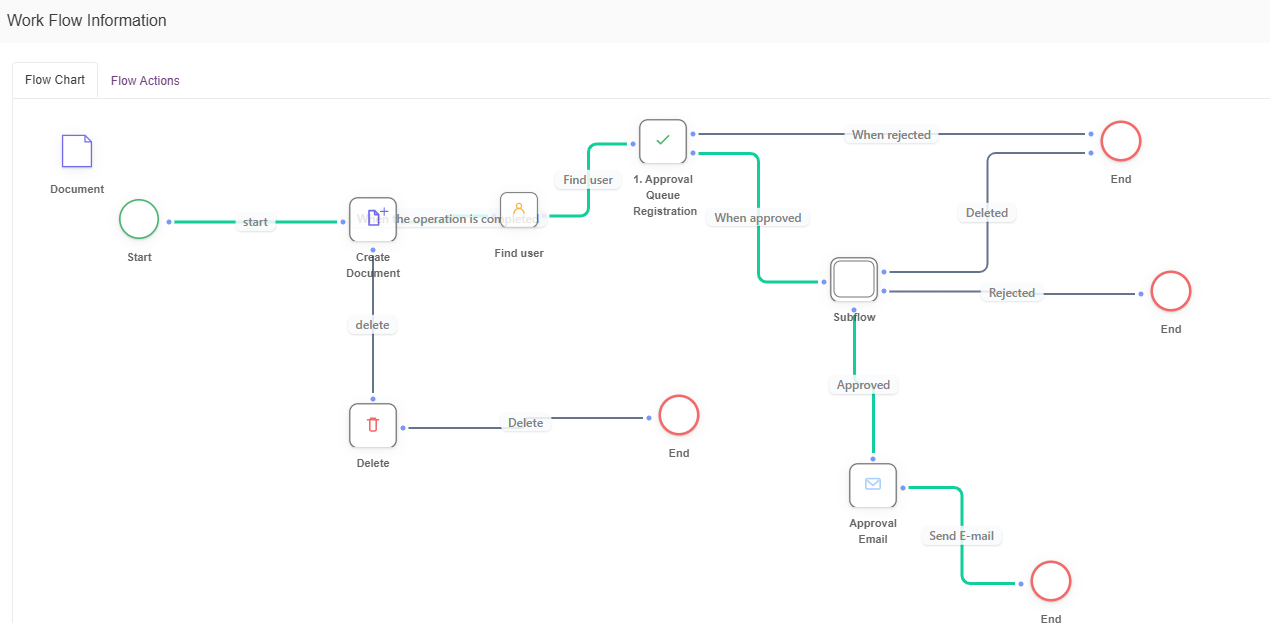
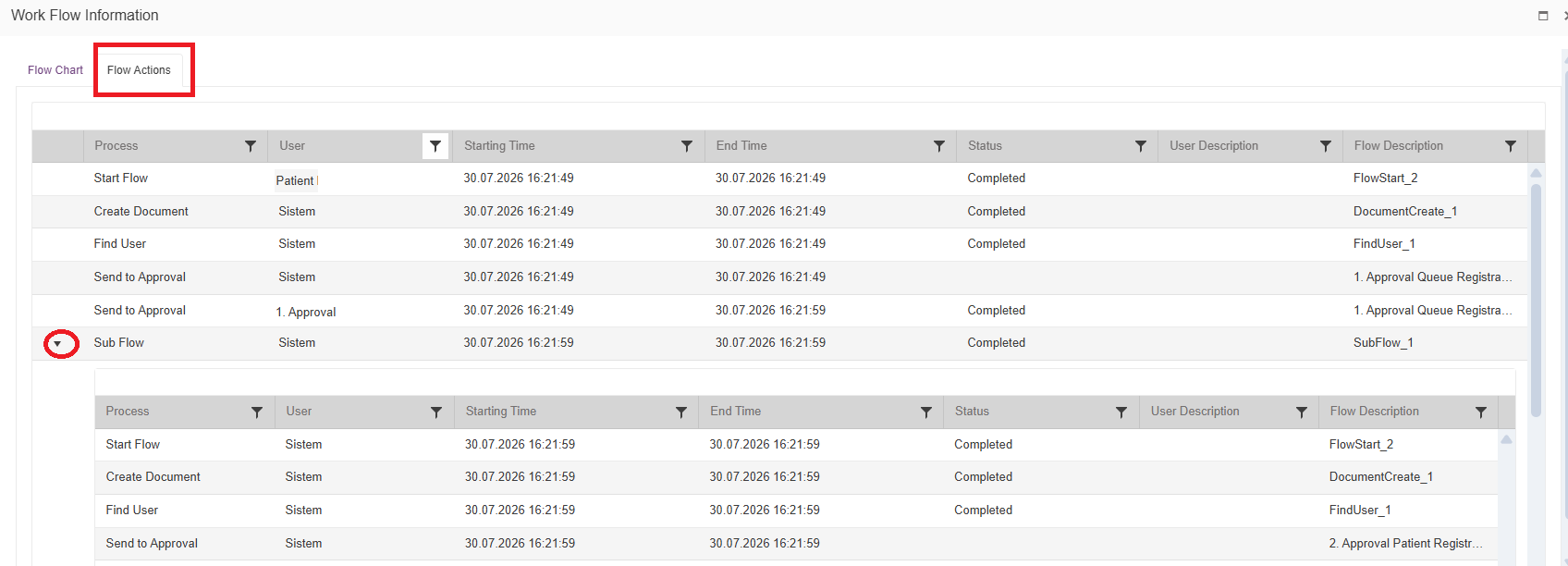
The Flow Actions located in the side tab will appear as follows.
 AI Assistant