Calculate Form Fieldsv5
This action allows performing Addition, Subtraction, Division, and Multiplication operations between the fields in the form.
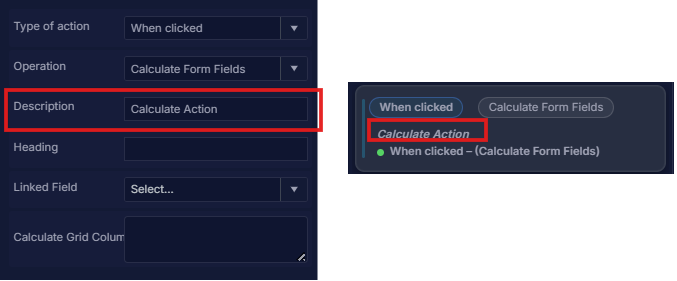
PropertiesDescription: The description related to the action is entered.
This description serves as a reference field for application developers to understand which action is used and for what purpose. The value entered here corresponds to the following field in the Actions menu.
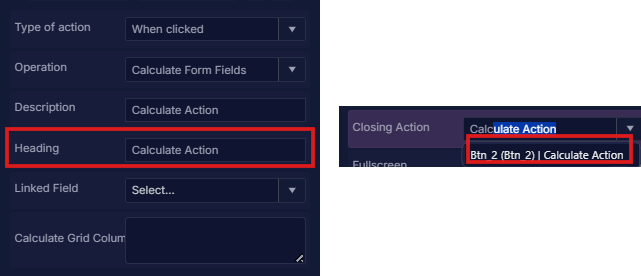
Heading: When added as a Form Action, it specifies the name displayed in the action list.
When the designed Calculate Form Fields action needs to be triggered within different actions, this text represents the name displayed in the selection field.
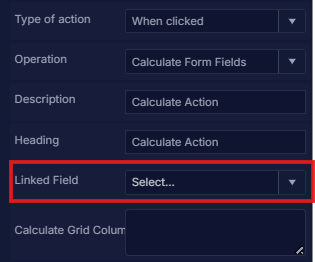
Linked Field: This is the field where the result of the calculation will be written.
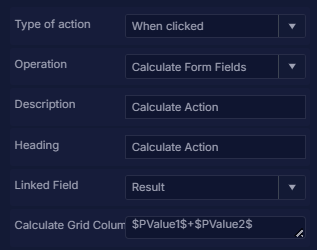
Calculate: The calculation is performed in this field.
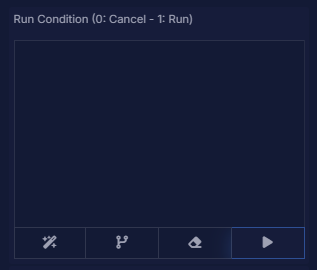
Run Condition: If the value returned from the query entered in this field is "0", the related action will not be executed.
Request Confirmation: Select whether a confirmation request should be used before running the action. If Request Confirmation is enabled, the Confirmation Message property becomes available, and the message to be displayed during the confirmation step can be entered.
Example Usage
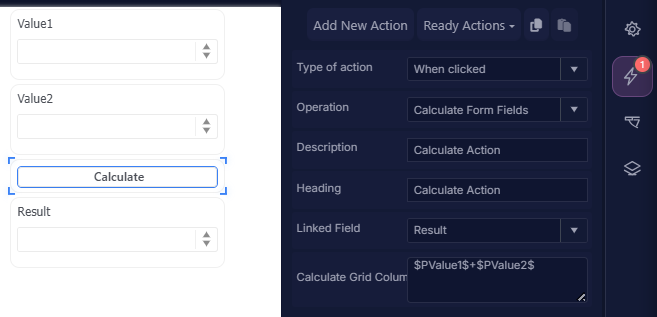
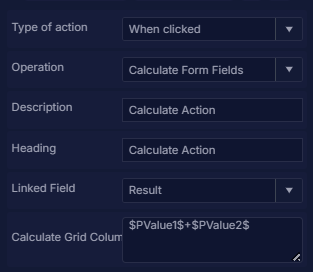
Add 3 Figure Boxes and 1 Button to the form. Add the Calculate Form Fields action to the button events.
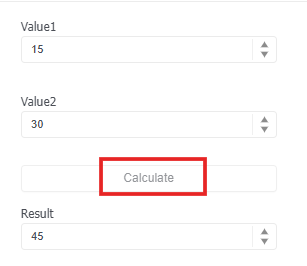
When the button is clicked, the values in the Value 1 and Value 2 fields are added together and written into the Result field.
Example Usage:
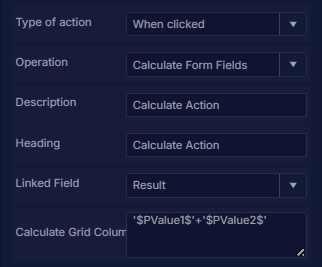
Values are entered within quotation marks.
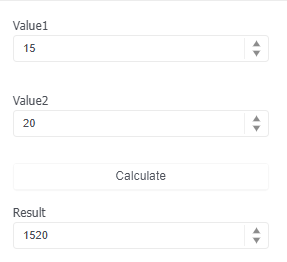
Since the quotation marks were not removed, the Value 1 and Value 2 fields were treated as string values and concatenated, updating the Result field.
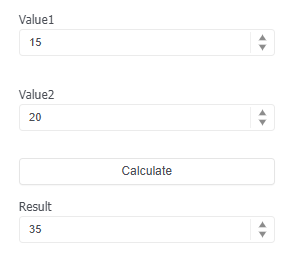
The quotation marks were removed from the values in the same example.
After removing the quotation marks, the client screen is displayed as shown below. |


 AI Assistant