Go to Urlv5
This action opens the link specified in the action properties in a separate tab.

Properties
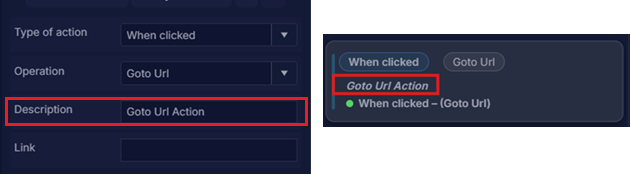
Description:
A description of the action is entered.
This description serves as a reference field for developers to understand the purpose of the action and where it is used. The value entered here corresponds to the related field displayed in the Actions menu.
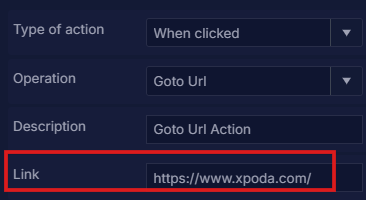
Link:
The URL to be opened is entered in this field.
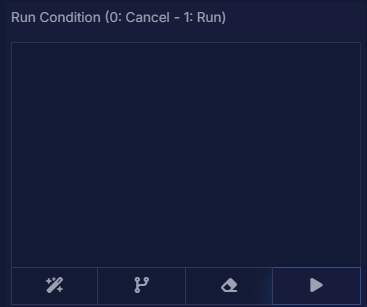
Run Condition:
If the value entered in this query is "0", the related action will not be executed.
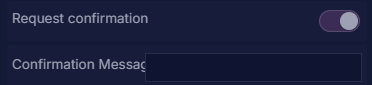
Request Confirmation:
Determines whether confirmation is required before running the action.
If Request Confirmation is enabled, the Confirmation Message property becomes available and the message displayed during the confirmation request can be entered.
Example Usage 1
When you want to navigate to a website, you can assign the Go to URL action to a button using the When Clicked event.
The website URL can be entered into the Link field.
| Note: The URL must start with the https:// prefix. |
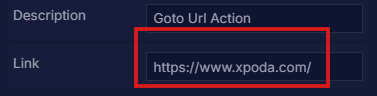
When the button is clicked, the related website opens in a new browser tab.

The website is opened from the Client screen as shown below.

Example Usage 2
When you want to access files located in the Uploads folder through a link, the Link field should be filled in as follows:
https://clienturl/Uploads/deneme.pdf
Then, a button is added and the Go to URL action is assigned to this button.

| Note: The action must be saved using its own Save button. |
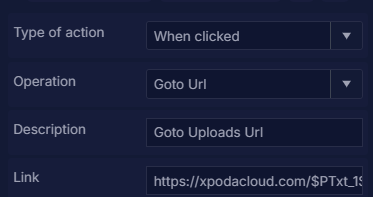
After saving the form and running the project using the Run button, the screen will appear as follows. To access the deneme.pdf file located in the Uploads folder, enter the URL into the Uploads Link field.

When the button is clicked, the file will be opened as shown below.
Note: |
 AI Assistant