Grid - Duplicate Rowv5
The Grid – Duplicate Row action duplicates the selected row in the grid. When used with a detail table, the selected row is copied as a new row in the grid. If the duplicated row is opened for editing, the updated values are temporarily stored in memory until they are added to the grid.

Properties
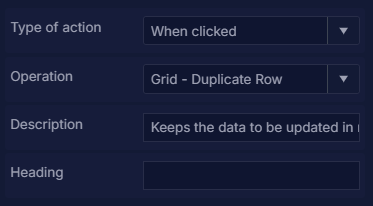
Description:
Enter a description for the action.
Heading:
Specifies the name displayed in the action list when the action is added as a Form Action.
Run Condition:
If the SQL query entered in this field returns '0', the action will not be executed.
Request Confirmation:
Determines whether the user is prompted for confirmation before the action is executed. If enabled, the Confirmation Message property becomes available, allowing you to specify the message displayed to the user.
Example Usage
Assume your form contains several input controls, a Grid, and three buttons configured with the following actions:
- Grid – Add Row
- Grid – Row Update
- Grid – Duplicate Row
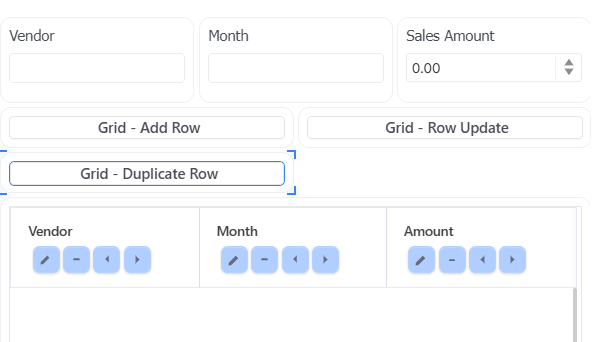
Configure the Grid – Duplicate Row action as shown below.
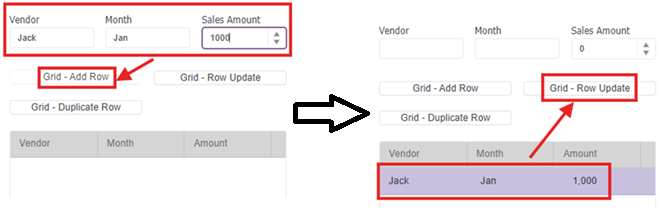
First, enter values into the form controls and click the Grid – Add Row button. The entered values are added as a new row in the grid.
To modify an existing row, select the row in the grid and click the Grid – Row Update button.
Client view
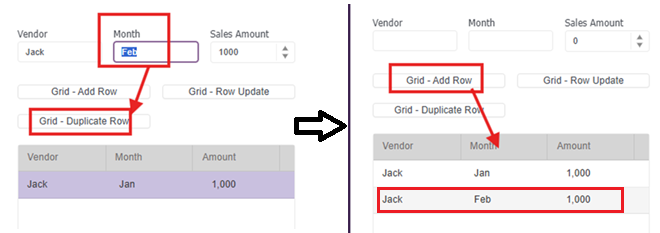
The values from the selected row are loaded into the form controls. Modify the required values, then click the Grid – Duplicate Row button. The updated data is stored temporarily in memory.
Finally, click the Grid – Add Row button. The data stored in memory is added to the grid as a new row, creating a duplicate of the original row with the updated values.
Client view
 AI Assistant