Open Print Designv5
The Open Print Design action is used to create print designs for forms such as Reports and Lists, which do not store records in the database but display data retrieved from existing records. It opens the print design editor, allowing users to create and manage output templates for these forms.

Properties
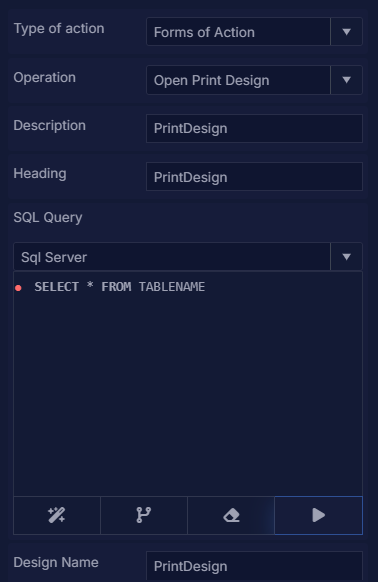
Description: Enter a description of the action. This field serves as a reference for developers to describe the purpose of the action.
Heading: Specifies the name displayed in the Form Actions list when the action is added to a form.
SQL Query: Enter the SQL query that will be used as the data source for the print design.
Design Name: Specifies the name of the print design to be created.
Run Condition: If the SQL query entered in this field returns 0, the action will not be executed.
Request Confirmation: Determines whether the user should be asked for confirmation before the action is executed.
When enabled, the Confirmation Message property becomes available, allowing you to define the confirmation message displayed to the user.
Example Usage
The Open Print Design action is typically used together with Form Action events to create print templates for forms such as reports and lists.
For example:
- Add a button to the form.
- Assign the Open Print Design action to the button's When Clicked event.
- Enter a name in the Design Name property.
- Optionally, specify an SQL query in the SQL Query property to provide the data source for the print design.
- Save and run the form.
When the button is clicked, the Print Design opens, allowing you to create a new print template.
After the design is saved, it becomes available in the Report File List window, which can be accessed through Form on the Client screen.
Selecting the saved design from the list reopens it in the Print Design Editor for further modification.
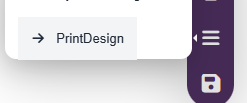
Client view
 AI Assistant