Show Flowv5
The Show Flow action opens the workflow tracking screen if a workflow action exists for the selected record of the related form.
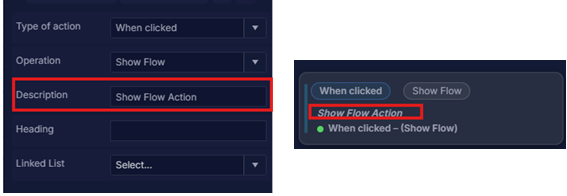
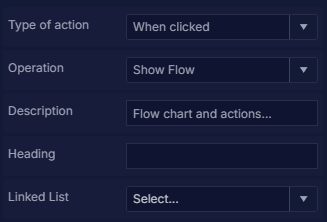
Show Flow Action in the Toolbox PropertiesDescription: Enter a description for the action. This description serves as a reference for application developers, helping them identify the purpose of the action and understand why it was used. The value entered here is displayed in the corresponding field in the Actions menu.
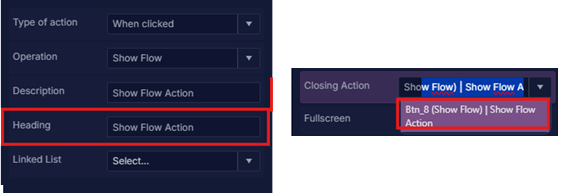
Heading: Specifies the name displayed in the Actions list when the action is added as a form action. When the designed Show Flow action is triggered from another action, this value represents the text displayed in the selection list.
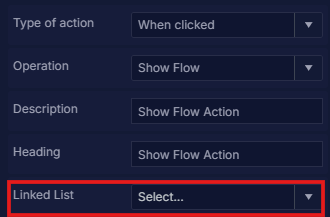
Linked List: Selects the list containing the workflow records defined in the form.
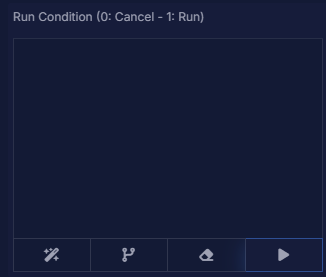
Run Condition: If the query entered in this field returns 0, the action will not be executed.
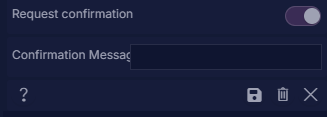
Request Confirmation: Select whether confirmation should be requested before the action is executed. When Request Confirmation is enabled, the Confirmation Message property becomes available, allowing you to specify the message displayed in the confirmation dialog.
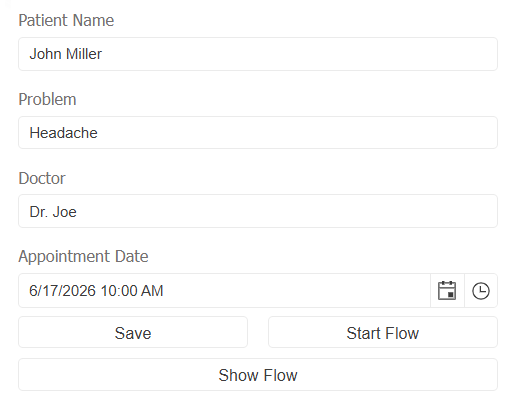
ExampleAssume that there is a Patient–Doctor Appointment form. When an appointment is created, a workflow is started.
A button configured with the When Clicked → Show Flow action must be added to the form.
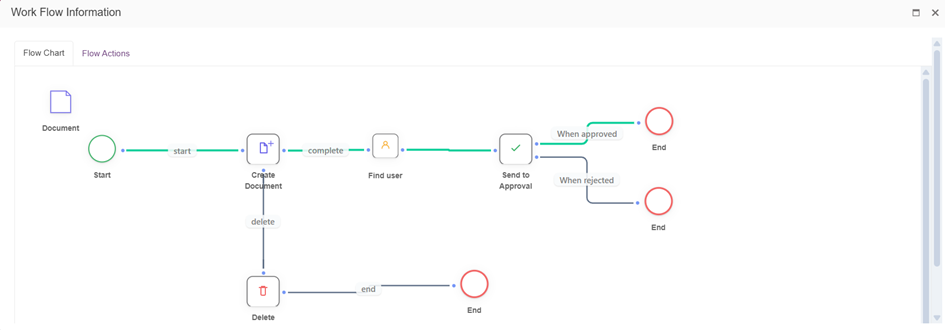
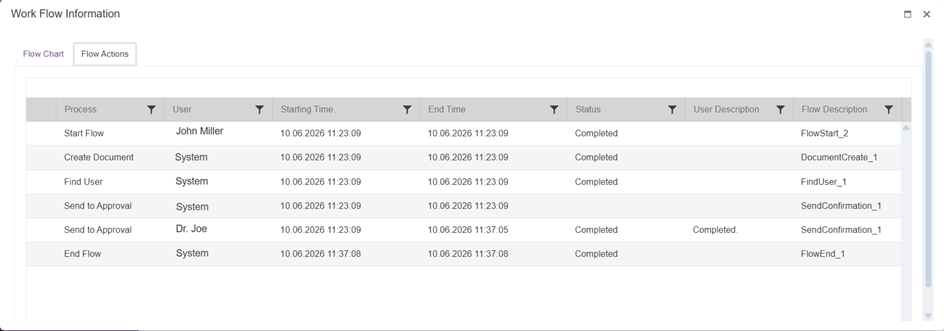
When a record is loaded on the screen, click this button. A window similar to the one below is displayed. This window shows the workflow diagram and indicates the current step of the workflow.
Workflow movements can be viewed from the Flow Actions section
Note : When using this action, the record whose workflow you want to view must be loaded into the form. Note : If you want to view the workflow of a record selected from a list, the list must be assigned in the Linked List property. The following fields must be included in the list data source:
Select |

 AI Assistant