Show Inline Datav5
The Show Inline Data action allows a new list to be displayed within each row of an existing list. The newly opened inline list can contain additional nested lists depending on the process sequence.

Show Inline Data Action in the Toolbox
Properties
Description: Enter a description for the action.
Heading: Specifies the name displayed in the Actions list when the action is added as a form action.
Control Query: Specifies the SQL query used to retrieve the inline data.
Formatting (Field | Criteria | Value | Type | Colors | Cell (0-1)): Applies the specified color formatting based on field values.
For example:
Quantity|==|0|0|Redapplies red text formatting when the Quantity value is equal to0.Quantity|==|0|1|Redapplies a red background color to the cell when the Quantity value is equal to0.
Sub Total (Field | Operation (Count, Sum, Min, Average) | Text): Displays summary information below the list.
For example:
Quantity|Sum|Total Quantity
This displays the total quantity value below the list.
Paging: Enables pagination for the list.
Hide Column Heading: Hides the column headers of the list.
File Menu: Adds a toolbar to the list header for downloading and viewing files within the list.
Run Condition: If the query entered in this field returns 0, the action will not be executed.
Request Confirmation: Select whether confirmation should be requested before the action is executed. When Request Confirmation is enabled, the Confirmation Message property becomes available, allowing you to specify the message displayed in the confirmation dialog.
Example
In this example, there are two separate screens:
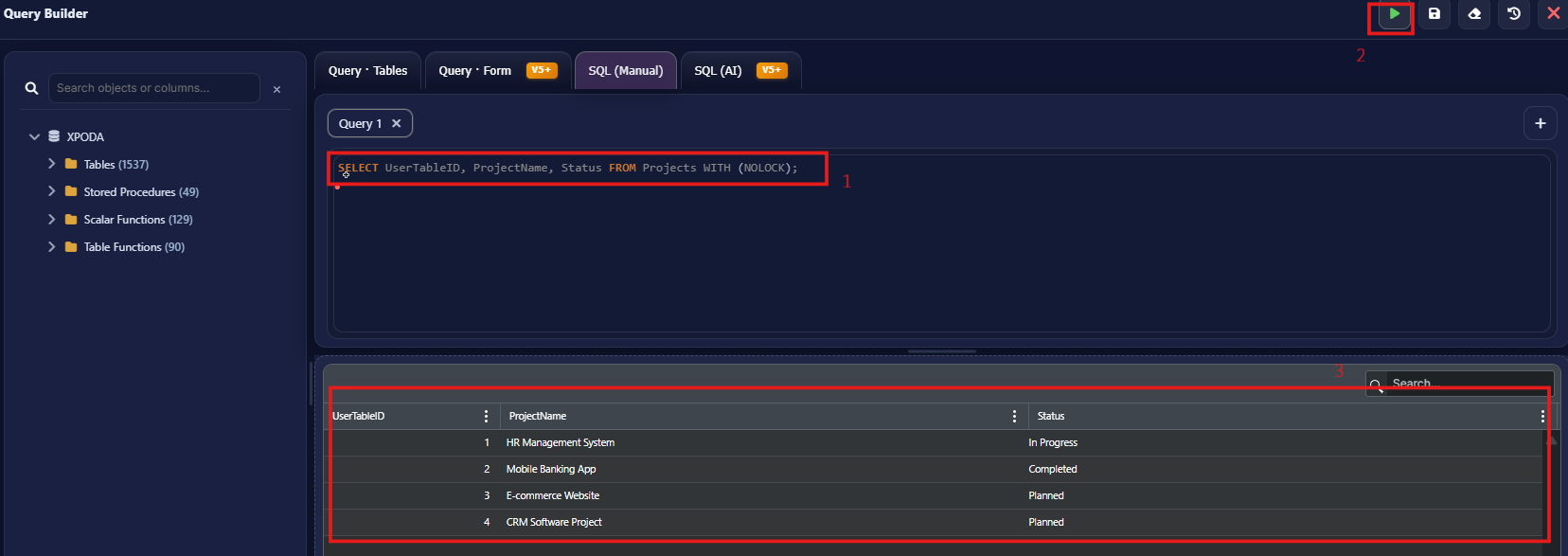
- A screen where projects are entered.
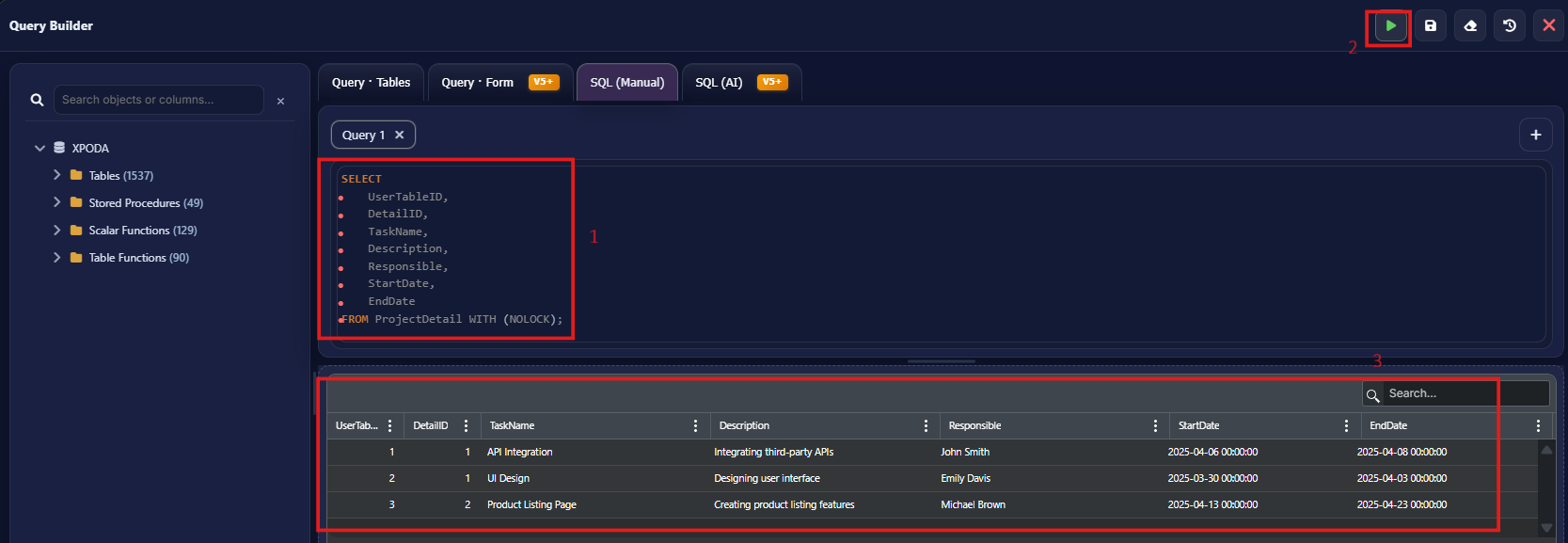
- A screen where project details are entered.
The data retrieved from the project details table is displayed as a nested list under the main project list.
Project Entry Screen and Table
Project Detail Entry Screen and Table
Create a new form with the Report type and drag a List control onto the form.
The list query is configured to display projects. The query is shown below.
Then select the list control, add the Show Inline Data action, and enter the query that will display project details as an inline list in the Control Query field.
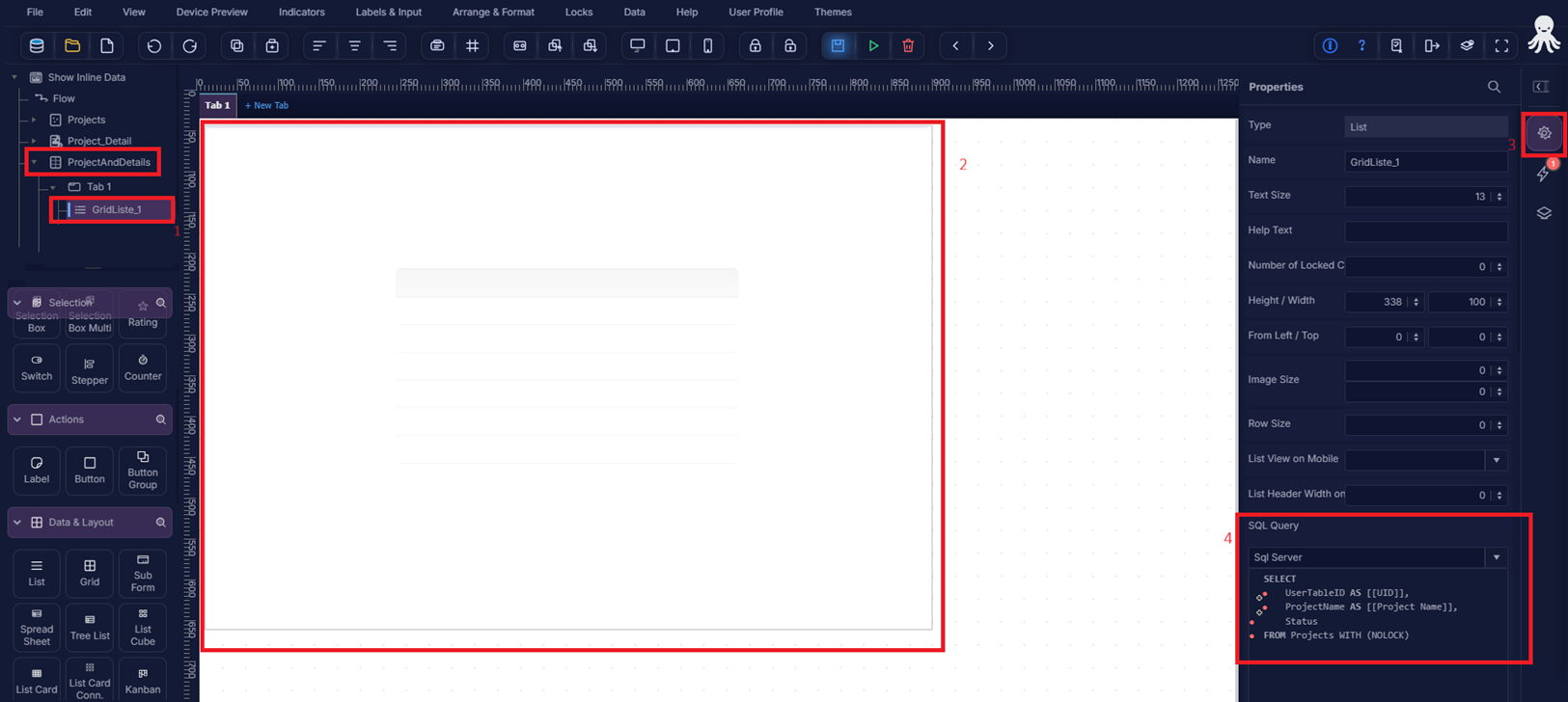
List Query
SELECT
UserTableID AS [|UID],
ProjectName AS [Project Name],
Status
FROM Projects WITH (NOLOCK)
A unique alias must be assigned to the UserTableID field in the list query. This prevents conflicts with the ID field used in the query defined inside the Show Inline Data action. |
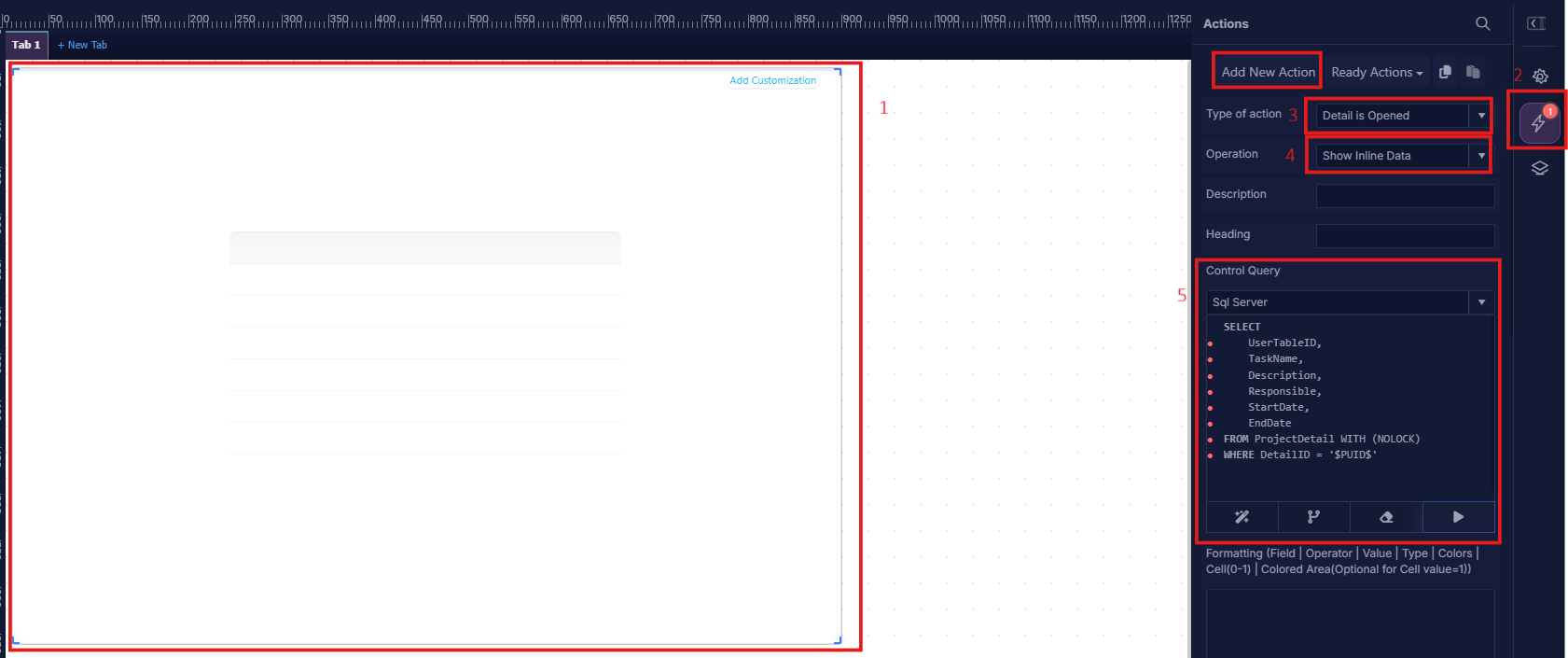
Control Query
SELECT
UserTableID,
TaskName,
Description,
Responsible,
StartDate,
EndDate
FROM ProjectDetail WITH (NOLOCK)
WHERE DetailID='$PUID$'
Save the project and then run the form to view the result on the Client screen.
Click Run to open the Client screen.
Client View:
To view the detail information belonging to a row, click the small triangle icon on the left side of the row.
For multi-row and multi-column use cases, it is recommended to enable the Paging property within the action. This makes managing multiple rows easier, more organized, and more efficient. |
 AI Assistant