Show Messagev5
The Show Message action is used to display an informational or warning message to the user.
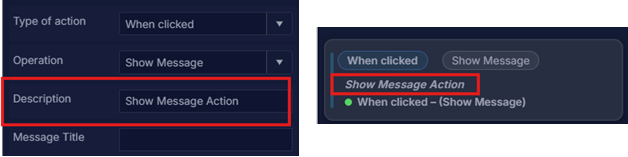
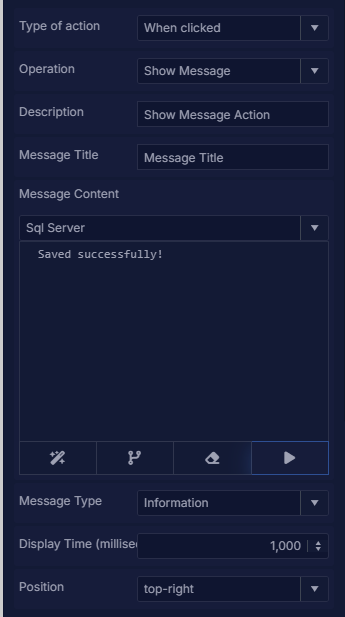
Show Message Action in the Toolbox Description: Enter a description for the action. This description serves as a reference for application developers, helping them identify the purpose of the action and understand why it was used. The value entered here is displayed in the corresponding field in the Actions menu.
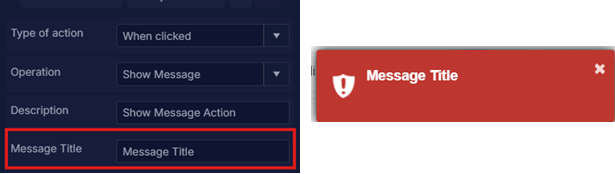
Message Title: Specifies the title of the message to be displayed.
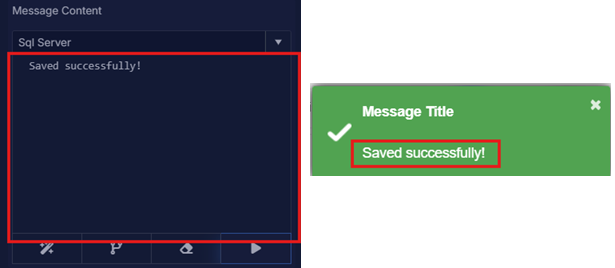
Message Content: Specifies the message text to be displayed. The content can be entered manually or dynamically retrieved using an SQL query.
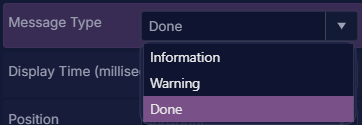
Message Type: Specifies the type of message to be displayed:
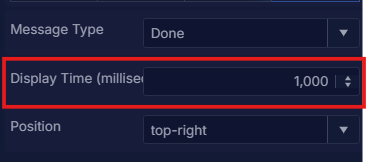
Display Time: Specifies how long the message remains visible on the screen.
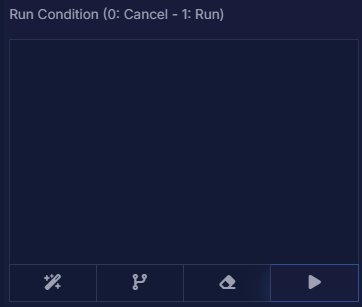
Run Condition: If the query entered in this field returns 0, the action will not be executed
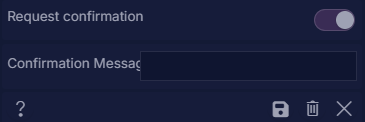
Request Confirmation: Select whether confirmation should be requested before the action is executed. When Request Confirmation is enabled, the Confirmation Message property becomes available, allowing you to specify the message displayed in the confirmation dialog.
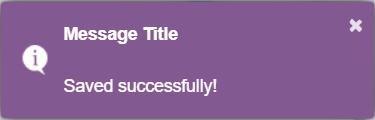
ExampleFor example, add a Save action to a button and then add a Show Message action after it. The Show Message action displays a message on the Client screen according to the value defined in the Message Content field.
After the document is saved, the configured message is displayed on the Client screen.
|


 AI Assistant