Update Gridv5
The Update Grid action updates field values within a Grid control.

Update Grid Action in the Toolbox
Properties
Description: Enter a description for the action.
Heading: Specifies the name displayed in the Actions list when the action is added to a form.
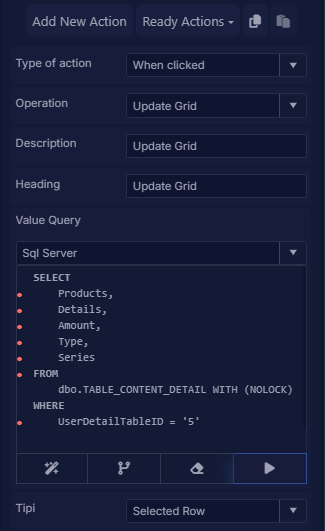
Value Query: Specifies the SQL query used to update the grid values.
Type: Specifies whether the update should be applied to Selected Rows or All Rows.
- Selected Rows: Updates only the selected row(s) using the values returned by the SQL query.
- All Rows: Updates every row in the grid using the values returned by the SQL query.
Run Condition: If the query entered in this field returns 0, the action will not be executed.
Request Confirmation: Select whether confirmation should be requested before the action is executed. When Request Confirmation is enabled, the Confirmation Message property becomes available, allowing you to specify the message displayed in the confirmation dialog.
Example
Assume that a form contains a Grid control and a Button.
The button is configured with the When Clicked → Update Grid action.
Enter the required SQL statement in the Value Query property and set the Type property to Selected Rows.
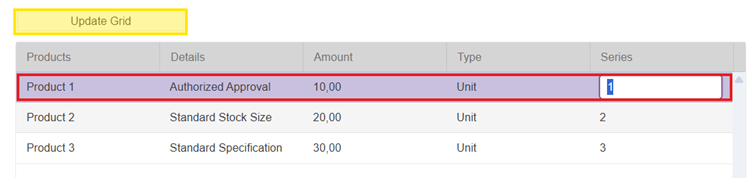
On the Client screen, select a row in the grid and click the Update Grid button.
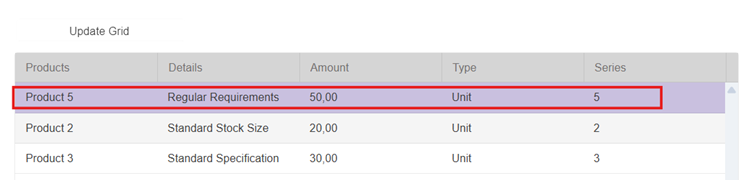
The SQL query associated with the action updates the selected row visually in the grid. The changes are reflected in the database after the record is saved.
 AI Assistant