Validationv5
This action is used to prevent the workflow from proceeding to the next action unless specific conditions are met, or to define the criteria that records must satisfy.
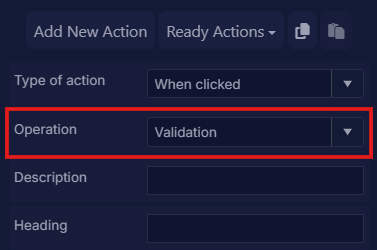
Validation Action Properties
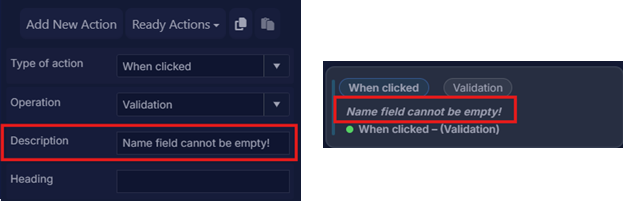
Description: Enter a description for the action.
This description serves as a reference for application developers, helping them identify the purpose of the action and understand why it was used. The value entered here is displayed in the following field within the Actions menu.
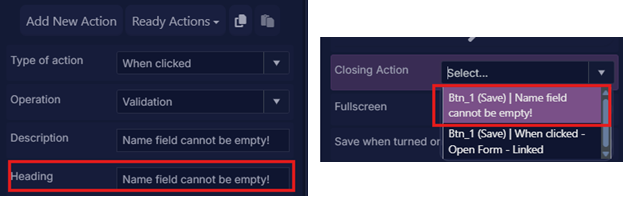
Heading: Specifies the name displayed in the Actions list when the Validation action is added to a form.
When the designed Validation action is triggered from within other actions, this value represents the text displayed in the selection list.
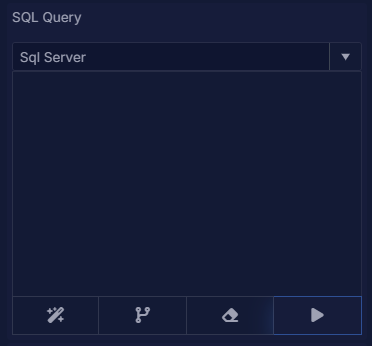
SQL Query: If the query returns 0, all processing is stopped and a warning message is displayed. If the query returns 1, the process continues.
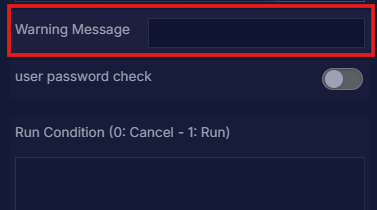
Warning Message: Specifies the message to be displayed when the validation condition is not met.
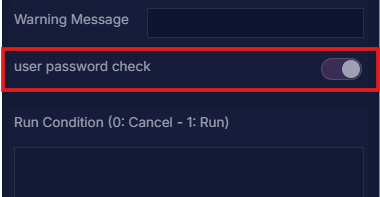
User Password Check: Enables user authentication by requiring the user to enter their username and password before the action can be executed. Click for an example.
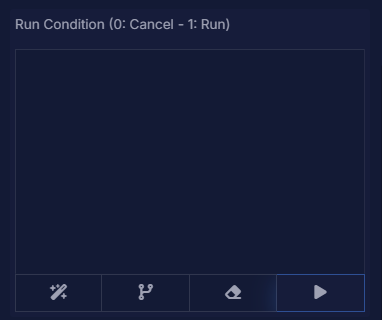
Run Condition: If the query entered in this field returns 0, the corresponding action will not be executed.
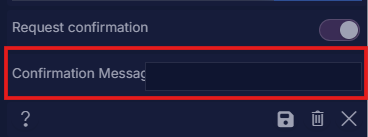
Request Confirmation: Select whether a confirmation should be requested before the action is executed. When Request Confirmation is enabled, the Confirmation Message property becomes available, allowing you to specify the message displayed in the confirmation dialog.
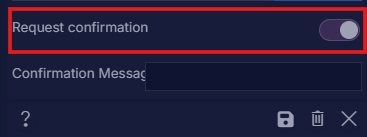
Confirmation Message: Specifies the message displayed in the confirmation pop-up window when confirmation is requested.
| Note: The execution order of actions in XPODA is important. When a Validation action is triggered, it prevents the execution of any subsequent actions if the validation fails. Therefore, any actions that must always run should be placed before the Validation action in the action sequence. |

──────────────────────────────
Example 1
A form contains a text box where users enter their phone number. Before the form is saved, the phone number length must be validated.
Select Validation from the Operation field and enter an SQL query in the SQL Query field. The query must return either 0 or 1.
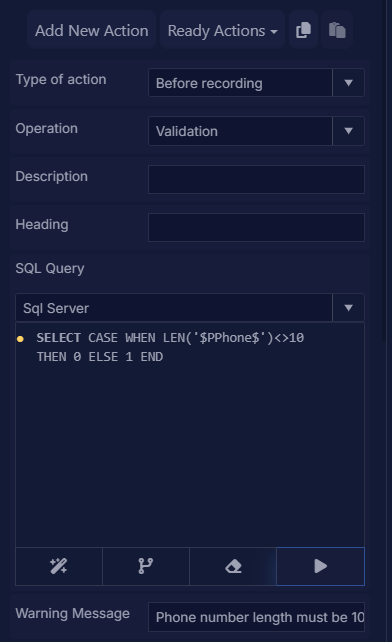
In this example, the phone number must contain 10 digits, so the SQL query is written accordingly.
If the user enters only 2 digits in the phone number field, a validation error is displayed.
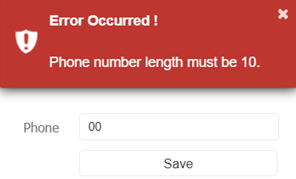
Although the warning message is shown, the record cannot be saved until the validation succeeds.
──────────────────────────────
Example 2
Using User Password Check
Add three controls to the form:
- A Drop-down Box
- A Text Box
- A Button
Use the Drop-down Box to list users from the XPODA_CLIENT_USERS table. Enable the Selection Compulsory property so that the user must select a value.
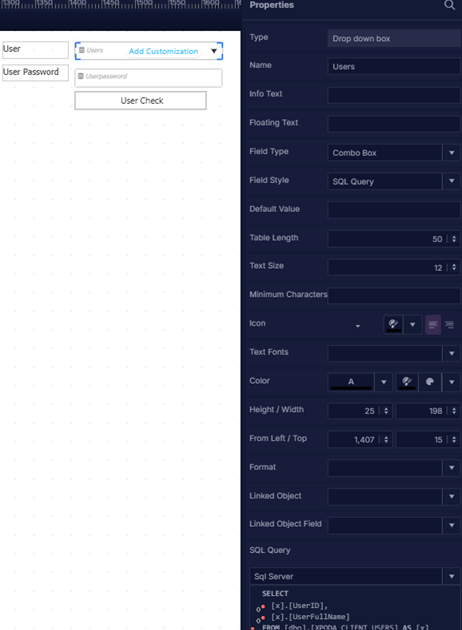

Use the following SQL query:
SELECT
UserID,
UserFullName
FROM
dbo.XPODA_CLIENT_USERS WITH (NOLOCK)
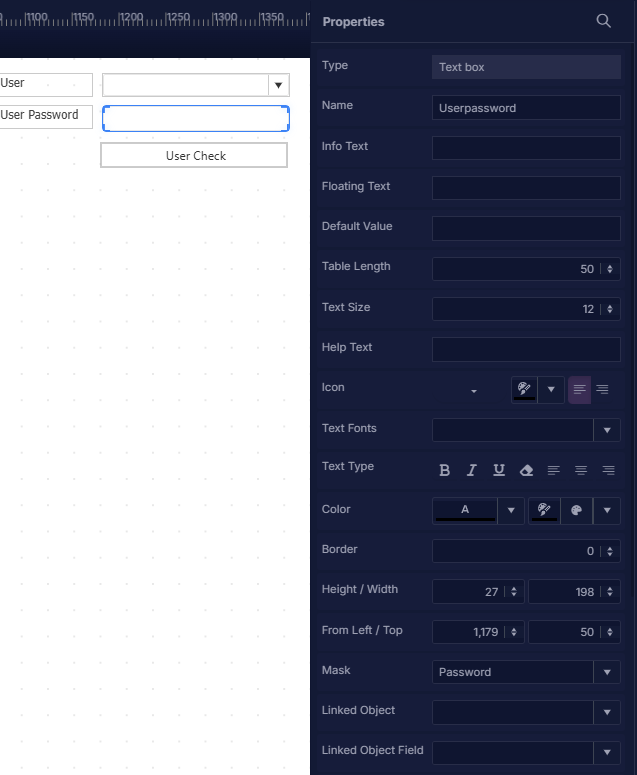
Add a Text Box for password entry. Set its Mask property to Password so that the entered characters are displayed as asterisks.
Add a Button to validate the user credentials. Assign two actions to the button:
- Validation
- Show Message
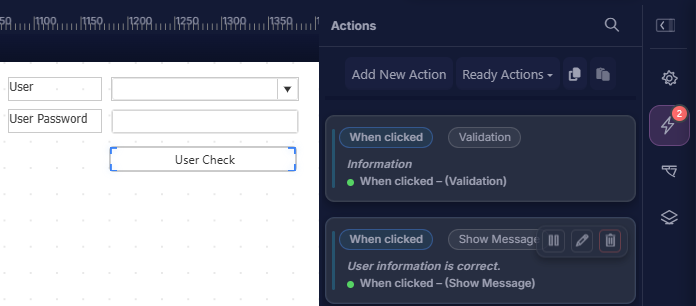
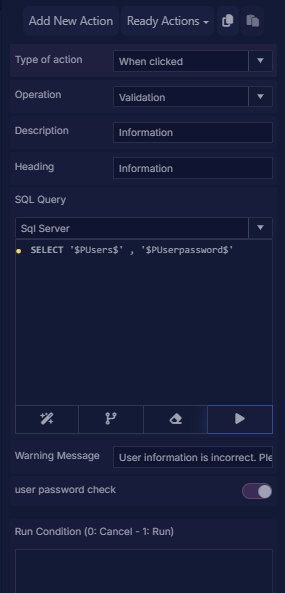
In the Validation action, enable the User Password Check property.
Enter the following query in the SQL Query field:
SELECT '$PUsers$' , '$PUserpassword$'
The first column represents the field containing the UserID, and the second column represents the field containing the password.
Set the Warning Message to:
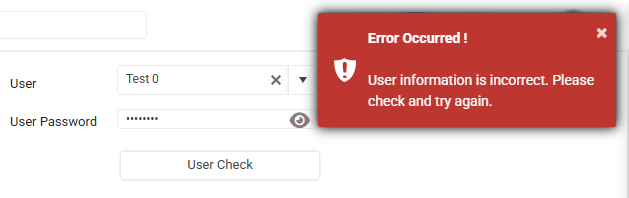
“User information is incorrect. Please check and try again.”
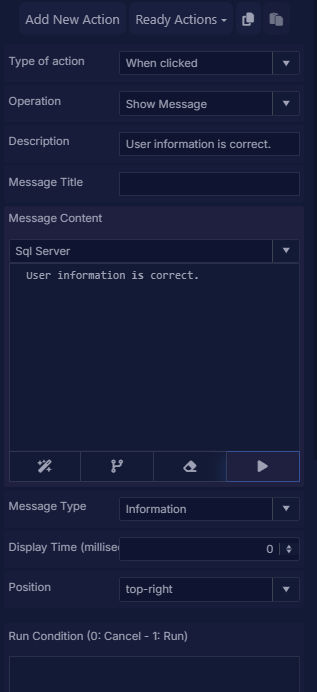
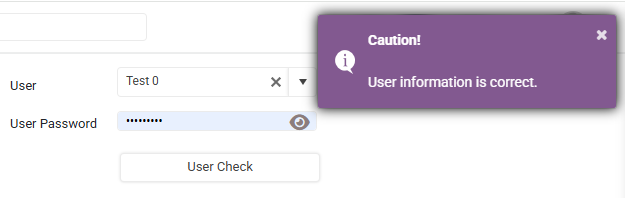
If the validation succeeds, execute the Show Message action and display the following message: User information is correct.
After adding the form to the Client menu, the user selects a user from the drop-down list, enters a password, and clicks the button to start the validation.
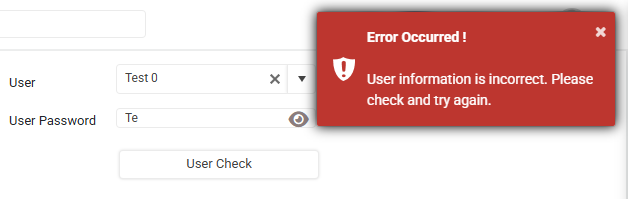
- If an incorrect password is entered, the validation fails and the warning message is displayed.
If the password field is not masked, the entered password is displayed as plain text.
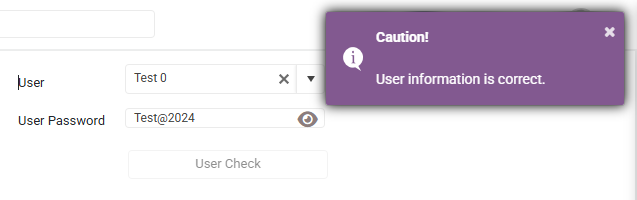
If the correct password is entered, the validation succeeds, the Show Message action is executed, and the message "User information is correct." is displayed.
If the password field is not masked, the password remains visible in plain text.
──────────────────────────────
Example 3
If the second value returned by the SQL query in the Validation action contains an error message, that message can be displayed dynamically on the screen. This allows the error message to be generated directly by the SQL query.
In this example, the action is executed through:
On Value Change → Validation
Example SQL query:
SELECT CASE WHEN '$PActiveUser$' = 1 THEN 1 ELSE 0 END,
'An error occurred' WHERE CASE WHEN '$PActiveUser$' = 1 THEN 1 ELSE 0 END=0
UNION ALL
SELECT 1 , ''
 AI Assistant