User Informationv5
The User Information section is used to create and manage user accounts. From this area, user details, login settings, permissions, and initial screen definitions can be configured.
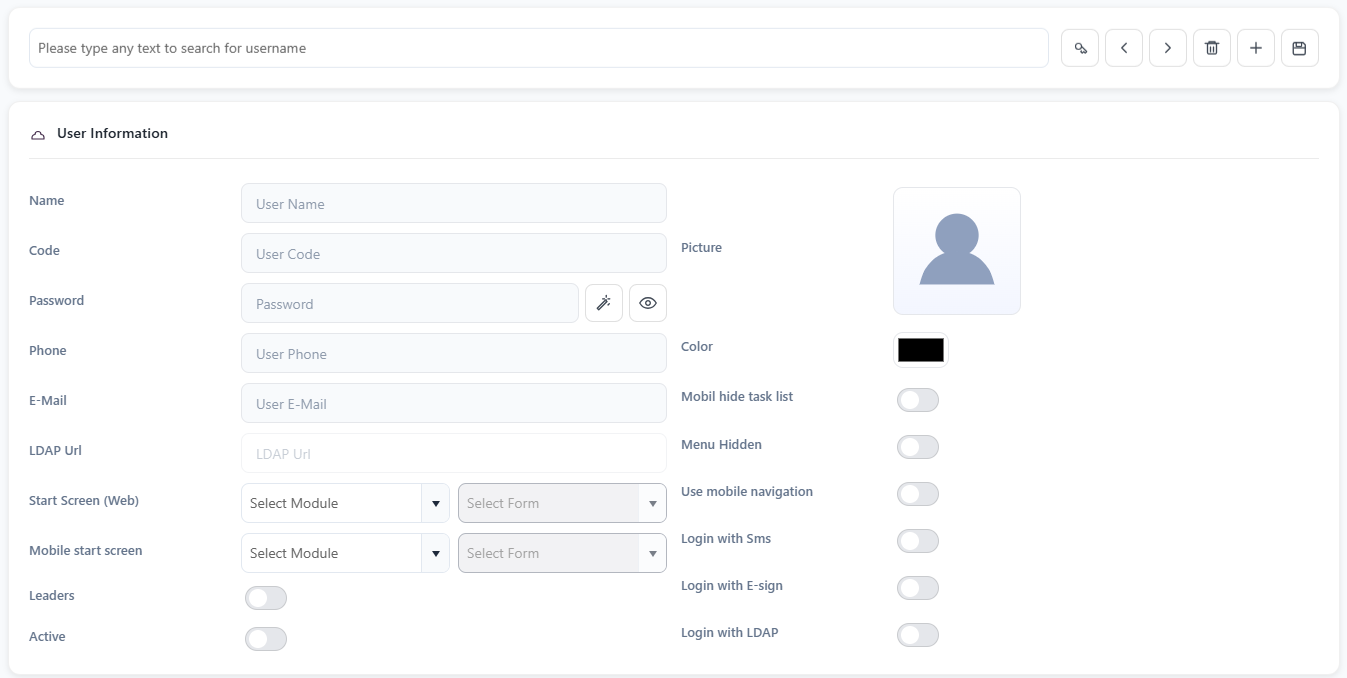
To create a new user, the following fields are required:
Name:
Enter the user’s full name.
Code:
The username used to log in to the Client application. It must be unique for each user.
Password:
The password used to log in to the Client application. The password must be at least 8 characters long and contain at least one uppercase letter, one numeric character, and one special character.
Start Screen (Web):
Select the Module and Form that will be displayed when the user logs in to the web application.
Active:
This option must be enabled to allow the user to log in to the system.
To update an existing user’s information or menu permissions, select the relevant user from the drop-down list labeled “Please type any text to search for username”. After selecting the user, the required changes can be made and saved.
Field Descriptions
Name:
The user’s full name is entered.
Code:
The username used when logging in to the Client application. It must be unique.
Password:
The password used for Client login. It must be at least 8 characters long and include at least one uppercase letter (A-Z), one number (0-9), and one special character.
Phone:
The user’s phone number is entered. It can be used for SMS verification processes.
E-Mail:
The user’s e-mail address is entered. Notifications and system-generated e-mails are sent to this address.
LDAP URL:
The connection address of the LDAP server used for authentication. This field must be configured if LDAP authentication is enabled.
Picture:
A profile picture can be uploaded for the user.
Color:
Defines the color information assigned to the user.
Start Screen (Web):
Defines the initial form that will be displayed after the user logs in through the web client.
Mobile Start Screen:
Defines the initial form that will be displayed after the user logs in through the mobile application.
Leader (Admin):
When enabled, the user gains access to the Admin panel.
Active:
Determines whether the user account is active or inactive. Inactive users cannot log in.
Mobile Hide Task List:
When enabled, the task list is hidden in the mobile application.
Menu Hidden:
When enabled, the left-side menu is hidden in the mobile application.
Use Mobile Navigation:
When enabled, menus are displayed as navigation buttons in the mobile application.
Login with SMS:
When enabled, the user can log in using SMS verification.
Login with E-Sign:
When enabled, the user can log in using electronic signature authentication.
Login with LDAP:
When enabled, user authentication is performed through the LDAP server. The LDAP URL must be configured correctly.
After entering the user information, click the Save button located in the upper-right corner to save the user.
Upper Right Corner Buttons
 Change Password: Used to define or update the password required for the user to log in to the Client application.
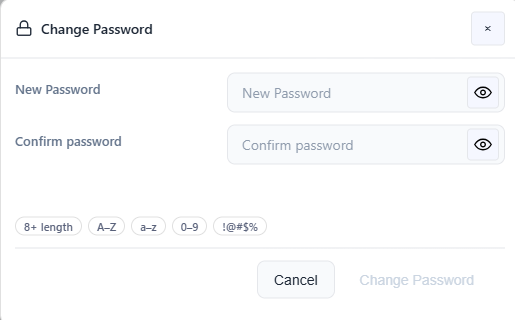
 Previous: Displays the previous user record from the current user list.
 Next: Displays the next user record from the current user list.
 Delete: Deletes the user record currently displayed on the screen. (The user must have delete permission to perform this action.)
 New: Opens a blank page to create a new user and define the user’s menu permissions.
 Save: Saves the user information and menu definitions to the system after all required configurations are completed.
 AI Assistant