Check Box Groupv5
The form tool used when more than one selection is to be made on the form page. Multiple selections can be made on the form page with this tool.
|
Appearance in Toolbox |
Appearance in Free Form |
Appearance in Responsive Form |
|
|

Compatibility
| Free Form | Responsive Form | Mobile |
Properties of the Check Box Group tool |
|
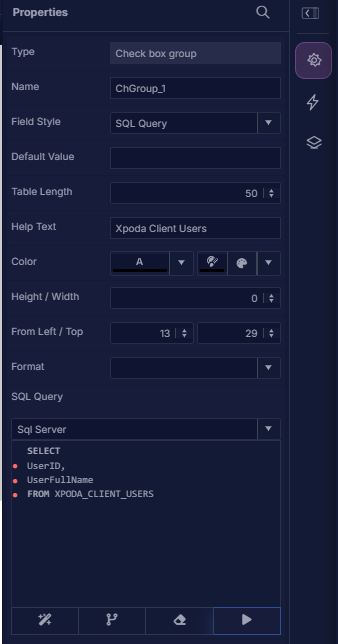
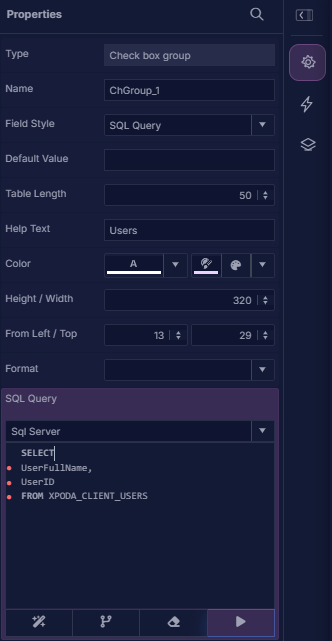
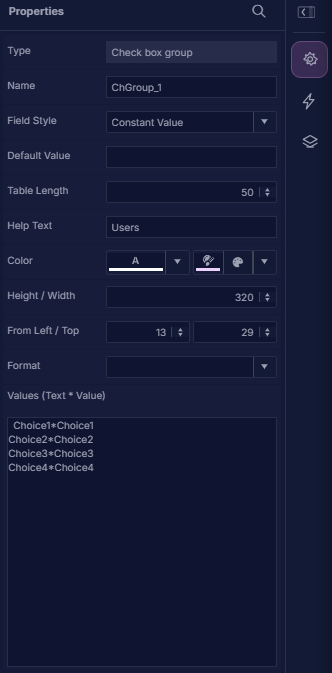
Type (Field Type): Shows the field type of the added form tool. This value cannot be changed. Name (Field Name): The name of the field to be created in the database is written here. Field Style: Choose where the values in the Check Box Group come from (constant value, SQL Query or Xpoda Addon). Default Value: The value entered here appears in the form tool on the Client screen by default. Table Length: The length of the field to be created in the database is entered. Later changes here do not affect the database. Help Text: Text shown as a description when the mouse is moved over the form tool.
Color: Sets the colour of the form tool and/or the text inside it.
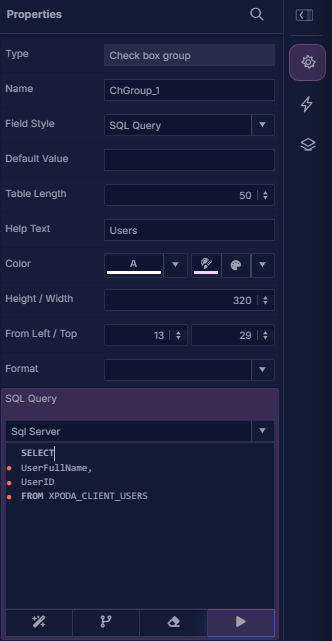
Height: Sets the height and width of the form tool (the width field has been removed from Responsive Forms). Format: Choose the type (Int, Decimal, Varchar...) in which the information is saved to the database after saving. Values: This field changes according to the choice made in Field Style. When Constant Value is chosen, values must be written one per line. The part after * is created by the field itself. The part after the * character is the value kept in the database; a different value can be assigned here if desired. Dynamic values can be retrieved with a query if desired. After choosing SQL Query in Field Style, add the query to the SQL Query field.
Fit Horizontal: Stretches the form tool horizontally to the full screen width on the user's screen. Pin Right: Pins the form tool to the right. Display: Hides the form tool on the Client screen. Form Only: Keeps the information entered in the form tool only in the form without saving it to SQL. Later changes here do not affect the database. Vertical: Shows the added options side by side.
|
Actions that can be used in Check Box Group
Each form tool added to the form page has different actions. To see the actions defined for the Check Box Group tool, first select the Check Box Group field, then open the actions menu in the right panel.

The actions that can be used in Check Box Group and their details are as follows.
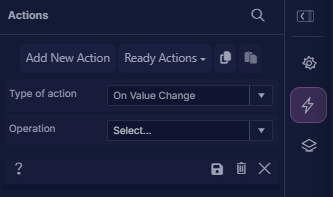
On Value Change: Runs when the value in the Check Box Group field changes.
 AI Assistant