Hidden Fieldv5
The form tool used when a field should not be visible in the form but values should still be processed in it. After this field is dragged onto the Studio screen it is visible for a few seconds, then disappears.
|
Appearance in Toolbox |
Appearance in Free Form |
Appearance in Responsive Form |
Appearance in Flexible Form |
|
|
|
|
|



Compatibility
|
Free Form |
Responsive Form |
Flexible Form |
Mobile |
|
|
|
|
|

Properties of the Hidden Field tool |
Type (Field Type): Shows the field type of the added form tool. This value cannot be changed. Name (Field Name): The name of the field to be created in the database is written here. Max. Character: The length of the field to be created in the database is entered. Later changes here do not affect the database. Description: Where a description of the field is added. Form Only: Keeps the information entered in the form tool only in the form without saving it to SQL. Later changes here do not affect the database. |
Actions that can be used in Hidden Field
Each form tool added to the form page has different actions. To see the actions defined for the Hidden Field tool, first select the Hidden Field, then open the actions menu in the right panel.
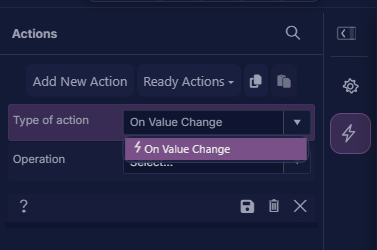
On Value Change: Runs when the value in the Hidden Field changes.
Example:
The form page contains a List. When a row is selected in the list, the detail page of the selected row should open. For this example, add a List and a Hidden Field to the form page.
Note: This example is made to use the Hidden Field. Other tools and actions can be used to open the list row detail.
After the list's query is added, the list is triggered when the form page opens.
https://support.xpoda.com/kb/tr/form/list
First, when a row is selected in the list, the hidden field must be updated with the UserTableID of the selected row. The action for this update is as follows.
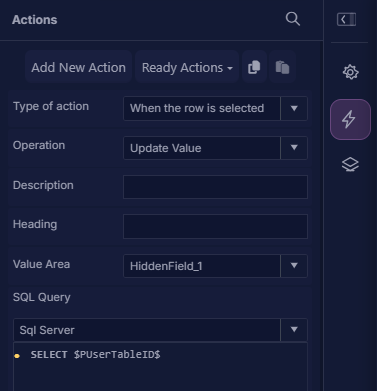
After this, click the Hidden Field to define the action.
After selecting the Hidden Field, go to the actions menu and add an On Value Change action. Choose the desired action in the Operation field.
 AI Assistant