Payment Components (Payment, Payment Transactions)v5
The Payment component adds card payment to any form designed in Studio, without code. The Payment Transactions component lists received payments and queries, refunds or voids them. Which bank is used is set by the definitions in the Client admin panel; the form design does not depend on the bank.
The article follows four steps: (1) define a provider in the admin panel, (2) build the payment form in Studio, (3) list payments, (4) pay in Client.
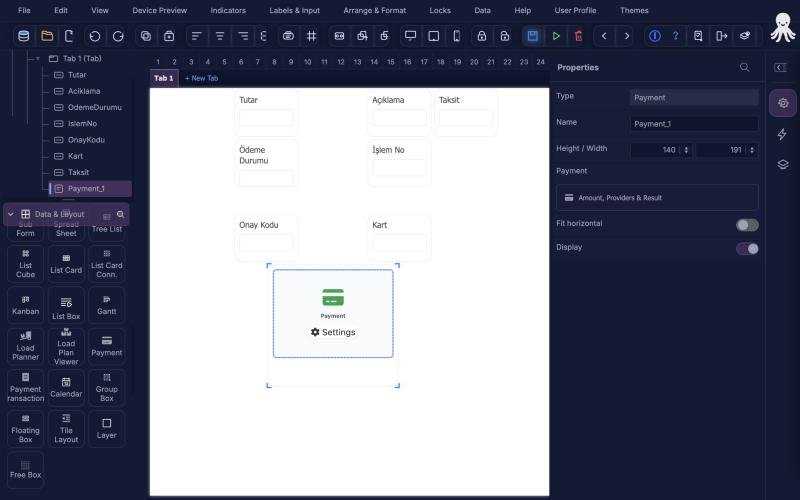
Where to find it
Compatibility
| Free Form | Responsive Form | Flexible Form | Mobile |
| ✓ | ✓ | ✓ | — |
Parts
| Part | Where | What it does |
| Payment component (84) | Studio, form | Sets amount, provider, installments and result fields; draws the payment panel in Client |
| Payment Transactions component (85) | Studio, finance form | Lists received payments; query status, refund, void |
| Action 74 Take Payment | Studio, button/event | Starts payment from any button |
| Action 75 Payment Operation | Studio, button/event | Query status, refund, void, create payment link |
| Events Payment succeeded / Payment failed or cancelled | Studio, component's Actions | Run actions based on the result |
| Admin panel → Payment | Client | Provider definitions, connection test, test payment, payment link user |
| Important - Card details never reach Xpoda. The card is entered on the bank's or payment provider's page. - A payment always starts from a saved record. The amount is read on the server from the saved record; pressing Pay saves the form first. - The Payment component has no table column. Results are written to the form fields you choose. - A Simulation provider is available for trying it out without a bank. |
1. Preparation: Client admin panel → Payment
At least one active provider must be defined. This requires Client administrator rights. The tab has three cards: Payment providers, Payment settings, Payment link.
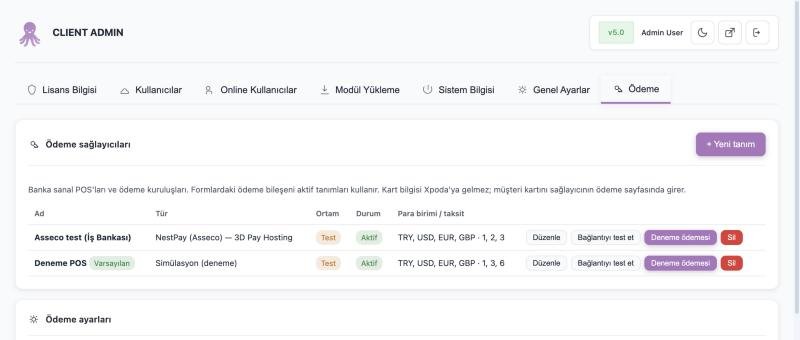
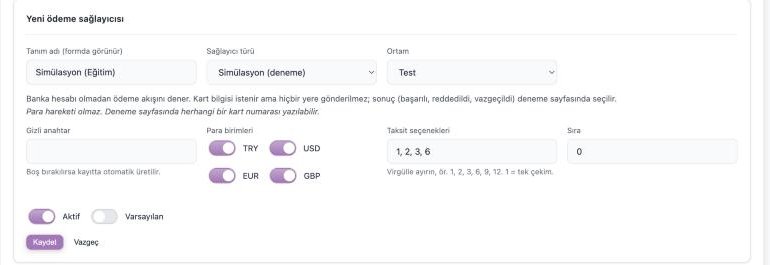
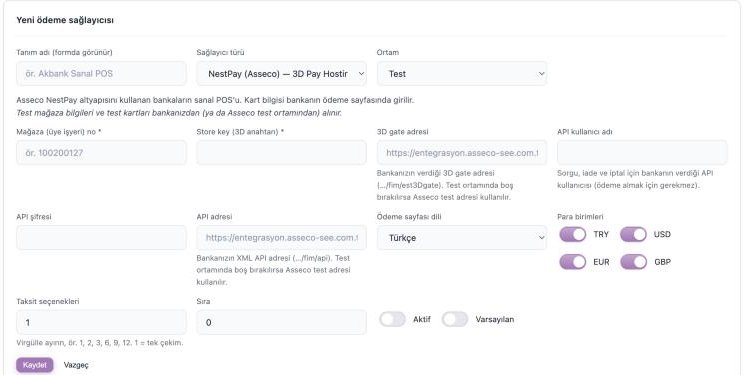
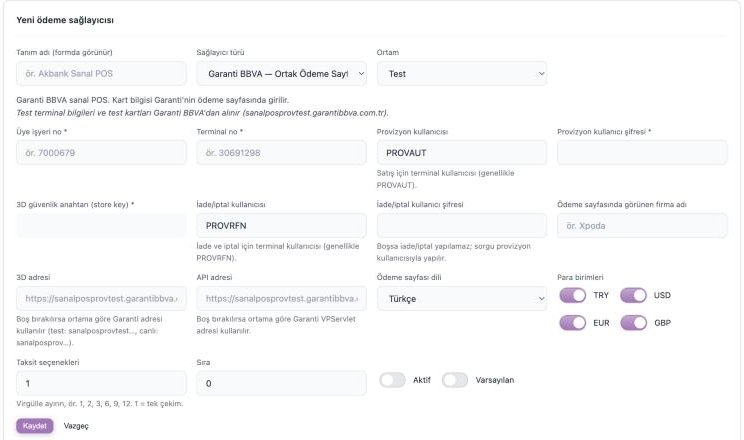
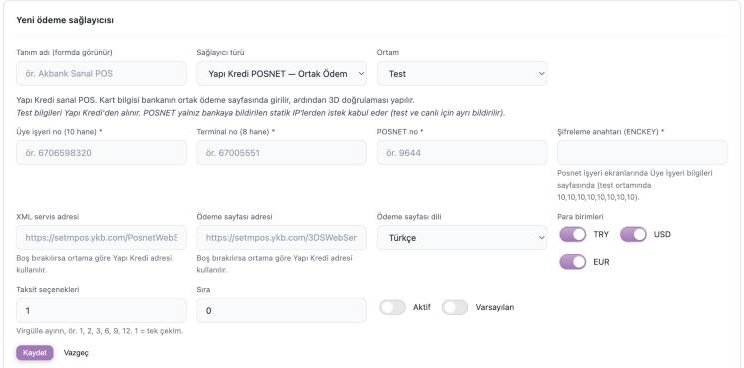
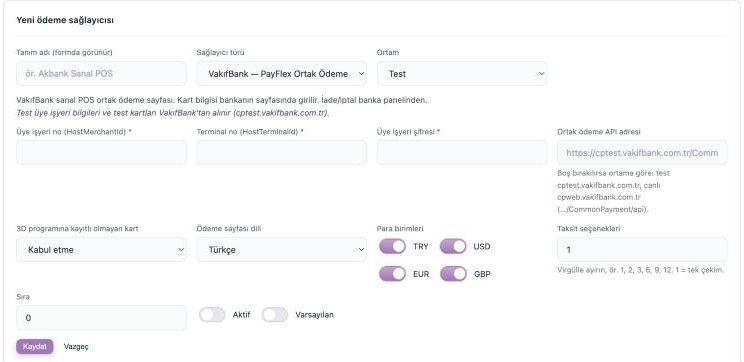
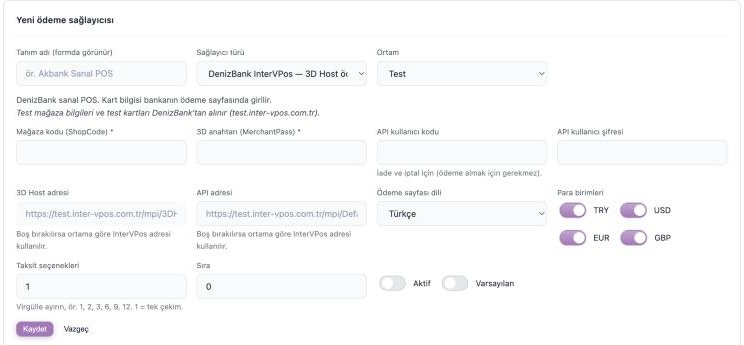
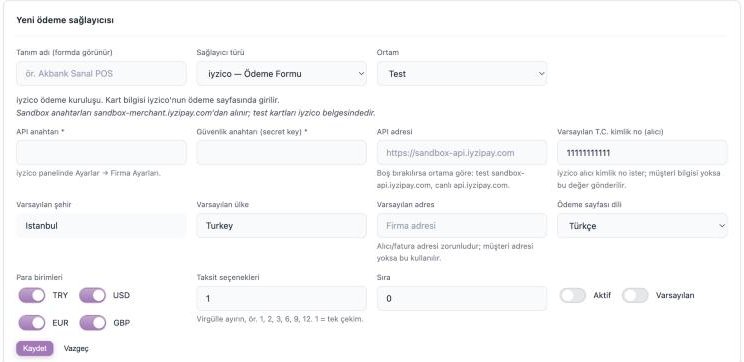
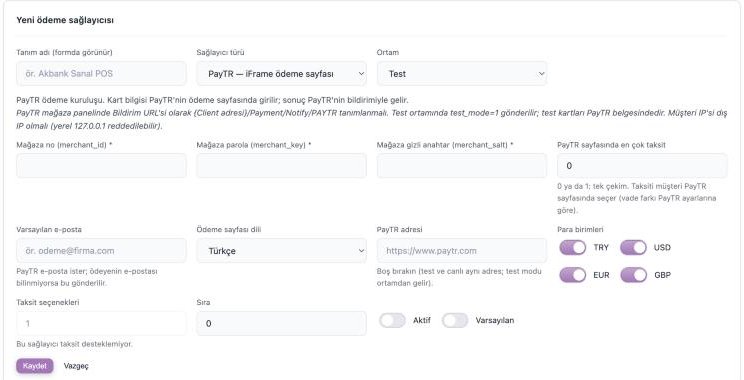
- + New definition → choose the Provider type; the form shows that type's fields.
- Definition name is the name users see in the payment panel.
- Environment: Test or Live.
- Enter the details provided by the bank. Secret fields are not shown again after saving; leaving them empty keeps the saved value.
- Currencies and Installment options (comma separated, e.g.
1, 2, 3, 6, 9, 12; 1 = single payment). - Tick Active and, if needed, Default, then Save.
Provider types
Integrations are ready for the providers below.
| Note: Live use is activated with your bank's virtual POS details and the bank's approval (Yapı Kredi Posnet also requires the merchant's IP address to be registered). Verified end to end in bank test environments: NestPay (Asseco). Payment verified: Garanti BBVA. 3D authentication step verified: Yapı Kredi Posnet. Other connectors are verified with the bank's test account at the first customer installation. |
| Type | Payment page | Query | Refund | Void |
| Simulation (test) | Fake 3D page inside Client | ✓ | ✓ | ✓ |
| NestPay (Asseco) — 3D Pay Hosting | Bank's 3D page | ✓ | ✓ partial | ✓ |
| Garanti BBVA — 3D_OOS_PAY | Garanti common payment page | ✓ | ✓ partial | ✓ |
| Yapı Kredi POSNET — OOS | Yapı Kredi common payment page | ✓ | ✓ partial | ✓ same day |
| VakıfBank — PayFlex Common Payment | Bank common page | — | from bank panel | — |
| DenizBank InterVPos — 3D Host | Bank 3D Host page | — | ✓ partial | ✓ |
| iyzico — Checkout Form | iyzico checkout form | ✓ | ✓ partial | ✓ |
| PayTR — iFrame | PayTR payment page | ✓ | ✓ partial | — |
Note: For Yapı Kredi POSNET, the server's public IP must be registered with the bank. In the PayTR panel, the Notification URL must be {Client address}/Payment/Notify/PAYTR. |
Test the connection and take a test payment
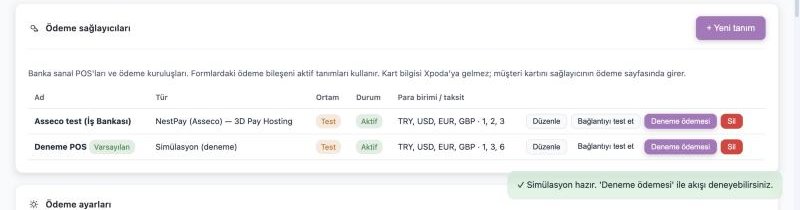
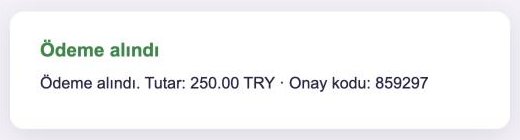
Test connection in the list checks that the bank accepts the details without taking a payment. Test payment tries the provider end to end without designing a form.
Payment settings
- Client address providers return to: where the bank returns after payment. Behind a reverse proxy or load balancer, fix it with
appsettings.json → Payments:PublicBaseUrl. Live payments require https. - Encryption key: encrypts provider secrets (
Payments:MasterKey). It must be the same on all Client servers and included in backups.
Payment link user
A payment link sent to someone without an account works without signing in; the record is processed on behalf of the user set on this card. Create a separate Client user for this purpose only. Validity (hours): 24 recommended, 168 maximum.
2. Prepare the payment form in Studio
- Add amount and description fields and, if wanted, result fields (
PaymentStatus,TransactionNo,AuthCode,Card,Installment). Result fields can be made read-only with Unchangeable. - Drag the Payment component from the toolbox onto the form.
- In the Properties panel, click Amount, Providers & Result on the Payment row.
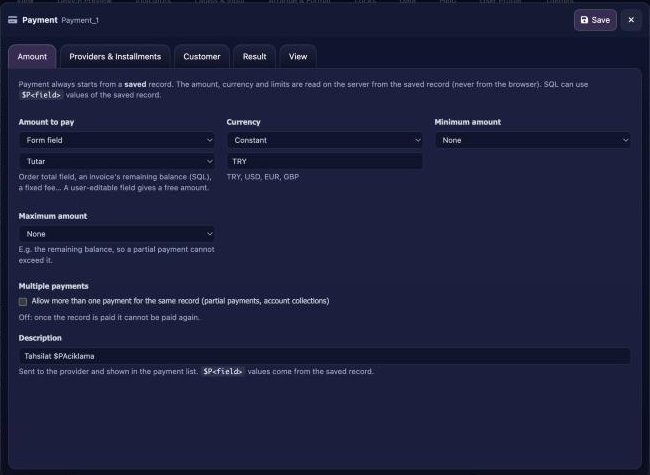
Amount
| Setting | Source | Example |
| Amount to pay | Form field · SQL · Constant | Amount field; remaining balance of an invoice (SQL) |
| Currency | Constant · Form field | TRY, USD, EUR, GBP |
| Minimum / Maximum amount | None · Constant · SQL | Maximum = remaining balance (limits partial payment) |
| Multiple payments | Check box | If off, a paid record cannot be paid again |
| Description | Text, with $P | Collection $PDescription |
SQL sources use the record's values with $P; Test runs the query with a sample value.
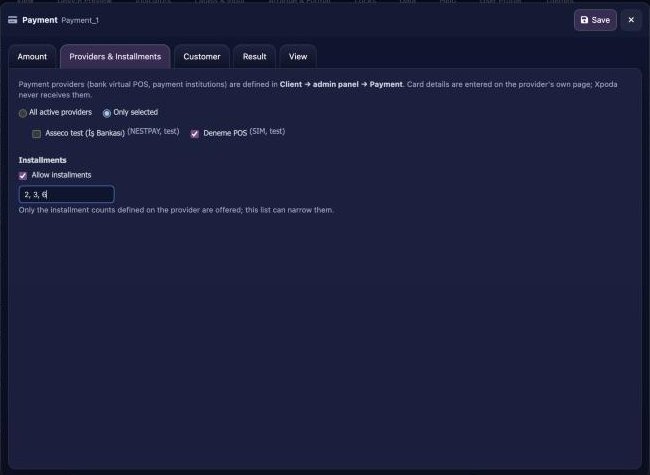
Providers & Installments
- All active providers or Only selected.
- Allow installments: allowed installments (e.g.
2, 3, 6). Empty means all installments the provider offers.
Customer
Choose form fields for the payer's name, e-mail and phone; if empty, the signed-in user's details are used.
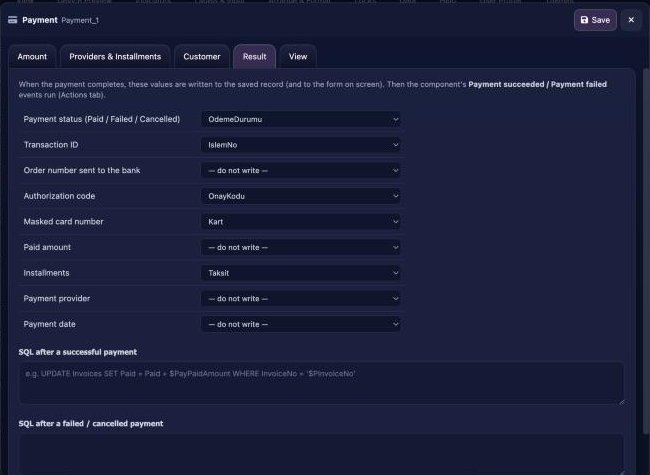
Result
Payment status (Paid / Failed / Cancelled), transaction ID, order number sent to the bank, authorization code, masked card, paid amount, installments, provider and date are written to the fields you choose. SQL can also be run after a successful and a failed payment, for example:
UPDATE Invoices SET Paid = Paid + $PayPaidAmount WHERE InvoiceNo = '$PInvoiceNo'
Parameters: $P, $PayStatus, $PayTxId, $PayOrderId, $PayAuthCode, $PayMaskedPan, $PayAmount, $PayPaidAmount, $PayCurrency, $PayInstallment, $PayProvider, $PayError, $PayPaidAt.
View
Title (default Payment), Button text (Pay), show amount and description. If left empty, they are shown in the Client user's language.
Events
The component's Actions section has the Payment succeeded and Payment failed / cancelled events. Result fields and SQL run before the events.
Action 74 — Take Payment
To start payment from another button, add the Take Payment action to the button and select the component in the Payment component list.
Action 75 — Payment Operation
| Operation | What it does |
| Query status | Asks the provider for the current status |
| Refund | Full or partial refund (empty Refund amount = full) |
| Cancel (void) | Void before end of day |
| Create payment link | Creates a signed payment link for the record and writes it to the Link field |
| Warning: Refunds and voids go to the bank and cannot be undone. Use form permissions to show these buttons only to authorized roles. |
A payment link fixes the amount, description, installments and providers on the server. A new link invalidates the old one; the link closes if the record is paid another way.
3. Payment Transactions (85)
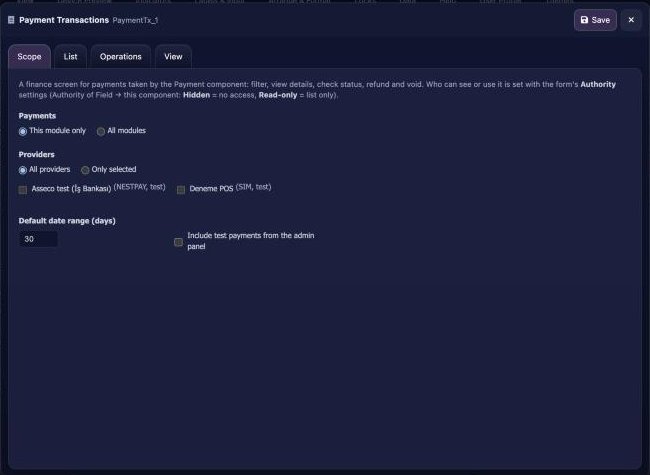
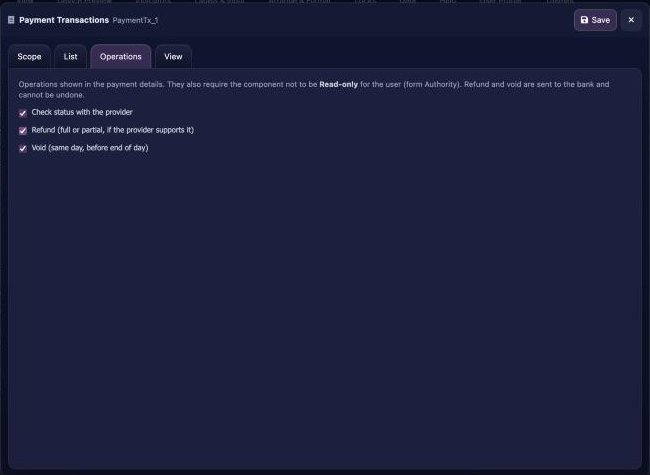
The accounting/finance screen where payments are listed, refunded and voided. Settings: Properties → Scope, List & Operations.
- Scope: this module only or all modules; providers; default date range (30 days); include test payments from the admin panel.
- List: extra filter (added with AND; the payment row is
t, form fields$P) and an extra column SELECT. - Operations: query status (on), refund and void (off).
- Permissions: Hidden — no access to the list; Read-only — view only; Full — performs operations.
4. Paying in Client
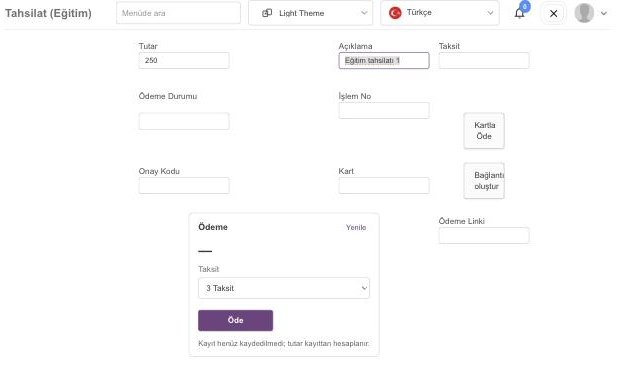
- Enter the amount and description and press Pay. If the record is not saved, it is saved first, then the payment page opens.
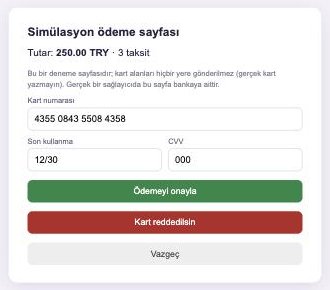
- Choose the payment method and installments and complete the payment on the bank's page.
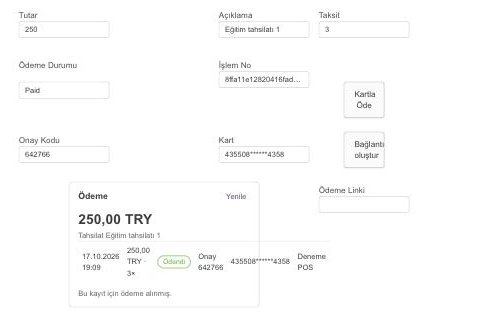
- The panel status becomes Paid; result fields are filled and saved to the record.
On a failed payment the status becomes Failed and the Payment failed / cancelled event runs; the same record can be paid again.
Troubleshooting
| Symptom | Cause | Fix |
| No provider in the payment panel | No active definition, or none selected with Only selected | Make the definition active; check the Providers tab |
| “Pop-up blocked” | The browser blocked the payment window | Allow pop-ups for the site |
| Status stuck at Pending | The payment window closed before a result came back | Queried automatically after 15 minutes; or use Query status |
| Amount differs from what is on screen | The amount is read from the saved record | Save the record after changing the amount |
| Bank cannot return after payment | Client public address wrong or http | Payments:PublicBaseUrl and https |
| PayTR payment never completes | Notification URL missing | {Client address}/Payment/Notify/PAYTR |
| Yapı Kredi 3D passed but payment not completed | Server IP not registered with the bank | Register the public IP with Yapı Kredi |
 AI Assistant