Picturev5
This form element is used when images need to be added to a form page.
|
Appearance in Toolbox |
Appearance in Free Form |
Appearance in Responsive Form |
Appearance in Flexible Form |
|
|
|
|
|

Compatibility
Free Form | Responsive Form | Flexible Form | Mobile |
|
|
|
|

Picture Tool Features |
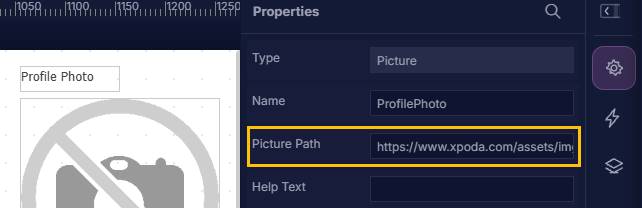
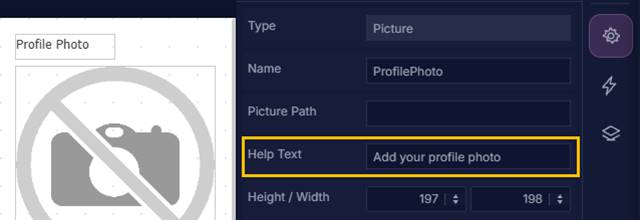
Type: Indicates the field type of the added form control. The value in this field cannot be changed. Name: Specifies the name of the field that will be created in the database. Picture Path: Specifies the URL of the image to be displayed in the picture field.
Example URL: https://www.xpoda.com/assets/img/what-is-no-code-header.jpg
Help Text: The text entered to display a tooltip when hovering over the form control with the mouse.
Height: Adjusts the height of the form control. (The width field has been removed from responsive forms.) From Left/Top: Specifies the offset of the form control from the left or top edge of its container/page. Image Size: Specifies the size of the image to be stored in the database. Store in File: When this option is enabled, the uploaded image is stored in a local folder on the server where Xpoda is installed instead of being stored in an SQL table. Display: Controls whether the form element is displayed on the client screen. When disabled, the element is hidden from view. Form Only: Ensures that the data entered into the form control is not saved to the SQL database and exists only within the form. Any subsequent changes do not affect the database. On the client screen, you can right-click the image to add a new image, view the selected image in its original size, delete the image, or download it. |
Adding a CSS Property to the Picture Tool
(object-fit and object-position )
This section explains the object-fit and object-position CSS properties, which control how images are aligned and scaled within a container (Picture element). The impact of different values on image behavior is illustrated with examples.
object-fit CSS Property
The object-fit property allows you to control how an image is displayed within a Picture element. This property is used to determine how images are aligned and scaled.
Below are descriptions of object-fit values:
object-fit: fill;
The image is resized to completely fill the Picture container. The original aspect ratio is not preserved; the image is stretched or compressed horizontally or vertically as needed.
object-fit: cover;
The image is enlarged while preserving its aspect ratio so that it does not overflow the Picture container. Any overflowing parts are cropped if necessary. The entire image may not be visible.
object-fit: contain;
The image is resized to fit inside the Picture container while preserving its aspect ratio. The image is fully visible, but gaps may appear in the Picture container.
object-fit: scale-down;
The image is scaled down to whichever is smaller between none and contain. That is, the image either remains at its original size or is scaled down to fit within the Picture container.
object-fit: none;
The image remains at its original size; no resizing is performed. It is not checked whether it fits within the Picture container.
object-position CSS property
Controls the positioning of an image within the Picture tool. It is often used in conjunction with the object-fit property.
It allows you to specify where to place an image within the Picture container. Especially when using object-fit: cover or contain, this property can be used to adjust which part of the image is in the foreground.
object-position:
: Horizontal alignment (e.g., left, center, right, 10%, 30px)
: Vertical alignment (e.g., top, center, bottom, 20%, 5px)
Note: If only one value is provided, the second value is automatically assumed to be center.
Usage Example:
object-position: center center; /* Centers (default) */
object-position: top right; /* Top right corner */
object-position: 20% 80%; /* 20% horizontally, 80% vertically */
object-position: 10px 15px; /* 10px and 15px away from the top left */
 AI Assistant
