Reset VATv5
This form element is used in conjunction with the Grid component. It resets the values of columns with the VAT type that are added to the Grid.
|
Appearance in Toolbox |
Appearance in Free Form |
Appearance in Responsive Form |
Appearance in Flexible Form |
|
|
|
|
|



Compatibility
Free Form | Responsive Form | Flexible Form | Mobile |
|
|
|
|

Features of the Reset VAT Tool |
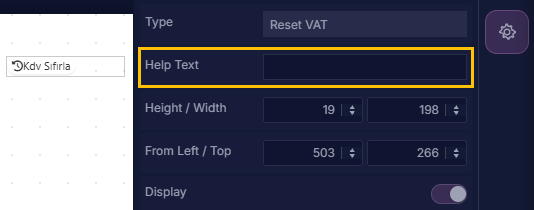
Type: Indicates the field type of the added form control. The value in this field cannot be changed. Help Text: The text entered to display a tooltip when hovering over the form control with the mouse.
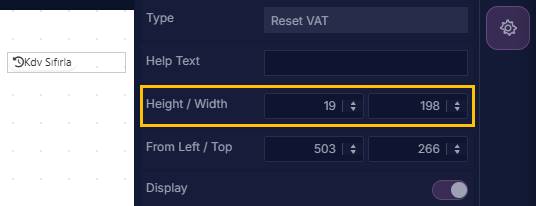
Height: Adjusts the height of the form control. (The width field has been removed from responsive forms.)
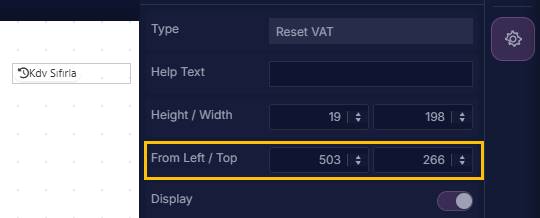
From Left/Top: Specifies the offset of the form control from the left or top edge of its container/page.
Display: Controls whether the form element is displayed on the client screen. When disabled, the element is hidden from view. |
Actions Available in the Reset VAT Tool
Each form element added to the form page has its own set of actions. However, there are no defined actions for the Reset VAT tool.
Usage Example:
A Grid element is added to the form page, and column fields are created.
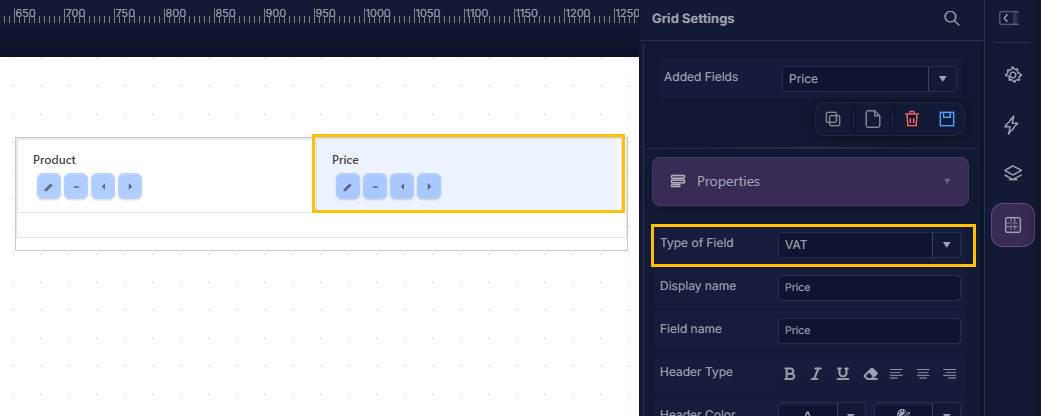
For the added Price element, the VAT value is selected from the Type of Field field.
A Reset VAT tool is added to the form page. No configuration changes are made to this tool.
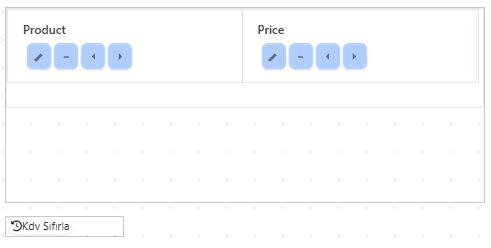
After the addition, the form page is saved and switched to the client screen. Values are entered into the grid.
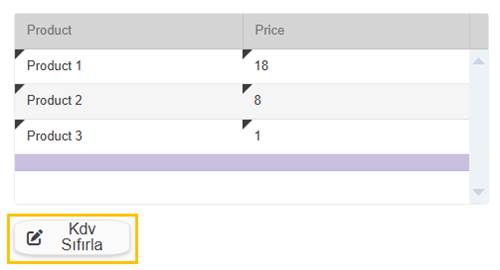
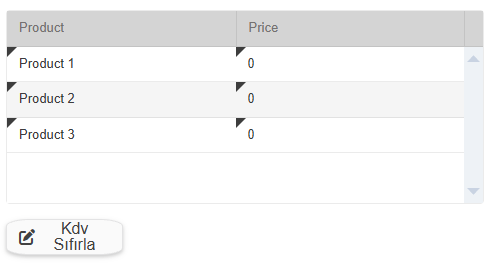
When the Reset VAT tool is added to the form, it appears as a button on the client screen as shown above. By clicking this button, you can clear the values in the second column, Price.
 AI Assistant