Decisionv5
This control determines which direction the flow will continue based on the result of the formula.

Flow Items view

Design screen view
Warnings
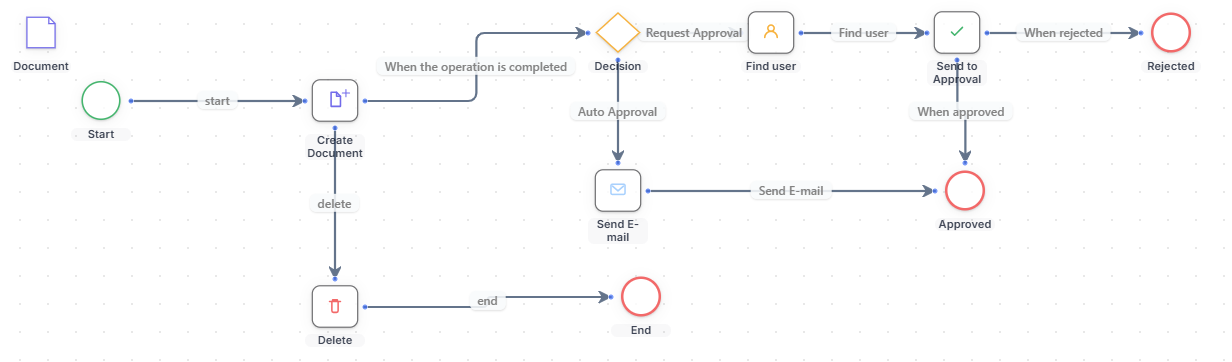
This flow item has as many Connections at the end of the step as there are conditions. These conditions are displayed under Resource Results. After a condition is selected through the connection, the next step can be specified using any flow control. For example, the Send E-mail flow control can be used.
You can add a condition in the Formula Operations screen.
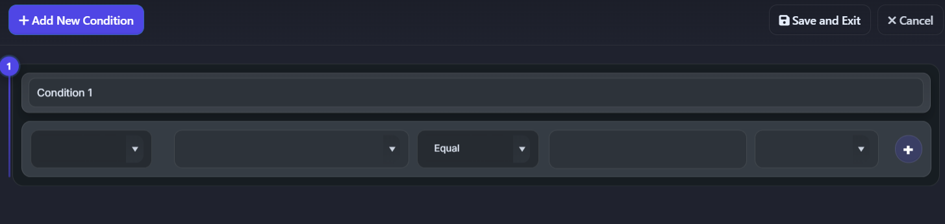
The first part represents the name of the Form Field or Object flow control.
The second part is displayed according to the first part. If you select Form Field in the first section, the form controls of the relevant form are displayed in the second section. If you select the Object name in the first section, the aliases of the Object flow control in the query are displayed in the second section.
The third and fourth parts represent a criterion operator such as Equal to, Greater than, etc., and a criterion for the second part.
If other conditions depend on this condition, you can select AND or OR in the fifth section. You can then click the + (plus) button to add it.
If you want to add a new condition, click the Add New Connection button.
Properties
Text: The text displayed on the screen is entered here.
Formula Operations: This is the section where the formula is defined.
Example Usage
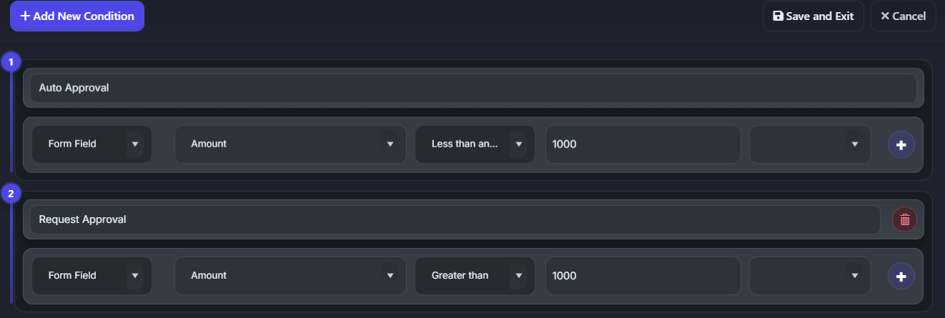
When you add a Decision flow control to the Studio screen, you can open the Formula Operations screen. Here, you can add conditions as shown below. Amount is the field where the amount information is entered in the relevant form.
The appearance of the example flow is shown below. The Connections of the Decision control are determined according to the names of its conditions. This control enables the selection of a condition.
 AI Assistant