Change Propertiesv5
This action allows you to dynamically change certain properties of form controls based on a specified condition.

Properties
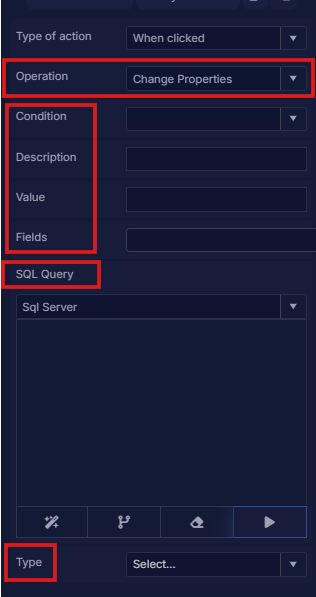
1. Condition
Specifies the condition that will be evaluated before applying the property change.
Available options:
- Equal: Checks whether the value is exactly equal to the specified value.
- Greater than: Checks whether the value is greater than the specified value.
- Greater than or equal to: Checks whether the value is greater than or equal to the specified value.
- Less than: Checks whether the value is less than the specified value.
- Less than or equal to: Checks whether the value is less than or equal to the specified value.
- Not equal: Checks whether the value is different from the specified value.
- Contains: Checks whether the value contains the specified text (commonly used with text fields).
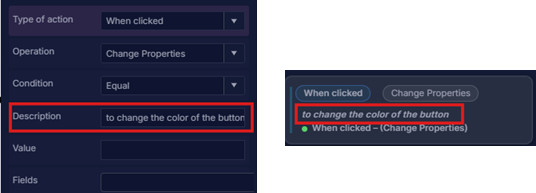
2. Description
Enter a description explaining the purpose of the action.
This field serves as a reference for developers, making it easier to understand why the action was created. The entered text appears in the Actions menu.
3. Value
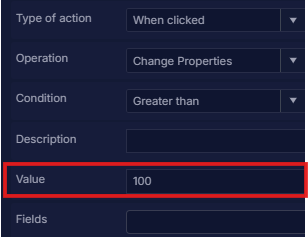
Specifies the value that will be compared against the selected condition.
If no SQL query is used, enter the constant value that should be evaluated.
For example:
- Condition: Greater than
- Value: 100
The action will execute only if the evaluated value is greater than 100.
Note:
|
4. Fields
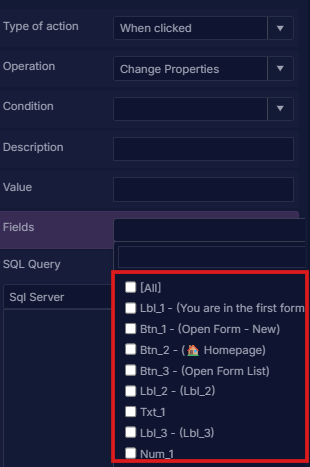
Select the form controls whose properties will be modified.
Any form component (buttons, text boxes, drop-downs, etc.) can be selected. Multiple fields may be selected.
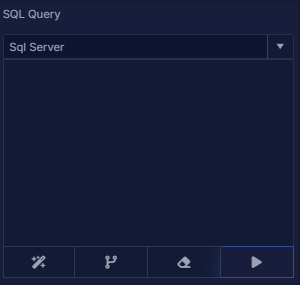
5. SQL Query
Enter the SQL query that determines whether the action should execute.
The SQL query works together with Condition and Value to perform dynamic evaluations.
Example:
SELECT 1
If:
- Condition: Equal
- Value: 1
the action will always execute because the query returns 1.
You can also use more advanced SQL queries with CASE WHEN to create conditional behavior.
6. Type
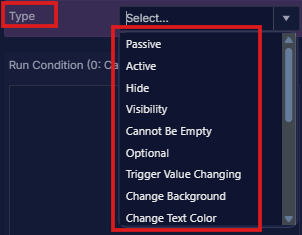
Specifies which property of the selected fields will be changed.
Available options:
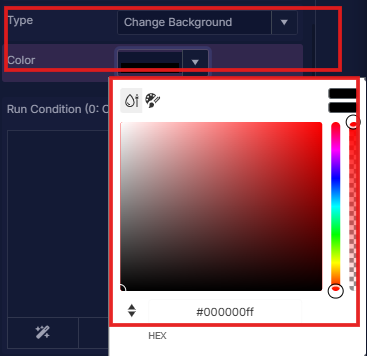
ColorWhen one of the following types is selected:
the Color property becomes available. You can choose a color from the color picker or manually enter an RGBA value. |
Text Type and Text SizeWhen Change Text Color or Change Text Size is selected, the following additional properties become available:
|


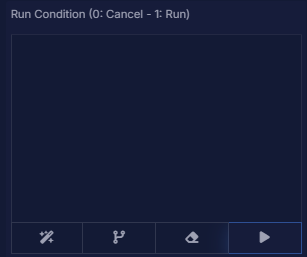
7. Run Condition
Determines whether the action is allowed to execute.
If the expression or query entered here returns 0, the action will not run.
Example:
Örneğin:
SELECT CASE WHEN [StokMiktar] > 0 THEN 1 ELSE 0 END
gibi bir ifade yazılırsa ve sonuç 0 ise, kullanıcı işlemi gerçekleştiremez.
8. Request Confirmation
Determines whether the user must confirm the action before it executes.
When enabled:
- A confirmation dialog is displayed.
- The action runs only if the user confirms.
- The displayed message is defined in the Confirmation Message property.

Example 1: Highlight a Number Box When the Value Exceeds 50
Suppose you have a Number Box named Total Amount.
When the user enters a value greater than 50:
- Change the background color to red.
- Change the text color to white.
If the value is 50 or less, keep the default appearance.
To accomplish this:
- Select the Number Box.
- Add two Change Properties actions.
- Configure one action to change the background color.
- Configure the second action to change the text color.
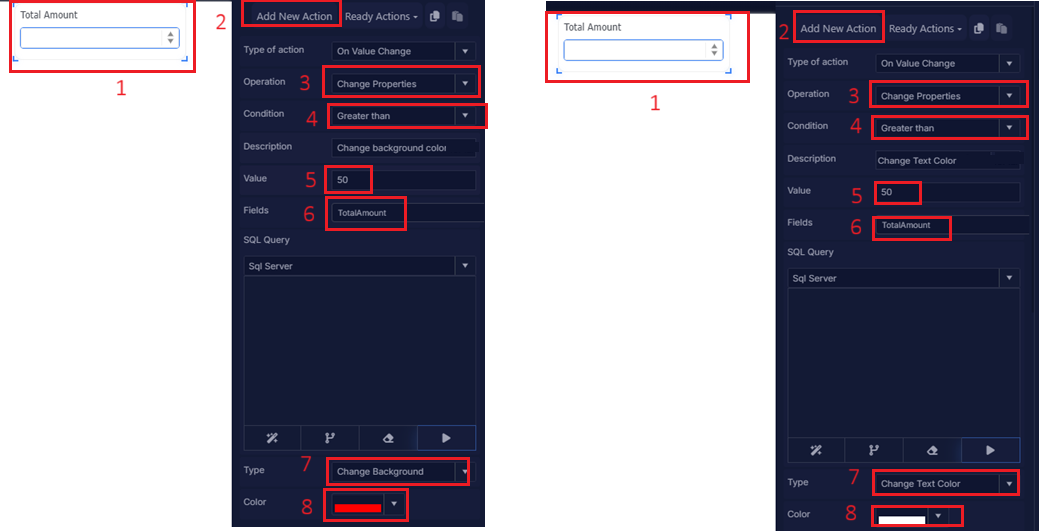
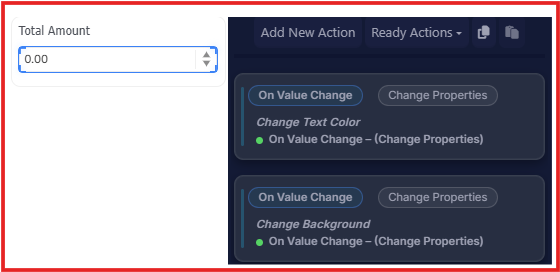
Example 1 view ;

Example 2: Disable or Hide a Field When a Checkbox Is Selected
Assume you have a checkbox named:
Billing Address Same as Delivery Address
When the checkbox is selected, you can:
- Make the Billing Address field Passive (Read-only).
- Or completely Hide the field using a second Change Properties action.
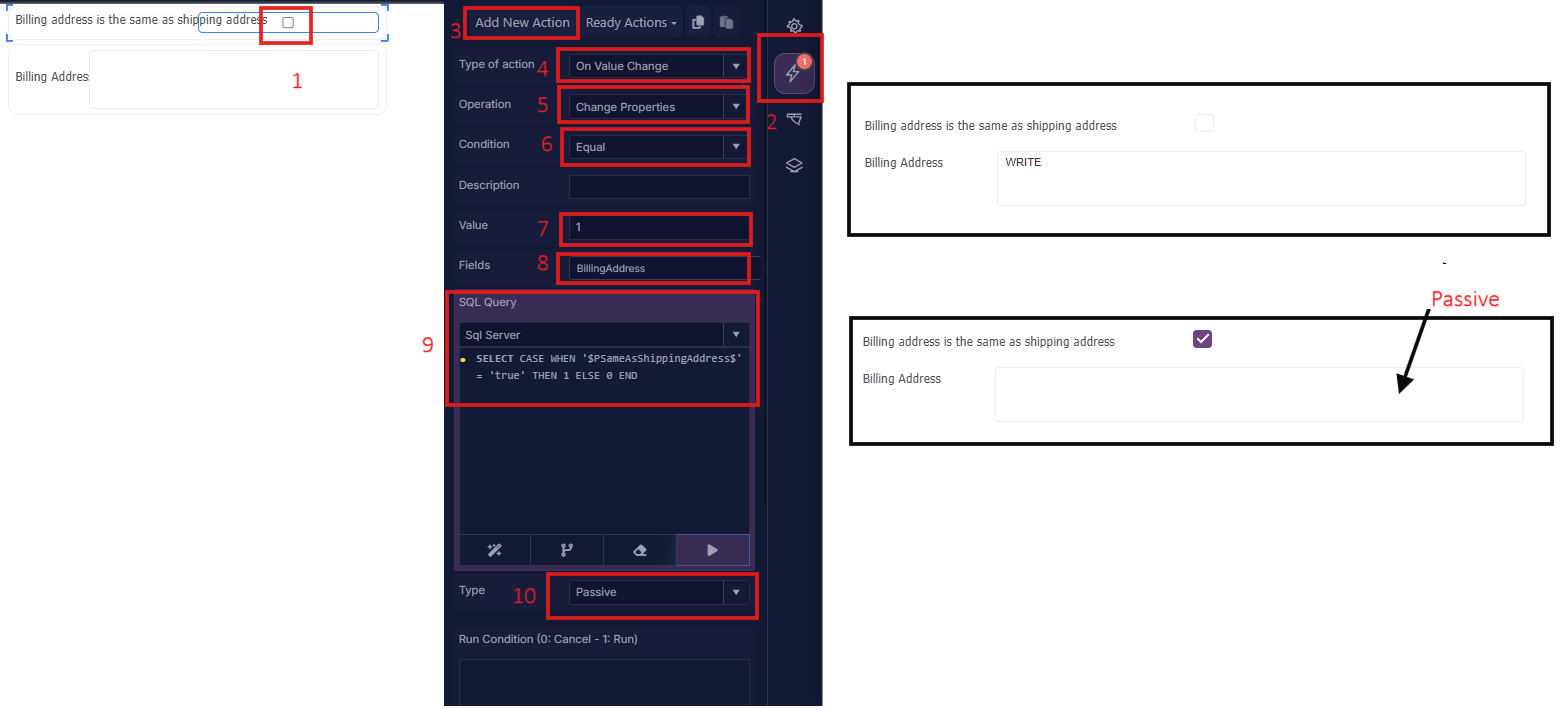
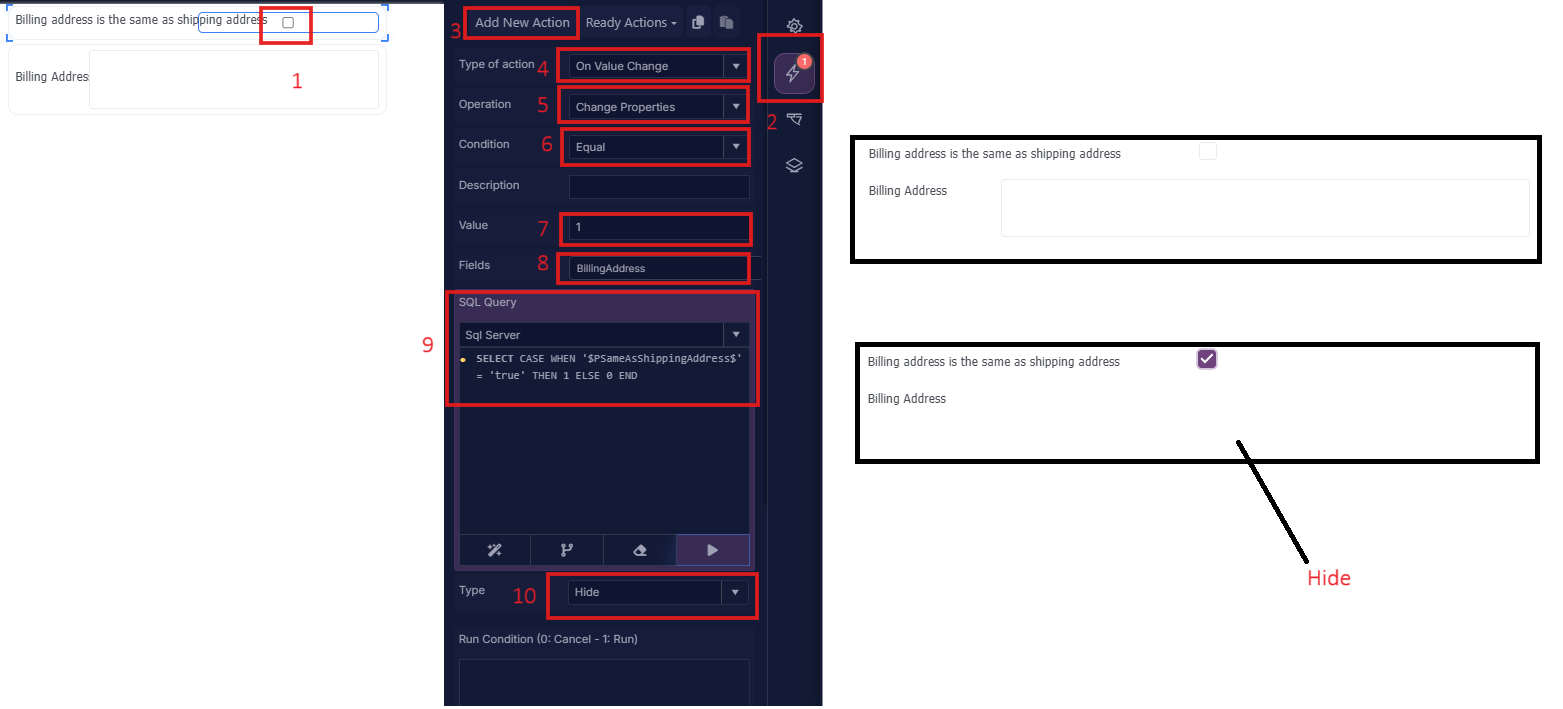
Example 3: Prevent File Upload or Deletion
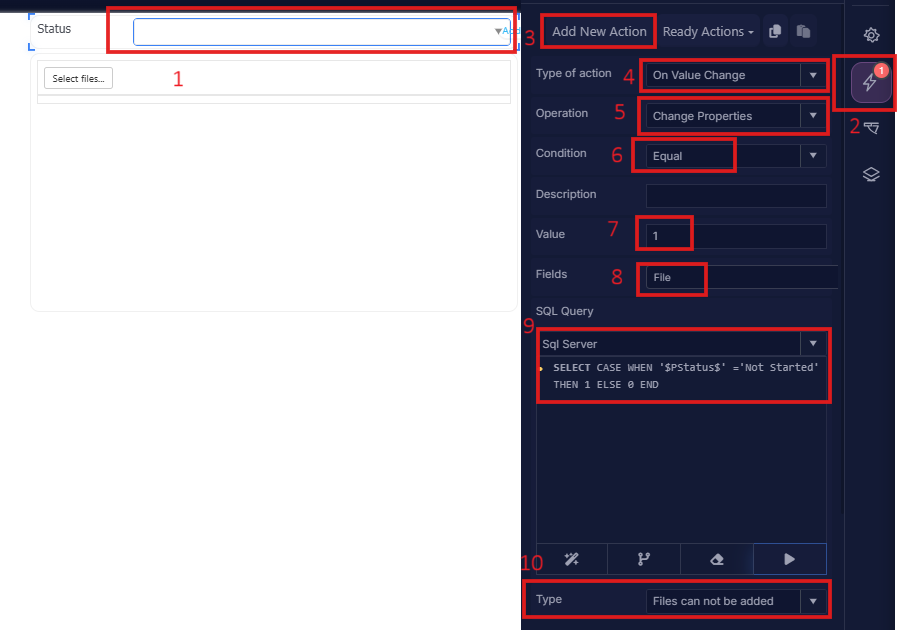
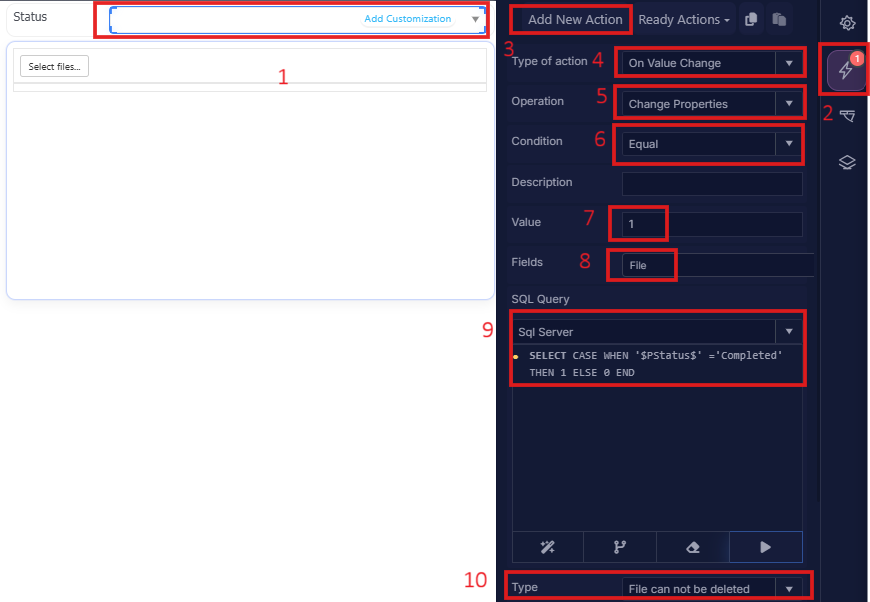
The following property types make it possible to control attachments:
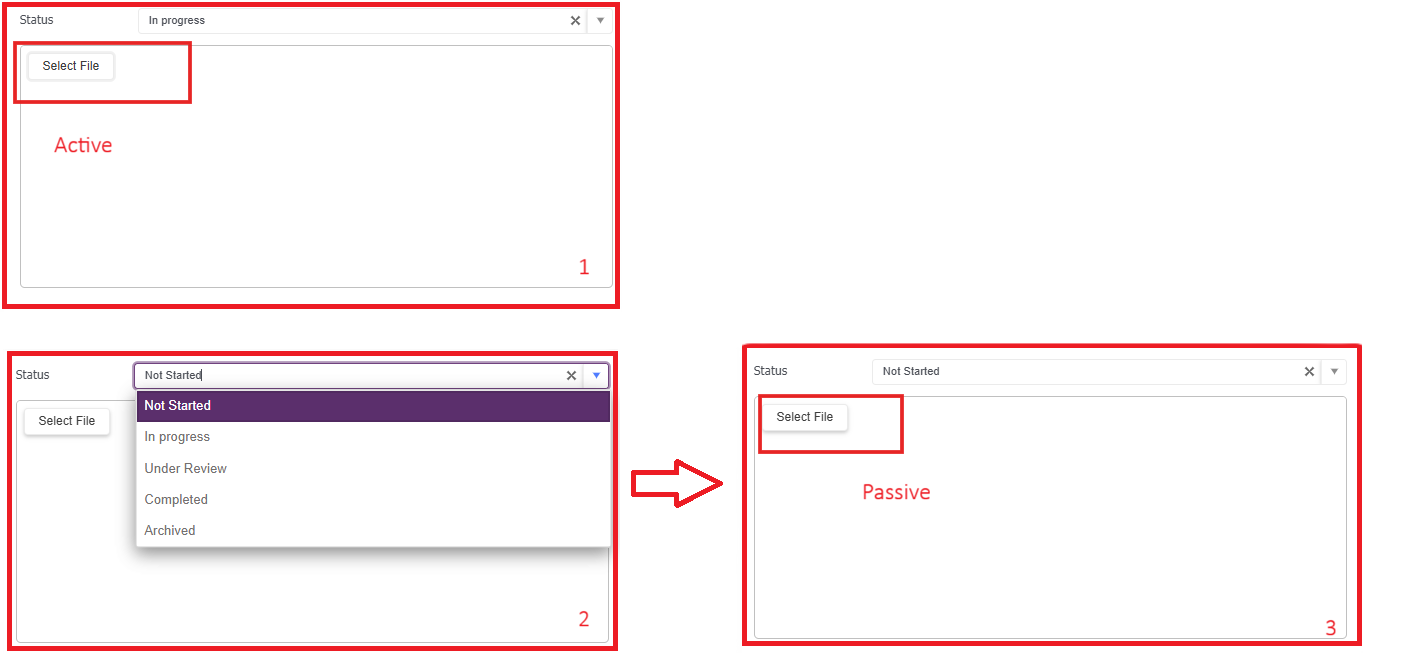
- Files can not be added
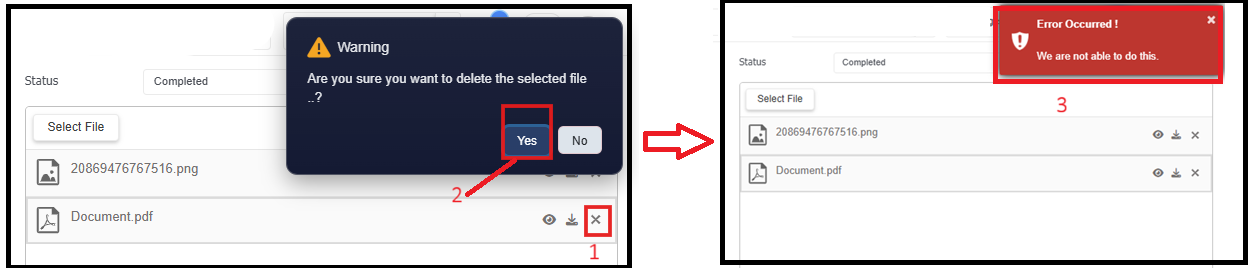
- File can not be deleted
Prevent Uploading Files
If the Status field is Not Started, configure the action to disable file uploads.
Prevent Deleting Files
If the Status field is Completed, configure the action to prevent users from deleting previously attached files.
 AI Assistant