The Get Location action retrieves the user's current geographic location and writes the coordinates to the specified field(s). Optionally, the location can also be displayed on a map. 
PropertiesDescription:
Enter a description for the action. 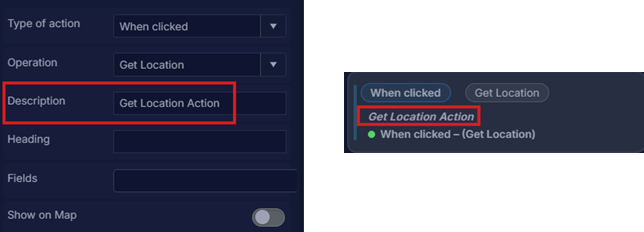
Heading:
Specifies the name displayed in the action list when the action is added as a Form Action. 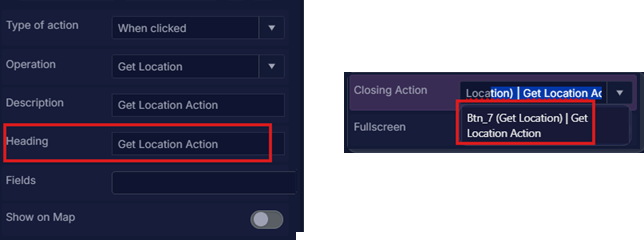
Fields:
Select the field(s) where the location information will be written. If multiple fields are selected, the values are written separately using the defined separator. 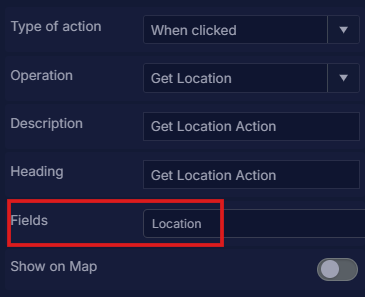
Show on Map:
Determines whether the retrieved location is displayed on a map. 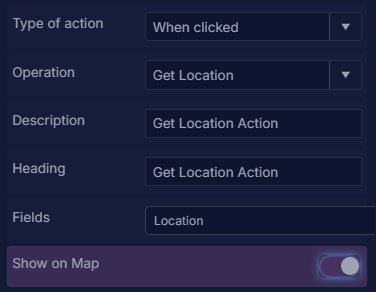
Run Condition:
If the SQL query entered in this field returns '0', the action will not be executed. 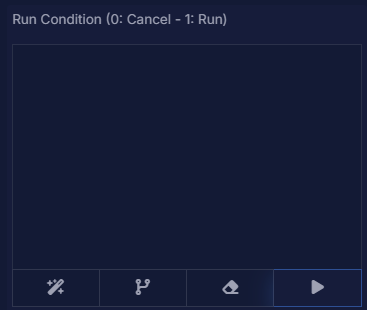
Request Confirmation:
Determines whether the user is prompted for confirmation before the action is executed. If enabled, the Confirmation Message property becomes available, allowing you to specify the message displayed to the user. 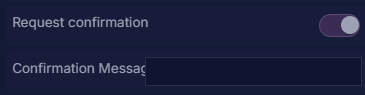
Example Usage
Assume that your form contains a Button and a Text Box. 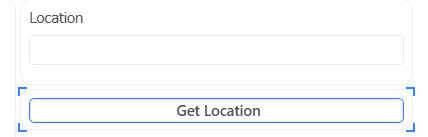
Assign the Get Location action to the button's When Clicked event. In the Fields property, select the text box named Location.  | Note: If Show on Map is enabled, the current location is opened in Google Maps in a new browser tab. |
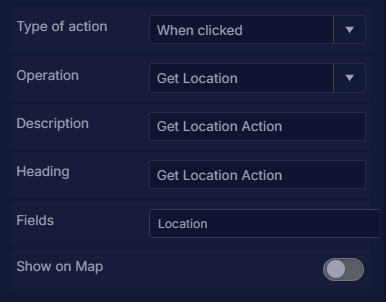
When the user clicks the button in the Client application, the current location coordinates are automatically written to the Location text box. 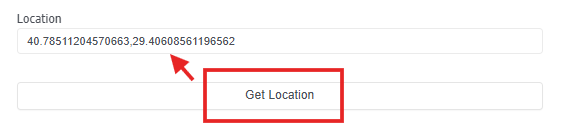
|  AI Assistant