Open Form - Detailv5
The Open Form - Detail action is used to open a linked form from the same project or another project and display the details of a selected record. It is typically assigned to the When double clicked on row event of a List control, allowing users to open a record by double-clicking a row.

Properties
Condition: Specifies how the linked form will be opened.
- In New Window: Opens the form in a separate window.
Note: For this action to work correctly, the Condition property must be set to In New Window.
Description: Enter a description for the action. This field serves as a reference for developers.
Form Title: Specifies the title displayed on the opened form.
Form Width: Sets the width of the opened form.
Form Height: Sets the height of the opened form.
Module: Select the project containing the target form. Leave this field empty if the form belongs to the current project.
Form: Select the form to be opened.
Linked List: Specifies the list whose selected record will be displayed.
List ID Field: Maps the primary form's ID field to the ID field of the linked form.
List Type Field: Maps the primary form's Form Type field to the Form Type field of the linked form.
Closing Action: Selects an action to execute when the opened form is closed.
Fullscreen: Determines whether the linked form opens in full-screen mode.
Run Condition: If the SQL query entered in this field returns 0, the action will not execute.
Request Confirmation: Determines whether the user must confirm before the action is executed. When enabled, a confirmation message is displayed.
Example 1
Create two forms for this example.
The first form will be used to store records. Add the following controls:
- Three Text Box controls
- Two Figures Box controls
Enter and save several records.
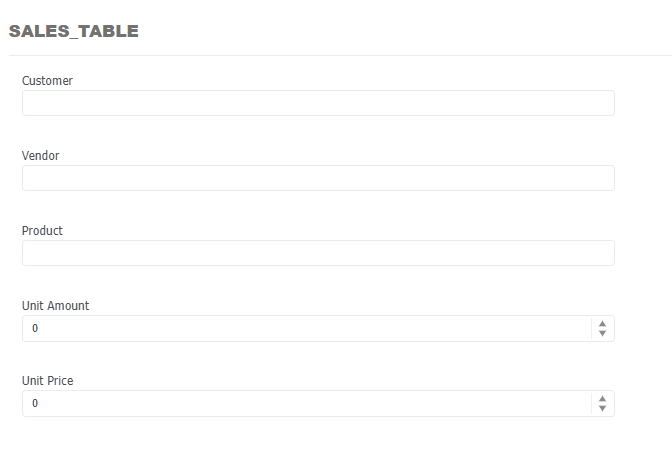
Next, create the second form and add a List control.
Configure the list to use the SQL query from the first form's table.
Then assign an Open Form - Detail action to the When double clicked on row event.
Configure the List ID Field to use UserTableID.
Important: The SQL query used by the list must include the
UserTableIDfield. This field is required to identify and load the selected record in the detail form.
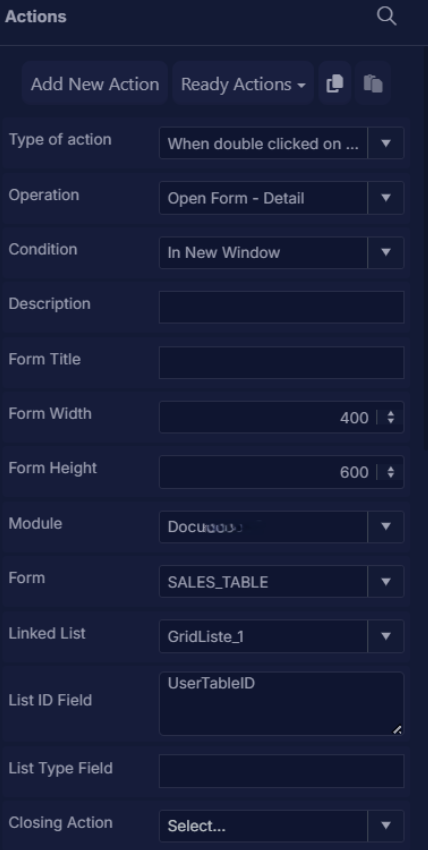
The action view
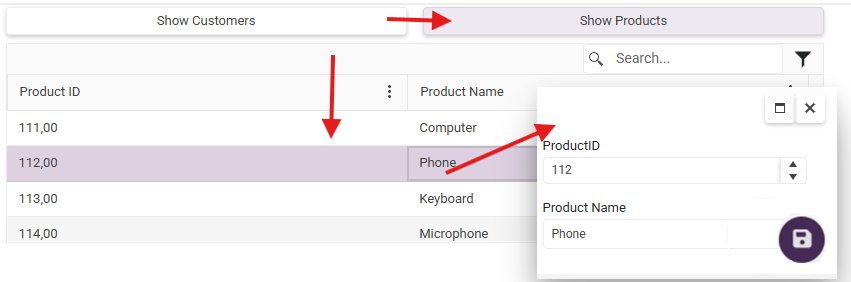
When a user double-clicks a row in the Client, the linked detail form opens and displays the complete information for the selected record.
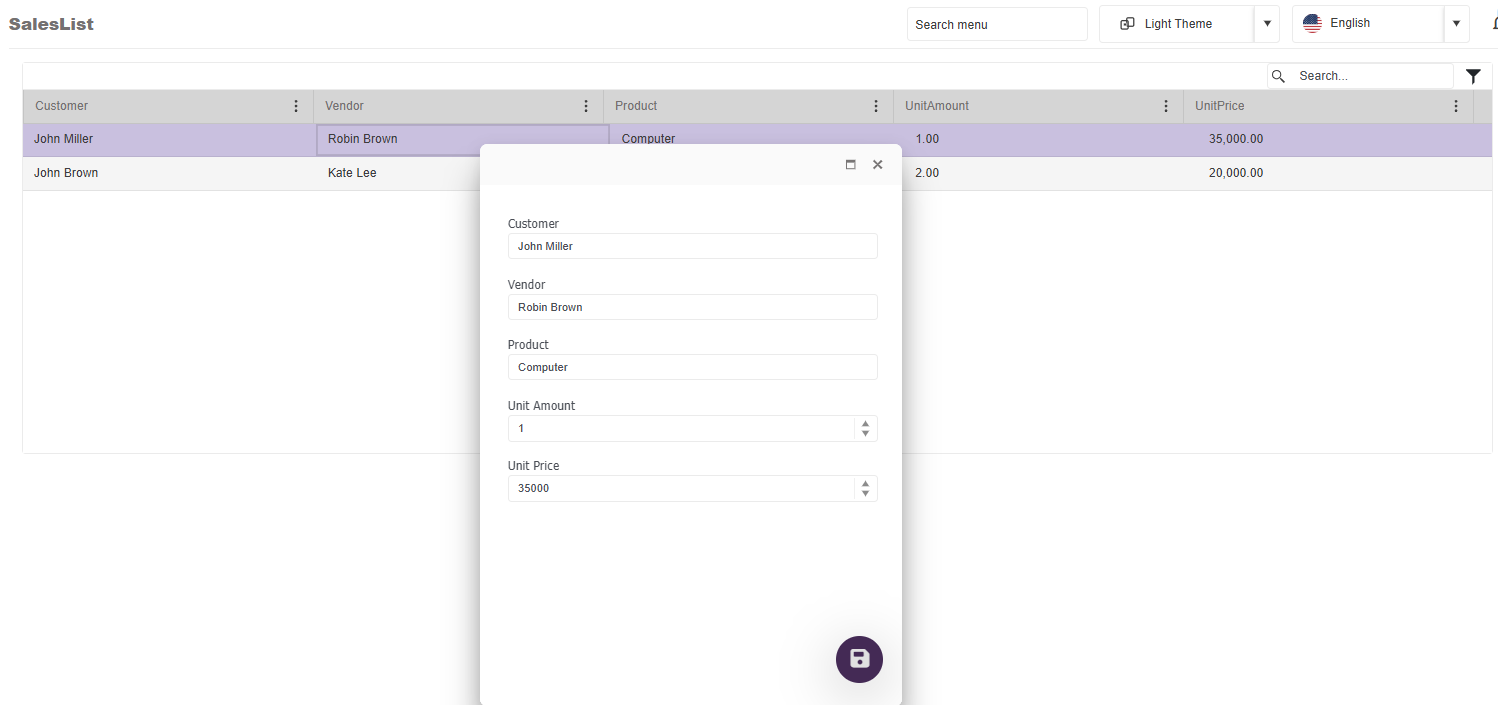
Client view
Example 2
This example demonstrates how to open record details when the list contains records from multiple forms.
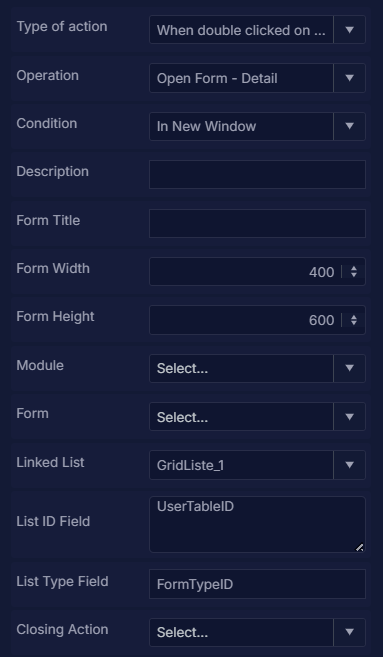
In this scenario, the list may display records from both Customer and Product forms. Therefore, both UserTableID and FormTypeID are required to determine which form should be opened.
Important: Both the SQL query and the action configuration must include UserTableID and FormTypeID.
Create a report form containing:
- One List control
- Two Buttons
Each button loads data from a different form.
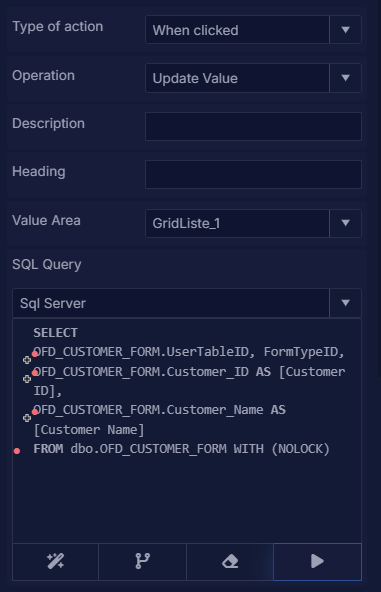
Assign an Update Value action with the following SQL query:
Type of action When clicked
Operation Update Value
Value Area GridListe_1
SQL Query
SELECT
OFD_CUSTOMER_FORM.UserTableID, FormTypeID,
OFD_CUSTOMER_FORM.Customer_ID AS [Customer ID],
OFD_CUSTOMER_FORM.Customer_Name AS [Customer Name]
FROM dbo.OFD_CUSTOMER_FORM WITH (NOLOCK)
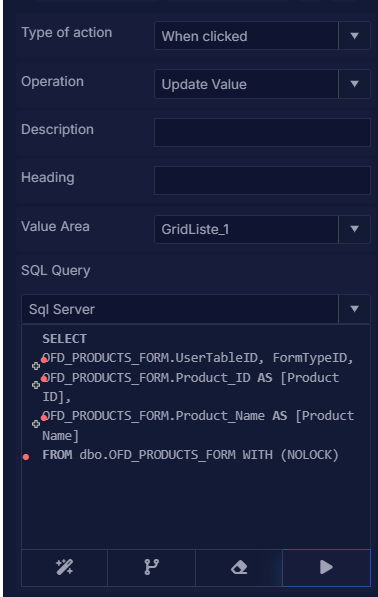
Assign another Update Value action using:
Type of action When clicked
Operation Update Value
Value Area GridListe_1
SQL Query
SELECT
OFD_PRODUCTS_FORM.UserTableID, FormTypeID,
OFD_PRODUCTS_FORM.Product_ID AS [Product ID],
OFD_PRODUCTS_FORM.Product_Name AS [Product Name]
FROM dbo.OFD_PRODUCTS_FORM WITH (NOLOCK)
When a user double-clicks any record in the list, Open Form - Detail automatically determines the correct source form using UserTableID and FormTypeID, then opens the appropriate detail form displaying the selected record.
 AI Assistant