Open Form - Listv5
The Open Form List action displays the data returned by an SQL query in a list format. With this action, query results can be opened directly in a new list window without creating a separate form. This provides a quick way to display and select data dynamically.

Properties
Condition: Specifies how the list will be opened.
- In the same tab: Opens the list in the current tab.
- In new tab: Opens the list in a new tab.
- In new window: Opens the list in a separate window.
Description: Enter a description for the action. This field serves as a reference for developers.
List Heading: Specifies the title displayed at the top of the list.
Value Area: Selects the form field(s) where the selected row data will be loaded. If All Forms is selected, double-clicking a row populates all matching fields on the form.
SQL Query: Enter the SQL query that returns the data to be displayed. The Query Wizard can also be used.
Selection Filter (Field | Criteria | Value): Prevents specific rows from being selected based on the specified condition.
Example: Quantity|!=|0
In this example, records where Quantity = 0 cannot
be selected.
Sub Total (Field | Operation | Text): Displays summary information at the bottom of the list based on a selected field.
Supported operations:
- Count
- Sum
- Min
- Average
List Value Area: Specifies which field value is returned when a row is selected.
List ID Field: Maps the primary form's ID field to the ID field of the opened list.
List Type Field: Maps the primary form's Form Type field to the Form Type field of the opened list.
Text Size: Sets the font size of the opened list.
Mapping: Maps fields between the current form and the opened list.
Closing Action: Selects an action to execute when the opened list is closed.
Fullscreen: Determines whether the opened list is displayed in full-screen mode.
Paging: Enables parameterized paging for lists opened with this action.
Record Selection List: Optimizes performance for lists used only for record selection.
Line Looking: Enables navigation between rows.
Run Condition: If the SQL query entered in this field returns 0, the action will not execute.
Request Confirmation: Determines whether the user must confirm before the action is executed. When enabled, a confirmation message is displayed.
Example
Create a new form in Xpoda Studio that stores customer orders.
Add the following controls:
- Text Box for the customer name
- Drop Down Box for the product
- Figures Box for quantity
- Figures Box for unit price
- Date control for the order date
- Button to open the list
Configure the button with the following action:
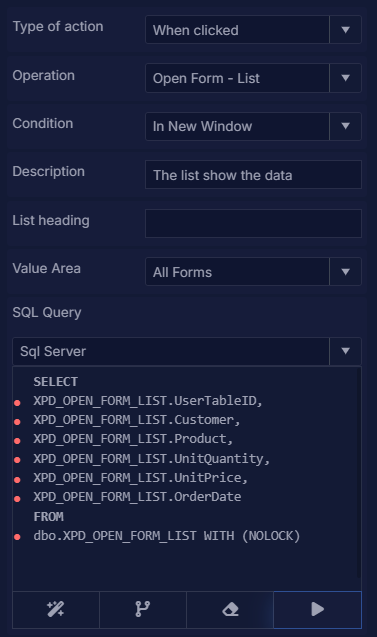
Operation: Open Form- List
Condition: In New Window
Description: The list Show the Data
Value Area: All Forms
SQL Query:
SELECT
XPD_OPEN_FORM_LIST.UserTableID,
XPD_OPEN_FORM_LIST.Customer,
XPD_OPEN_FORM_LIST.Product,
XPD_OPEN_FORM_LIST.UnitQuantity,
XPD_OPEN_FORM_LIST.UnitPrice,
XPD_OPEN_FORM_LIST.OrderDate
FROM
dbo.XPD_OPEN_FORM_LIST WITH (NOLOCK)
After configuring the action, save it using the action's own Save button.
| Note: Saving the form in Studio does not save changes made to the action. Always save the action using its own Save button. |
After entering data in the Client, click the button. A new window opens displaying the records returned by the SQL query. Selecting a row by clicking Add or double-clicking it automatically fills the corresponding fields on the form.
Client ekranındaki aksiyon için açılan yeni pencere
| Important: When Value Area is set to All Forms, the SQL query must include the UserTableID field. This identifier is used to retrieve and populate the form data correctly. |
Using Sub Total
The Sub Total property displays summary information at the bottom of the list.
The required format is:
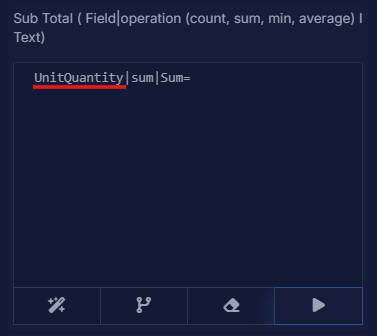
- (Field|operation (count, sum, min, average) I Text)
Example:
UnitQuantitiy|sum|Sum=
| This configuration calculates the sum of all values in the UnitQuantity column and displays the result after the text "Sum=" at the bottom of the list. |
Note: The Mapping feature is currently unavailable in the latest version. Documentation will be updated once the feature becomes available.
 AI Assistant