Savev5
The Save action allows a document to be saved using a form control instead of the default Save button displayed in the lower-right corner of the Client screen.
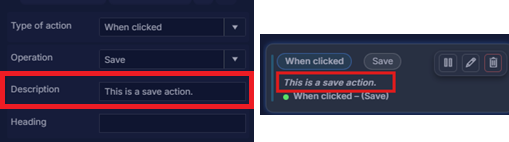
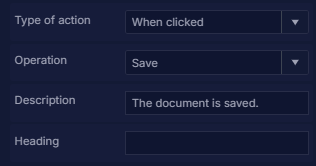
Save Action in the Toolbox PropertiesDescription: Enter a description for the action. This description serves as a reference for application developers, helping them identify the purpose of the action and understand why it was used. The value entered here is displayed in the corresponding field in the Actions menu.
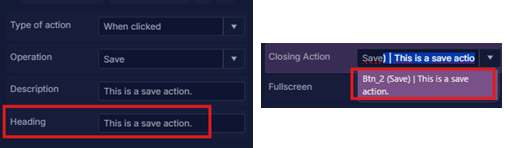
Heading: Specifies the name displayed in the Actions list when the action is added as a form action. When the designed Save action is triggered from another action, this value represents the text displayed in the action selection list.
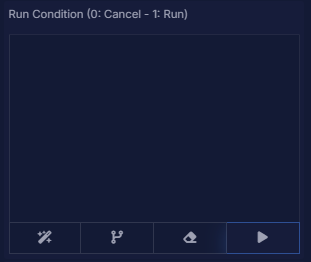
Run Condition: If the query entered in this field returns 0, the action will not be executed.
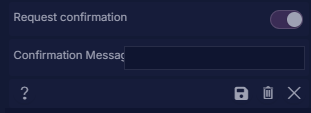
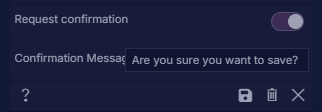
Request Confirmation: Select whether confirmation should be requested before the action is executed. When Request Confirmation is enabled, the Confirmation Message property becomes available, allowing you to specify the message displayed in the confirmation dialog.
ExampleIf you want users to save a document by clicking a button on the form, add a Button and configure it with the When Clicked → Save action.
If you want to display a confirmation message before the document is saved, set the Request Confirmation property of the action to Yes.
When this option is enabled, the Confirmation Message field becomes available.
Enter the message that should be displayed to the user. If the user selects Yes in the confirmation dialog, the document is saved. If the user selects No, the save operation is canceled. |


 AI Assistant