Update Flowv5
The Update Flow action is used to change the status and description of workflow instances.

Update Flow Action in the Toolbox
Properties
Description: Enter a description for the action.
Heading: Specifies the name displayed in the Actions list when the action is added to a form.
Description Field: Saves the value of the selected control as the workflow description.
Operation Type: Specifies the workflow operation to perform. Available options are:
- Complete
- Reject
- Visibility
- Cancel
Related List: Selects the list on the form that contains the workflow records.
List ID Field: Specifies the field containing the workflow ID used to update the workflow record.
Finish Action: Specifies the action to execute after the Update Flow action has completed.
Run Condition: If the query entered in this field returns 0, the action will not be executed.
Request Confirmation: Select whether confirmation should be requested before the action is executed. When Request Confirmation is enabled, the Confirmation Message property becomes available, allowing you to specify the message displayed in the confirmation dialog.
Example
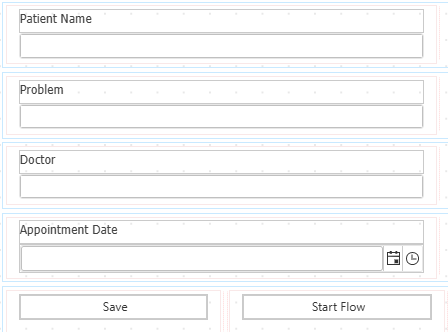
Assume there is a Patient–Doctor Appointment form. When an appointment is created, a workflow is automatically started.
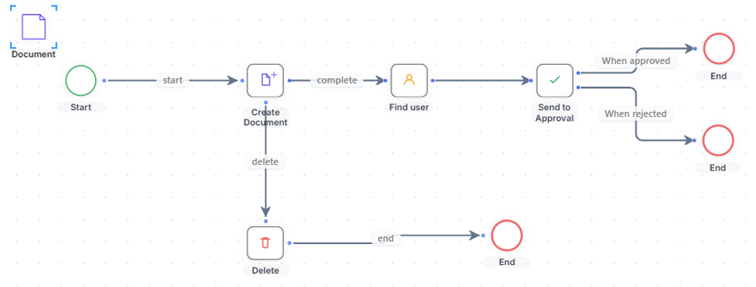
The workflow also includes additional controls such as Find User and Send to Approval.
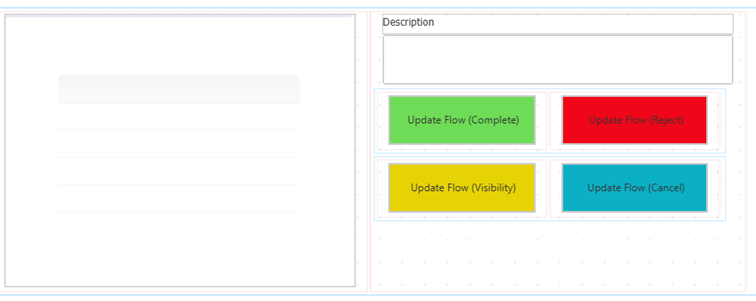
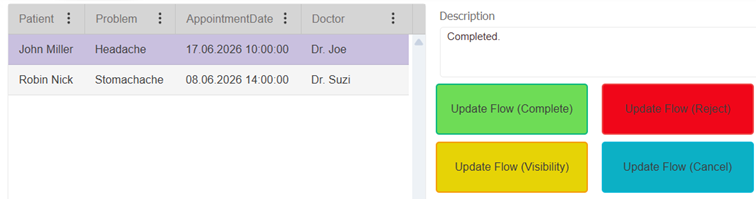
Appointments awaiting confirmation are displayed in a list. From this list, users can update the workflow by selecting an operation (Complete, Reject, Visibility, or Cancel) and optionally entering a description.
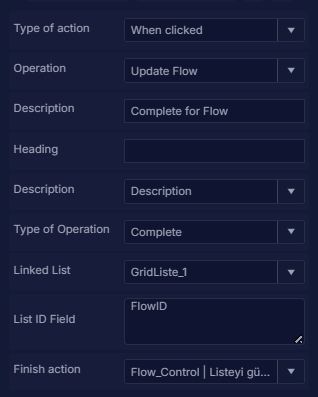
For example, configure an Update Flow action for the When Clicked event of a button.
Set the remaining properties as required. The List ID Field is particularly important and should be mapped to the FlowID field from the XPODA_WORK_FLOWS table. This field must also be included in the list's data source.
The Operation Type property determines which workflow action will be performed.
To refresh the list after the workflow is updated and remove processed records, you can specify a list refresh action in the Finish Action property.
The list is populated using the following SQL query, which retrieves pending workflow records from the XPODA_WORK_FLOWS table.
- FlowProcess values such as
a2,a3,a7, etc. identify the current workflow step. - In this example,
a23represents the Send to Approval step. - A FlowUserID value of 0 indicates a system process.
- FlowState indicates the workflow status, such as Pending Approval, Completed, Rejected, or Canceled.
SELECT
T.PatientName AS [Patient],
T.Problem,
T.AppDate [AppointmentDate],
T.Doctor,
F.FlowID AS [|FlowID]
FROM dbo.TABLE_FLOW T WITH (NOLOCK)
LEFT OUTER JOIN dbo.XPODA_WORK_FLOWS F WITH (NOLOCK)
ON T.UserTableID = F.FlowDocumentID
AND T.ProjectID = F.FlowProjectID
WHERE FlowProses='a23'
AND FlowUserID<>0
AND FlowState=0
Complete a Workflow
Pending records are displayed in the list. Select the row for John Miller, enter a description, and click the Update Flow (Complete) button to complete the workflow.
Change Workflow Visibility or Reject
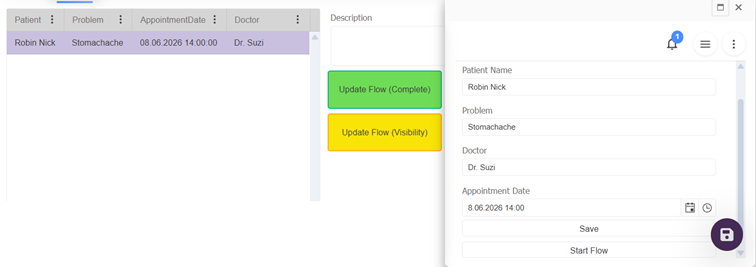
To change the workflow visibility for Robin Rick, select the record and click the Update Flow (Visibility) button.
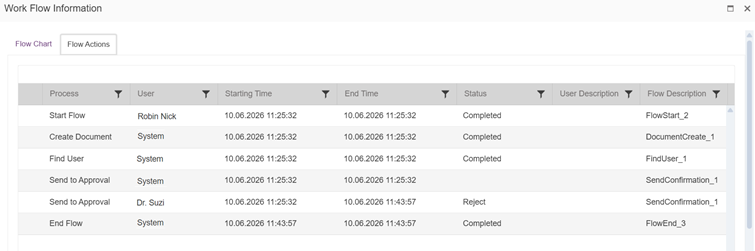
The workflow can later be rejected by clicking the Update Flow (Reject) button.
The workflow diagram for the Robin Rick record reflects these status changes.
Cancel a Workflow
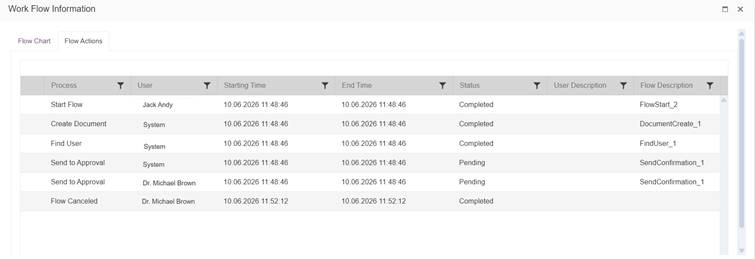
Clicking the Update Flow (Cancel) button cancels the selected workflow instance.
 AI Assistant