Update Valuev5
The Update Value action is used to populate data in form controls, update the current control, refresh the entire form, or update another form control based on changes made to a specific field.

Update Value Action in the Toolbox
Note
When retrieving the value of a form field, you do not need to write a SELECT statement. You can reference the field directly by using the $P prefix to obtain its value without executing an SQL query.
To display the latest data on the Client screen, controls such as List, Chart, Calendar, Chart Line, and Map should be refreshed. This action is commonly used together with the On Form Load event.
Properties
Description: Enter a description for the action.
Heading: Specifies the name displayed in the Actions list when the action is added to a form.
Value Area: Specifies the field to be updated. You can select the current control, the entire form, or another form control.
SQL Query: Specifies the SQL query used to populate the selected field or fields with the returned data.
Run Condition: If the query entered in this field returns 0, the action will not be executed.
Request Confirmation: Select whether confirmation should be requested before the action is executed. When Request Confirmation is enabled, the Confirmation Message property becomes available, allowing you to specify the message displayed in the confirmation dialog.
Examples
Example 1
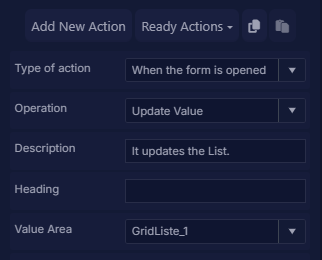
Assume you have a List control whose SQL query is already defined in its properties.
To ensure that the latest data is displayed on the Client screen, add an Update Value action to the form and configure it to run when the form is opened (On Form Load). Since the List control already has its own SQL query defined, the SQL Query property of the Update Value action does not need to be populated.
Example 2
Assume that your form contains a Numeric Box and a Text Box named Product.
When the user enters a value into the Numeric Box, you may want the Product field to be updated automatically based on that value.
In this scenario, use the On Value Change → Update Value action.
In the Value Area property, select the Product text box as the field to update. Then define an SQL query that returns the value to be assigned to the Product field.
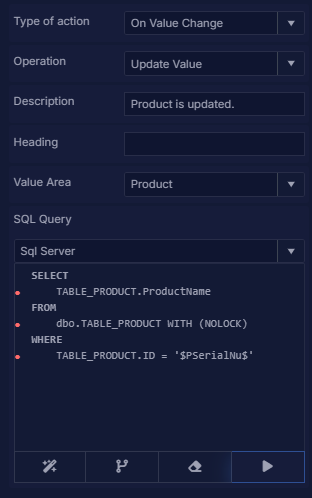
As a result, whenever the value of the Serial Number field changes, the Product field is updated automatically with the value returned by the SQL query.
The updated value is then reflected on the Client screen.
 AI Assistant