Client Menu And Toolbarv5
The areas located on the left and upper sections of the Client screen provide access to menu management, notifications, user options, language settings, themes, and quick access features.
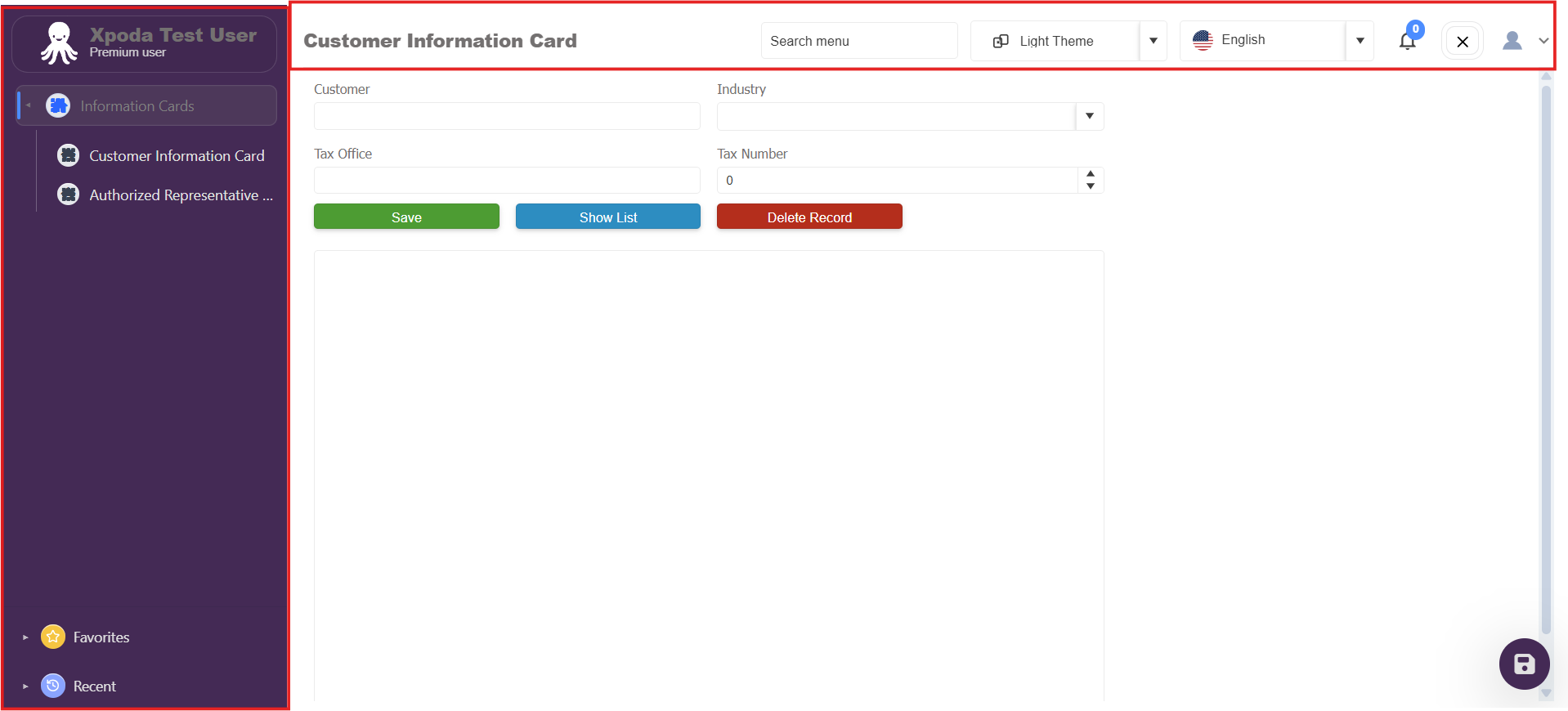
Hide Menu
To hide the menu panel located on the left side of the Client screen, click the (×) icon indicated in the image below.
This action hides the menu panel from the screen.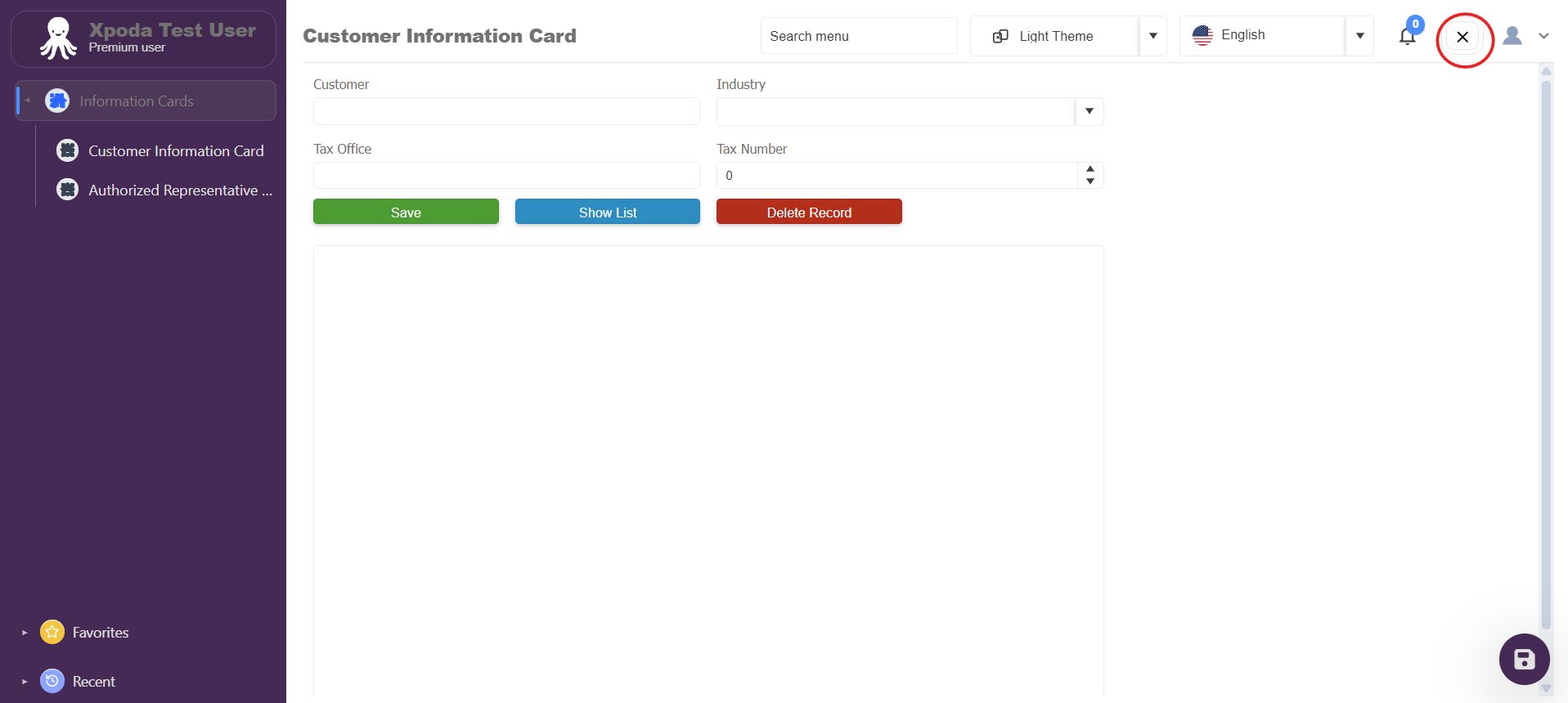
After the menu panel is hidden, the Client screen will appear as shown below. 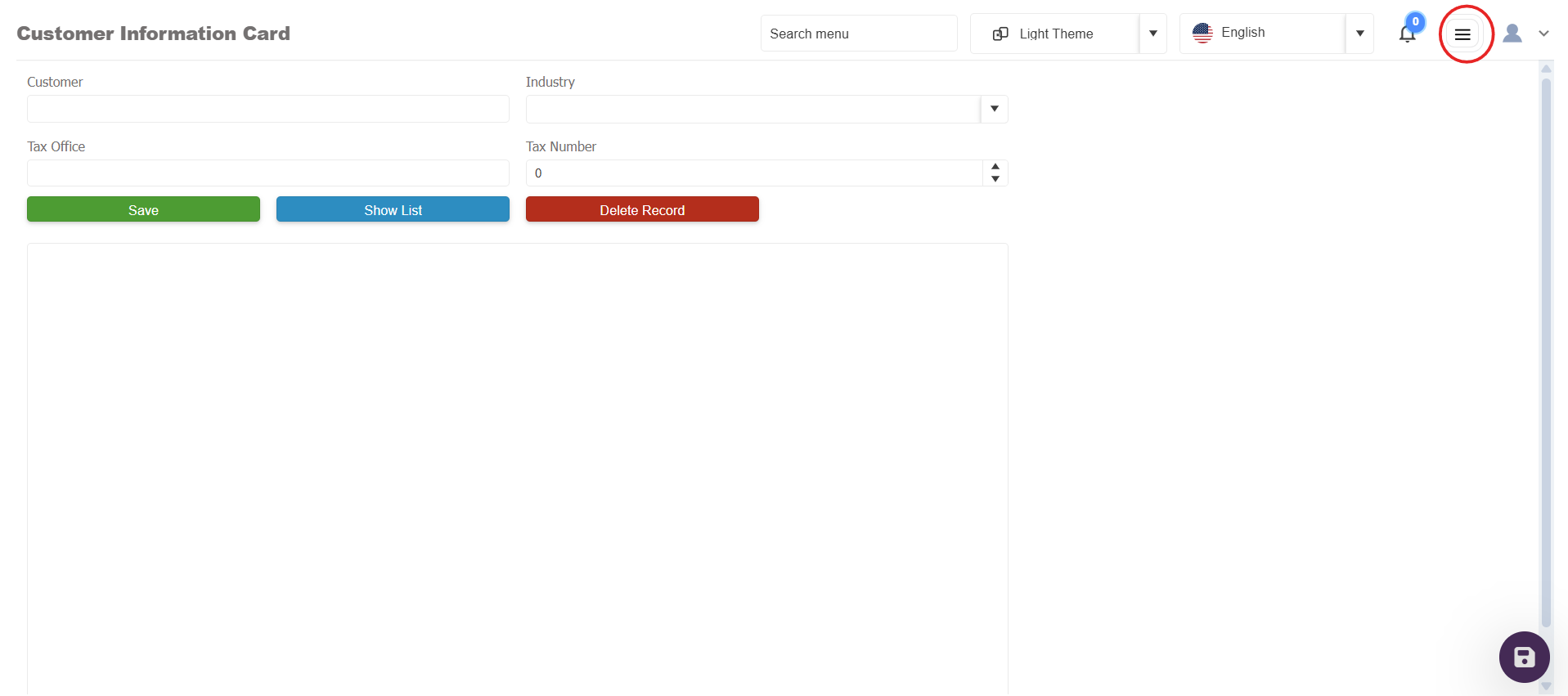
To display the hidden menu panel again, click the menu (☰) button. The menu panel will be opened again.
Start Screen
A Start Screen must be assigned when creating a user. The Start Screen is the user’s default homepage displayed after logging into the system.
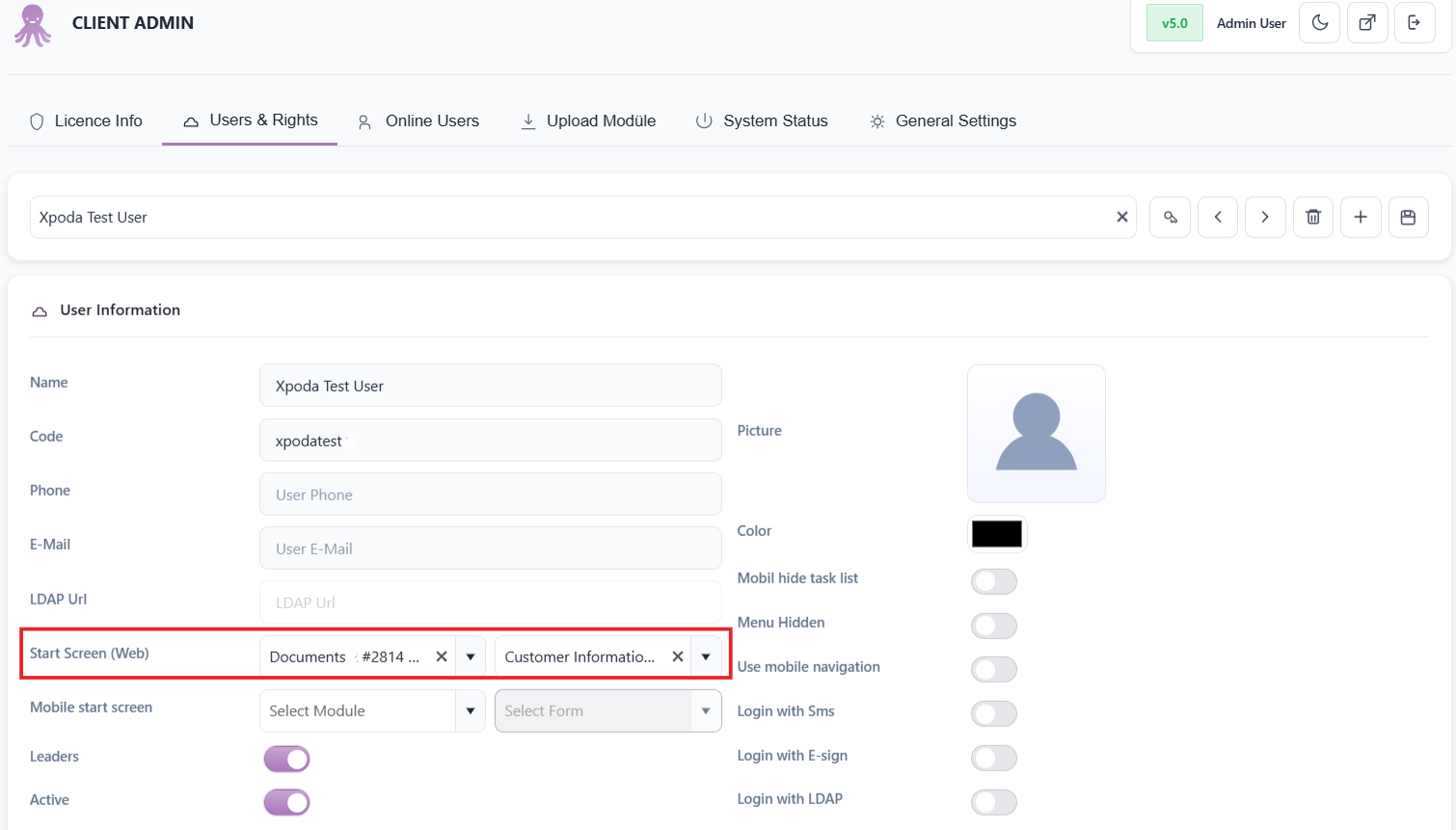
To change the Start Screen, go to the Administration Panel, select the relevant user, and update the Start Screen field by selecting the required Module and Form.
The Start Screen configuration area is located in the user settings section shown below.
Waiting Tasks
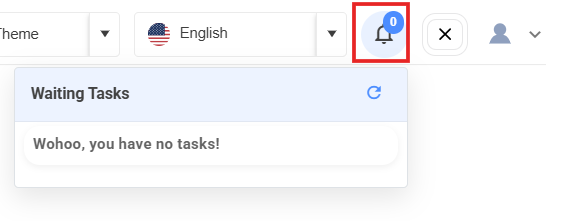
If the user receives a notification through a workflow, it will be displayed in the notification drawer under the bell icon.
The number of pending notifications is displayed on the bell icon.
Search Menu
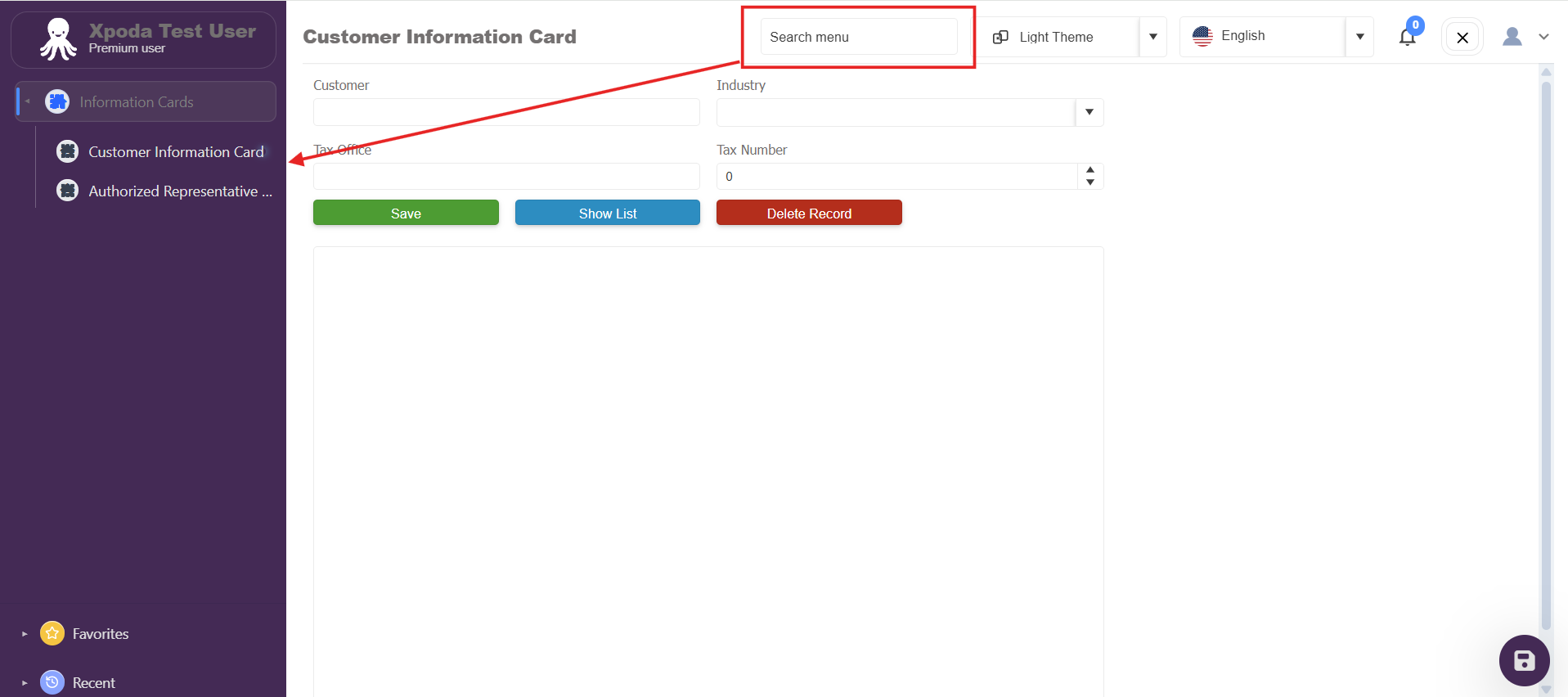
The Search Menu feature allows users to search for forms available in the left-side menu.
Language Selection
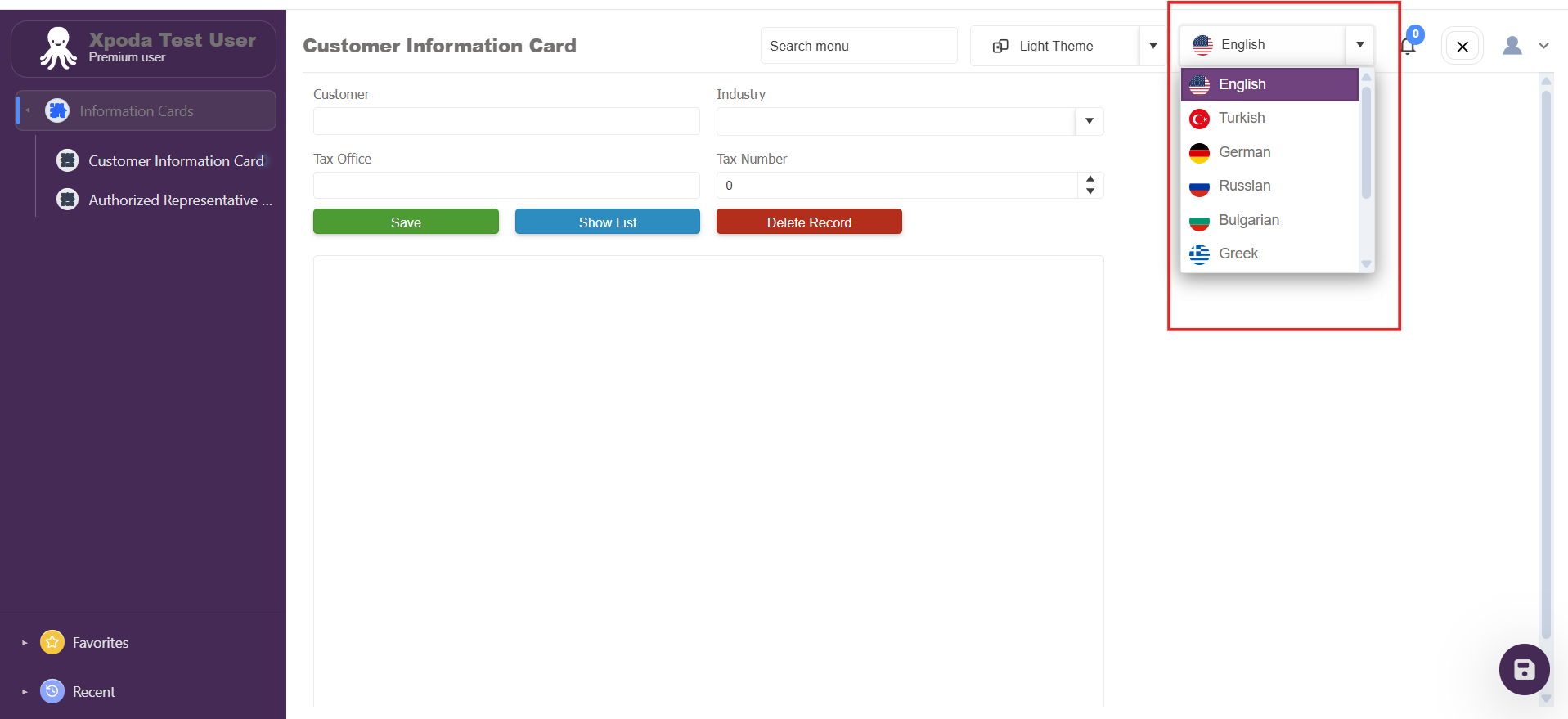
The Language Selection option allows users to switch between different interface languages.
To display field names and form elements in different languages, the required translations must first be defined in the development environment.
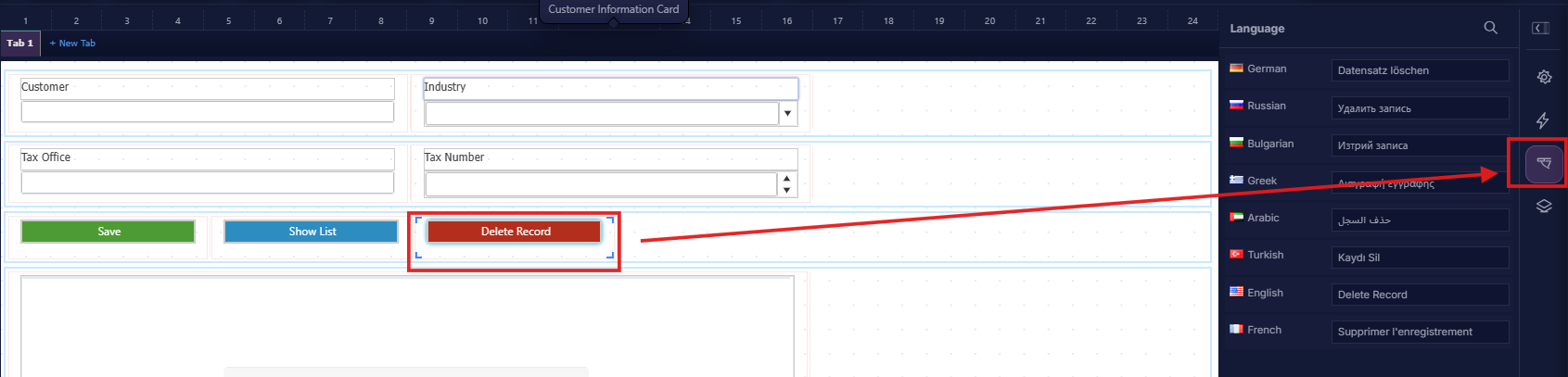
To add language definitions in Studio:
- Select the relevant field in the Studio screen.
- Open the Language option from the right-side panel.
- Enter the field names in the required languages.
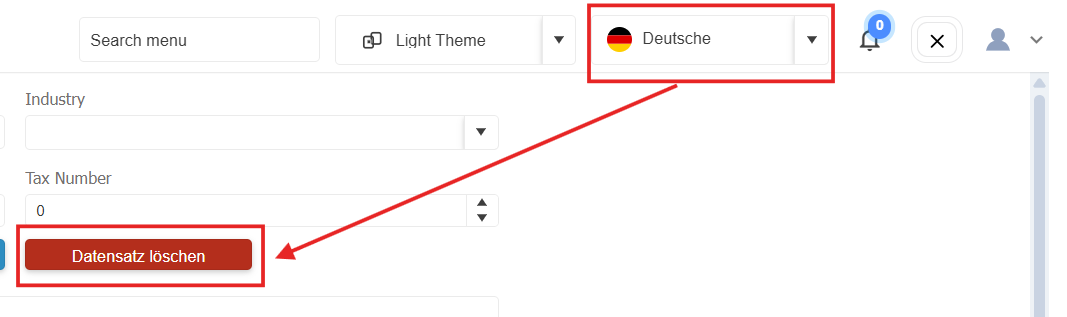
User Options
The User Options menu is located in the upper-right corner of the Client screen.
From this menu, users can access available options such as:
- Administration Panel
- Developer Documentation
- Change Password
- Logout
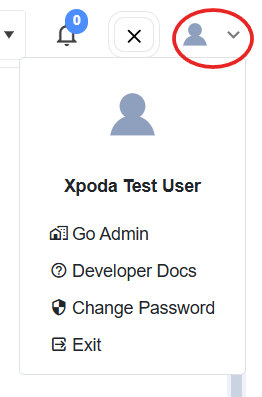
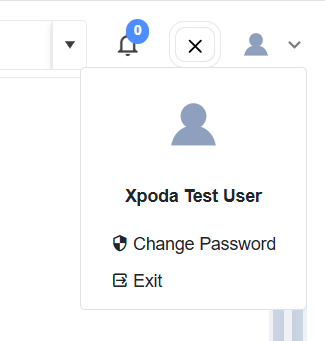
The Administration Panel and Developer Documentation options are only available for users with Admin privileges.
Users without Admin privileges can only access the Change Password and Logout options.
Theme Selection
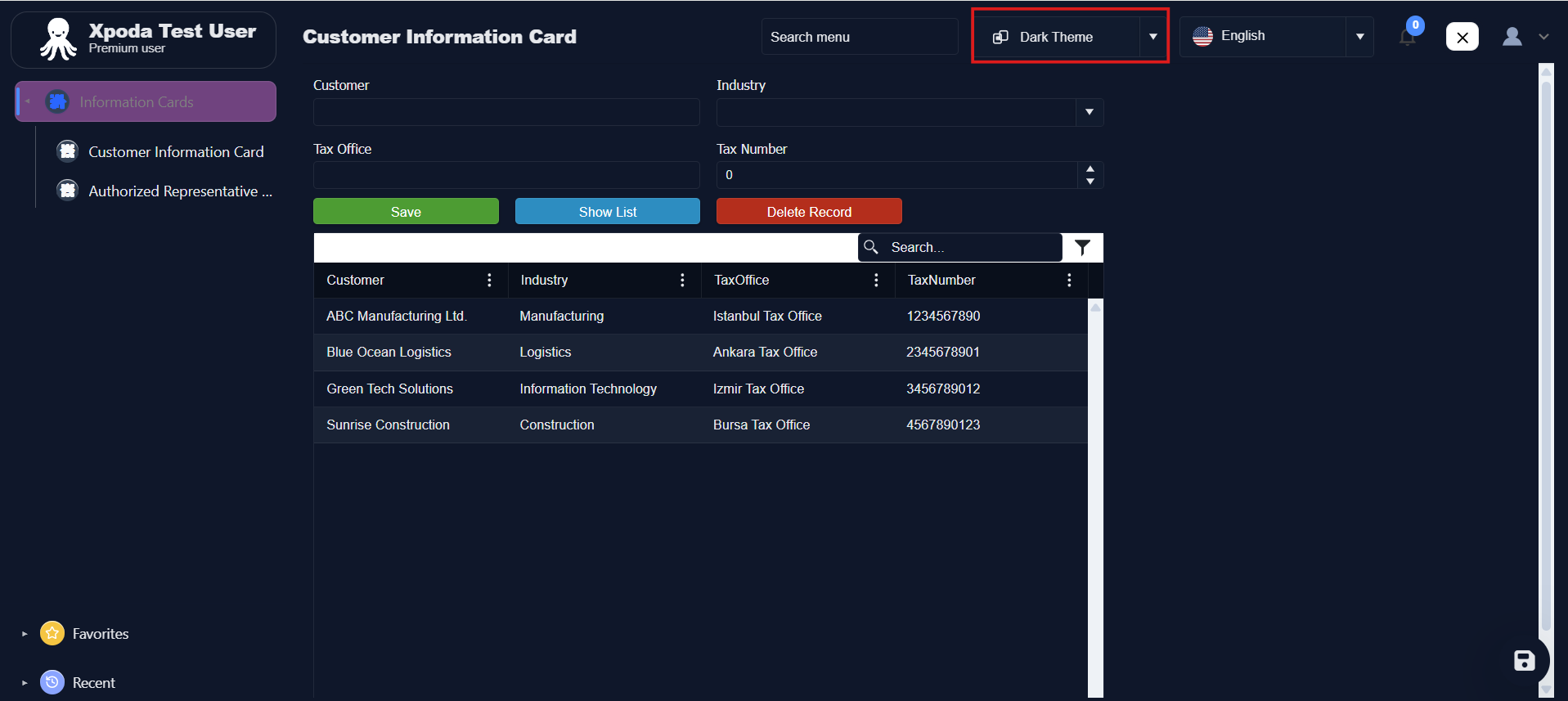
The Client theme can be changed from the theme selection area shown in the image below.
The selected theme is applied immediately to the Client interface.
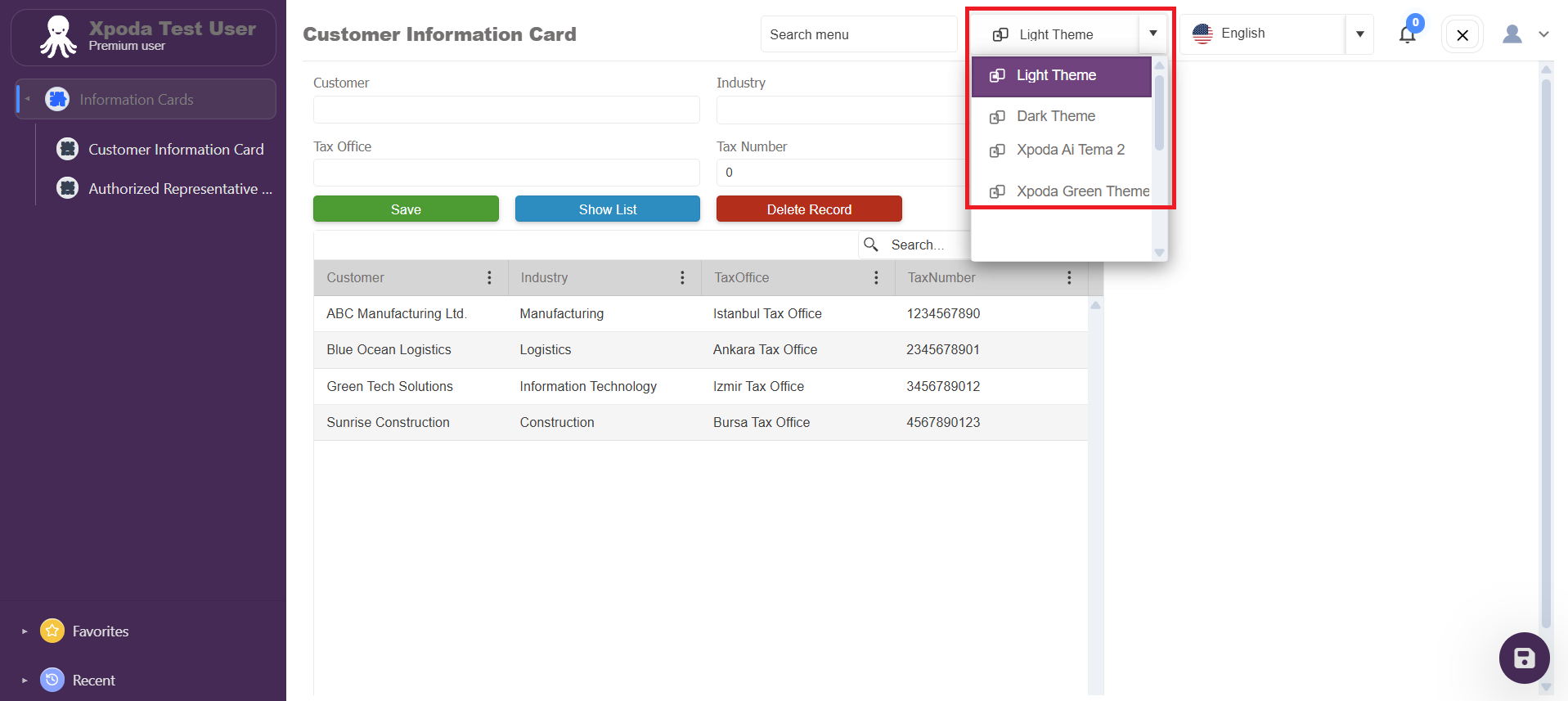
For example, when Dark Theme is selected, the Client application is displayed with a dark interface as shown below..
For quick access to frequently used menus, the lower section of the left-side menu contains the Favorites and Recent areas.
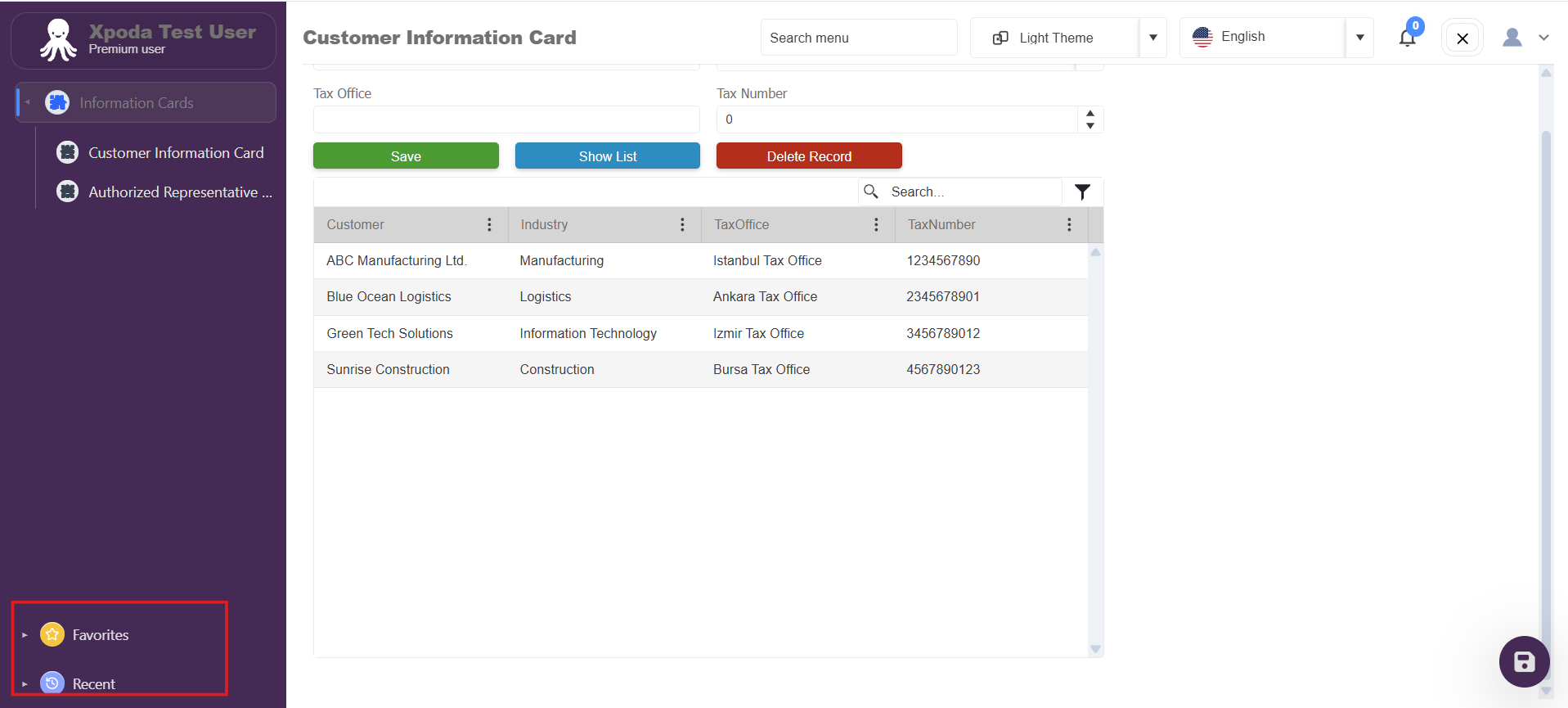
Favorites
The Favorites feature allows users to quickly access frequently used menus.
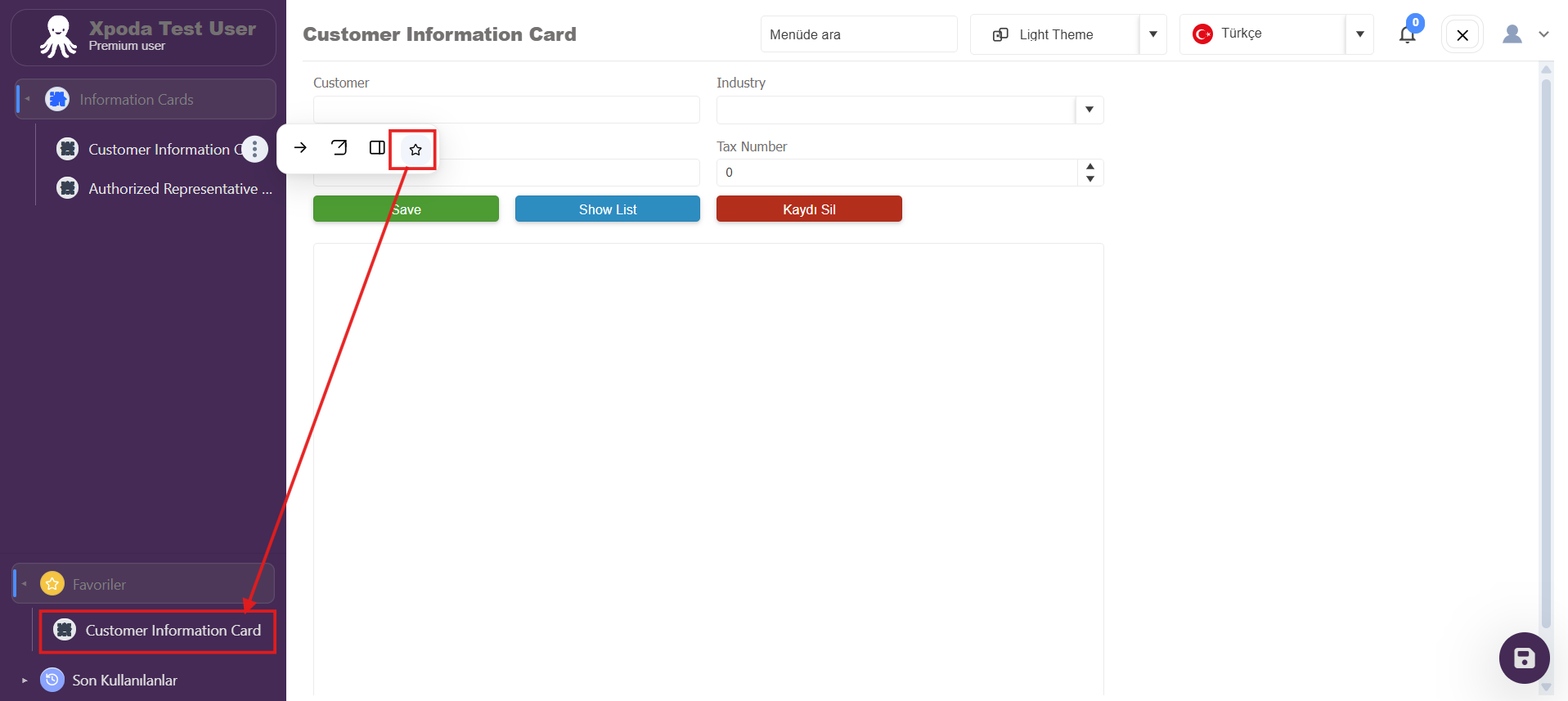
To add a menu to Favorites:
- Click the three dots (⋮) icon next to the relevant menu.
- Select the Favorite (⭐) option.
The selected menu will be added to the Favorites section and can be accessed quickly from this area.
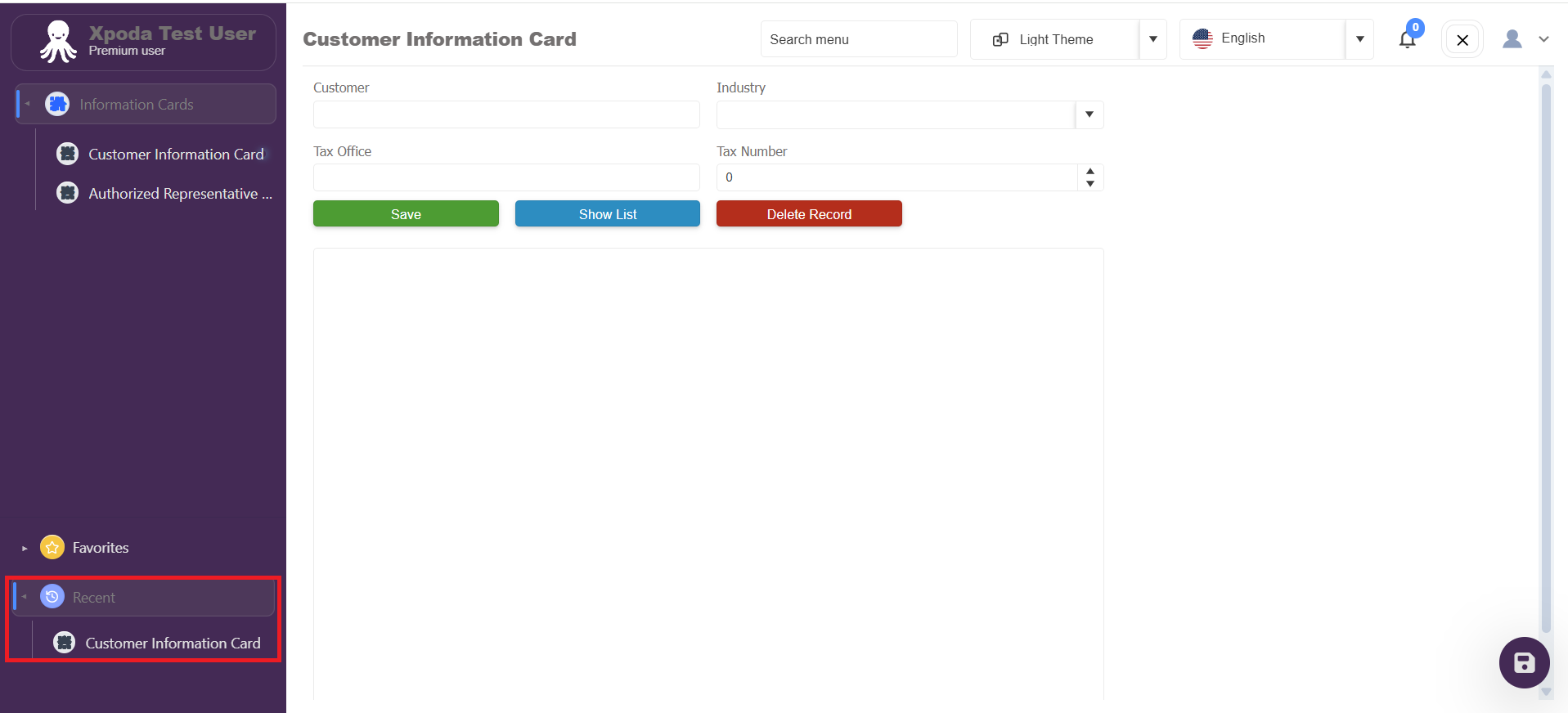
Recent
The Recent section automatically lists the menus that the user has recently viewed.
Users can quickly access recently used menus from this section.
 AI Assistant