List (Cube)v5
Used to report data. The requested information is displayed as a list cube.
|
Appearance in Toolbox |
Appearance in Free Form |
Appearance in Flexible Form |
Appearance in Responsive Form |
|
|
|
|
|

Compatibility
|
Free Form |
Responsive Form |
Flexible Form |
Mobile |
|
|
|
|
|


Notes
To use the cube list, an update value operation must be added. For example, to update the list cube when the form opens, choose the list cube as the update value field in When the form is opened.
When the cube list is added to the form, a pivot opens. The columns under the fields heading come from the fields in the list query. Drag and drop fields into the column, row and measure boxes to set how the list looks. To avoid setting it every time, right-click the list cube and save the view from list settings.
Properties
Name: The name of the tool is written here.
Help Text: Text entered as a comment when the mouse is over the tool.
Height / Width: Sets the height and width of the tool (the width field has been removed from Responsive Forms).
From Left / Top: Sets the distance of the tool from the left and top (this field has been removed from Responsive Forms).
SQL Query: SQL queries are written here.
Fit Horizontal: Stretches the tool to the full screen width on the user's screen.
Pin Right: Pins the tool to the right.
Display: Hides the tool on the screen.
Actions
When the row is changed (When the row is selected): Chosen to run an operation when a row is clicked.
When double clicked on row (When double clicked on row): Chosen to run an operation when a row is double-clicked with the mouse.
Example
First, after the list cube is added to the canvas, the form must be updated on the list cube. (For the List Cube name, a When the form is opened Update Value operation is created.)
Then a query is written for the list cube.
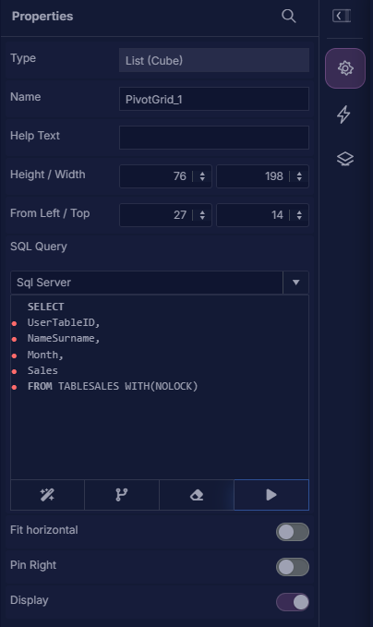
SQL Query in the list cube property
SELECT
UserTableID,
NameSurname,
Month,
Sales
FROM TABLESALES WITH(NOLOCK)
Then right-click on the list cube and, on the client screen, choose Pivot Grid Configurator.
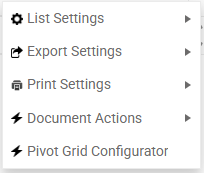
On screen
The Pivot Grid Configurator screen is as follows. The query fields are found here as FIELDS . You can drag fields to the Columns, Rows and Measures sections.
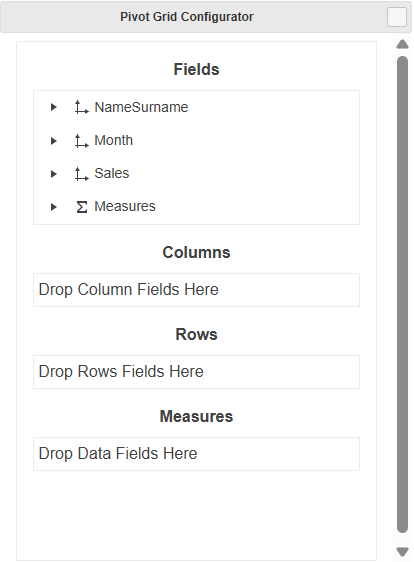
Client Pivot Grid Configurator on the screen
For example, it can be done as below.
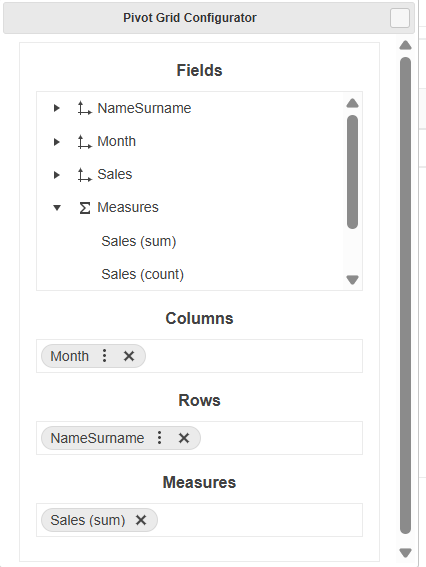
Pivot Grid Configurator on the Client screen
The result of this change and the saved data are shown below.
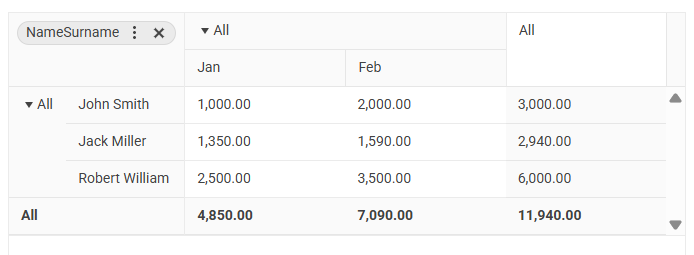
Client view of the list cube
Finally, you can save this view; otherwise you must set it every time. Right-click inside the list cube and, on the client screen, choose List Settings and View Save.
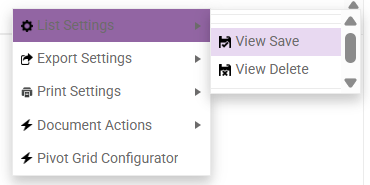
 AI Assistant