Xpoda AI: Setup and Usev5
Xpoda AI is the artificial intelligence layer built into Xpoda. It is not a separate product or server: definitions are made in Studio, and everything runs inside the customer's Xpoda Service with the user's Xpoda permissions.
This article covers setup and use from start to finish: license, language model, data models and templates, creating records from the chat, digital employees and their workflows, permissions, the Client chat panel, workflow steps and the website bot. A step-by-step example is at the end (section 9).
What does it do?
| Capability | Example | Where |
| Asking about data (Ask) | "Which 5 products sold the most this month?" → table, chart and a short comment | Client chat panel |
| Creating a record from the chat (Task) | "Create a new customer record for ABC Ltd" → form fields are filled and saved after confirmation | Client chat panel |
| Files and photos | Summarising an Excel file, entering a receipt/invoice photo into a form | Client chat panel |
| The open screen | Questions about the open list or Xpoda BI screen; adding filters/visuals in BI | Client chat panel, "This screen" |
| Answers from documents | Answers with sources from published procedures in the Document Library | Client chat panel |
| AI step in workflows | Classifying a request, extracting fields from text, writing a summary | Studio flow designer |
| Digital employee and its workflows | A "Sales Assistant" taking work by mail, WhatsApp or chat; a workflow sending a summary every morning | Studio › Xpoda AI › AI Agents |
| Website bot | A question-answer window embedded in your website, no sign-in | Studio › Xpoda AI › Public Bots |
| Important - Xpoda AI sees only the data of the templates you define; form permission in the menu is not data permission for questions. - The query written by the AI runs with a separate database user that can only read; it cannot change records. - Records are always created through the form itself and with the asking user's form permissions: the form's actions and workflow run as for a record entered by hand. - Which data may leave the company is decided by the privacy level chosen per data model. |
1. Requirements
License: AI_Skills must be on in the organization's license (Studio › Organizations › organization › Authority & License). If it is off, the Xpoda AI page in Studio shows "Xpoda AI is not included in this organization's license" and the chat icon does not appear in Client.
Xpoda Service version: 5.0 or later. For an organization connected to an older Service the page shows "This organization's Xpoda Service needs an update".
Language model: At least one language model provider is needed. Local models (Ollama, LM Studio, vLLM) run on the customer's own server and keep data on site; cloud models (OpenAI, Azure OpenAI, Anthropic Claude, Google Gemini) are used with an API key. Installing the local model is up to the customer; Xpoda only uses its address.
Installation: XpodaCaptain writes the key used to encrypt API keys (Ai:MasterKey) to the Service and checks it in the Health check. You do not need to create an extra database user or password.
2. Setup in Studio: the Xpoda AI page
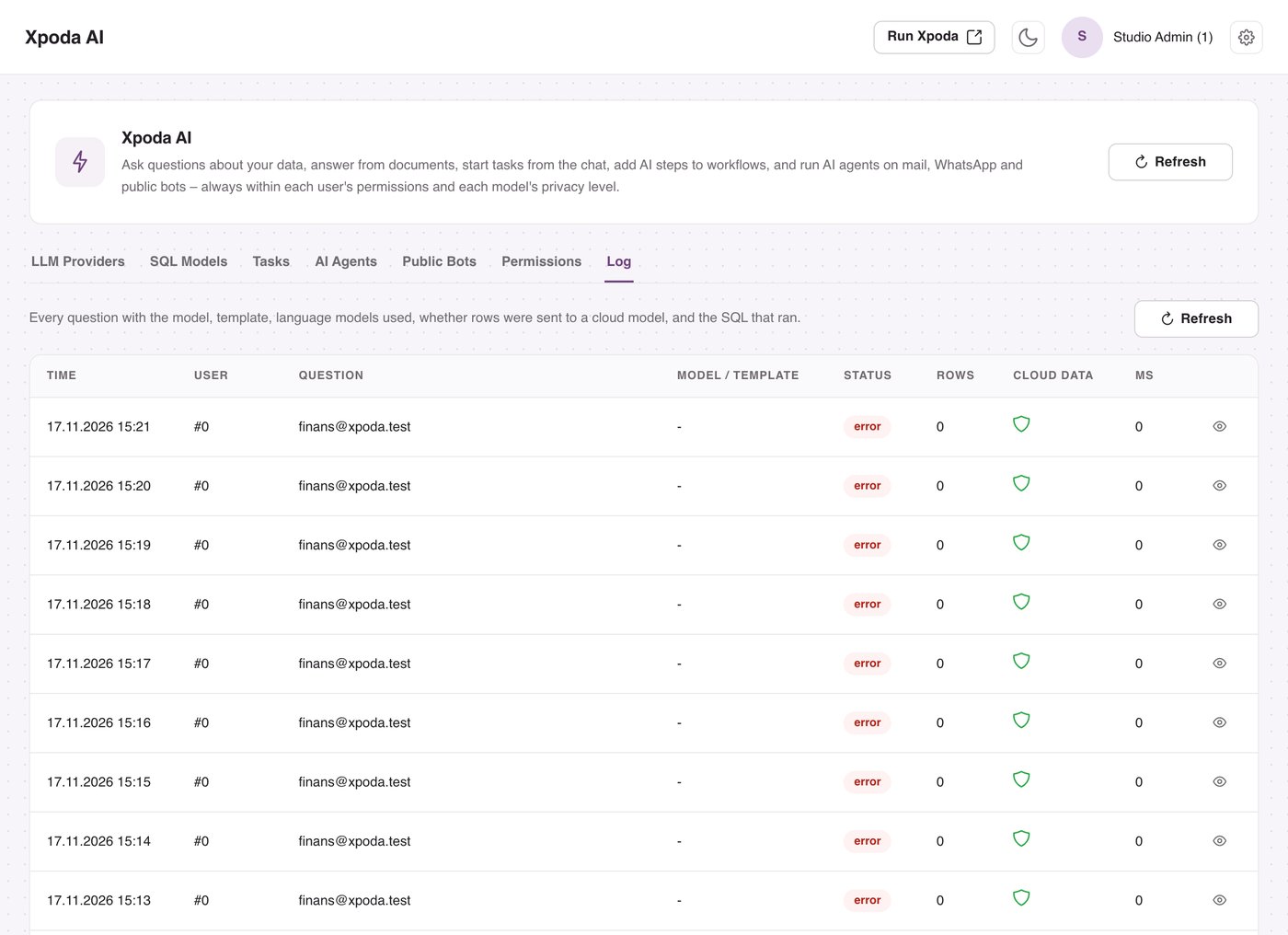
The Xpoda AI page in the Studio menu shows the definitions of the selected organization. They are written to that organization's Service and its own database. The tabs follow the setup order: LLM Providers, SQL Models (templates under each model), Tasks, AI Agents (workflows under each agent), Public Bots, Permissions and Log.
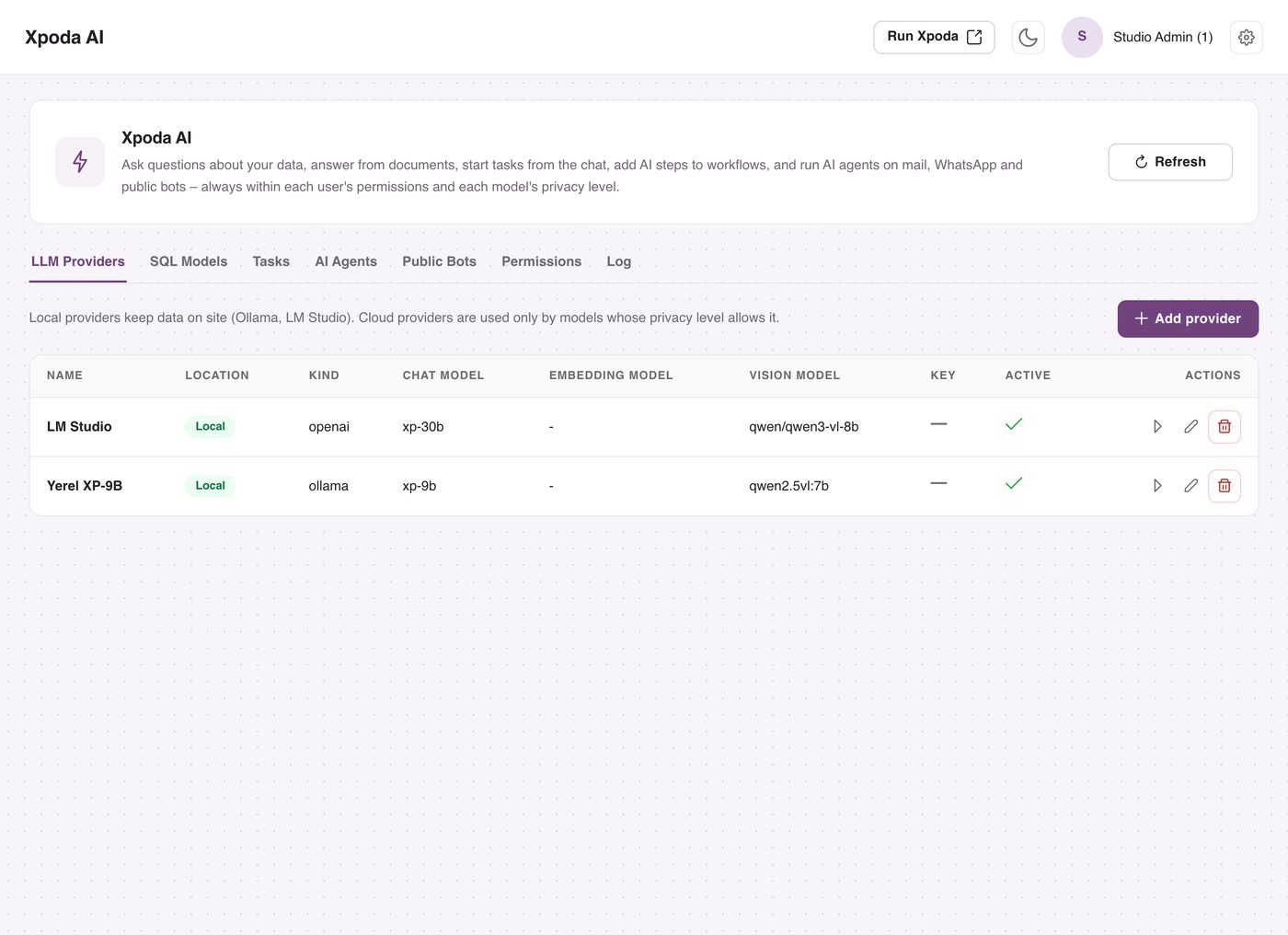
2.1 LLM Providers
Name: The name shown in lists (e.g. "Local XP-9B").
Kind: Ollama, OpenAI / compatible (LM Studio, vLLM), Azure OpenAI, Anthropic (Claude), Google Gemini.
Location: Local (data stays on site) or Cloud. The privacy rules look at this field.
Base URL / API key: The provider's address and key. The key is stored encrypted and never shown again.
Chat model: The model used for questions, SQL and answers.
Embedding model (optional), Vision model (optional): The vision model is needed to read photos (receipts, invoices).
Requests at the same time: The maximum number of requests sent to this provider at once; the rest wait in line. Keep it low for a local model on a single machine (0 = 4).
The Test button shows whether the provider can be reached and the model answers.
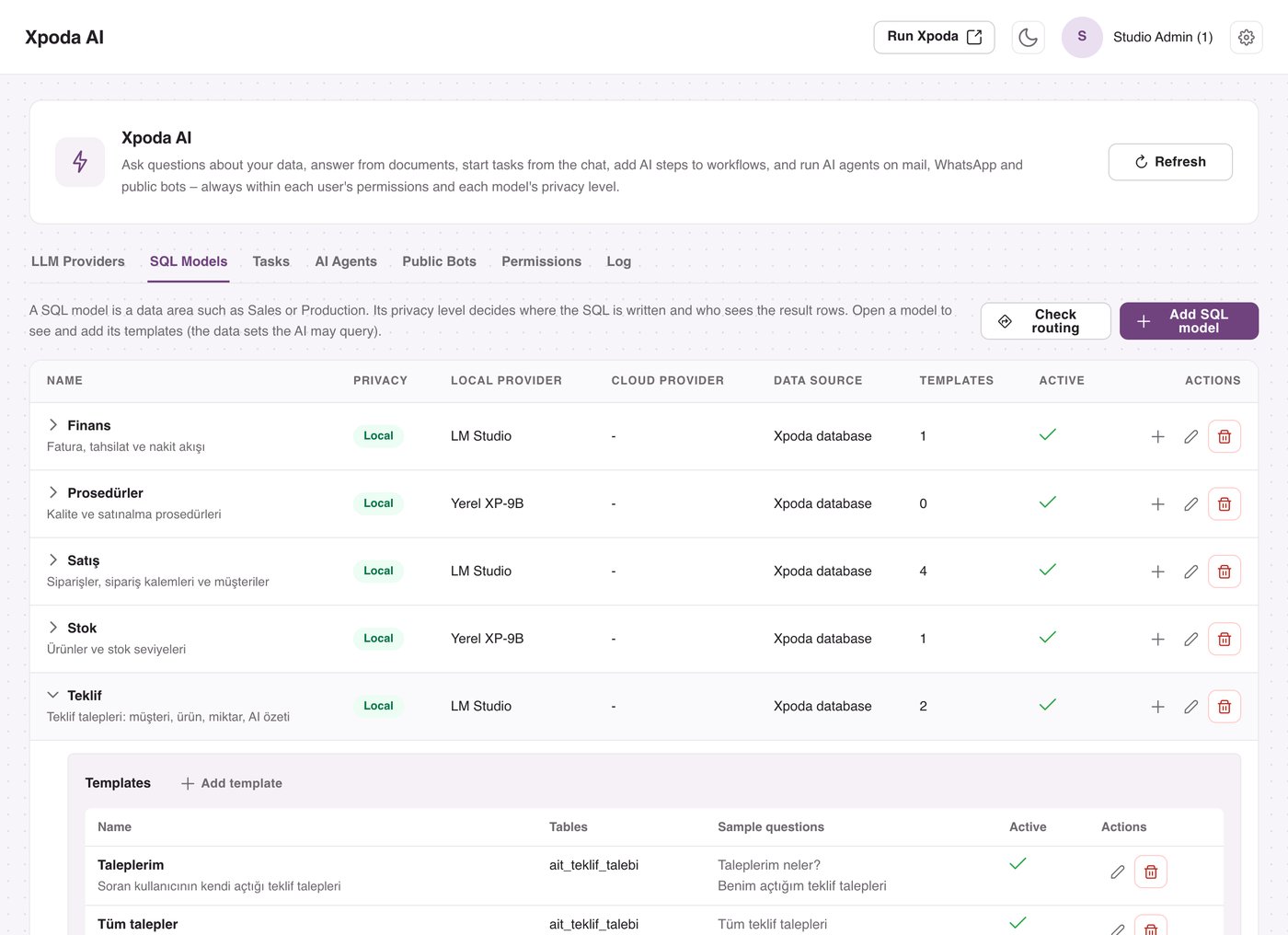
2.2 SQL Models (data models) and their templates
A data model is a business area (e.g. Sales, Finance, Stock). Users are given permission per model and template. Click a model's row to list its templates below it; the + in the row or Add template in the list adds a template.
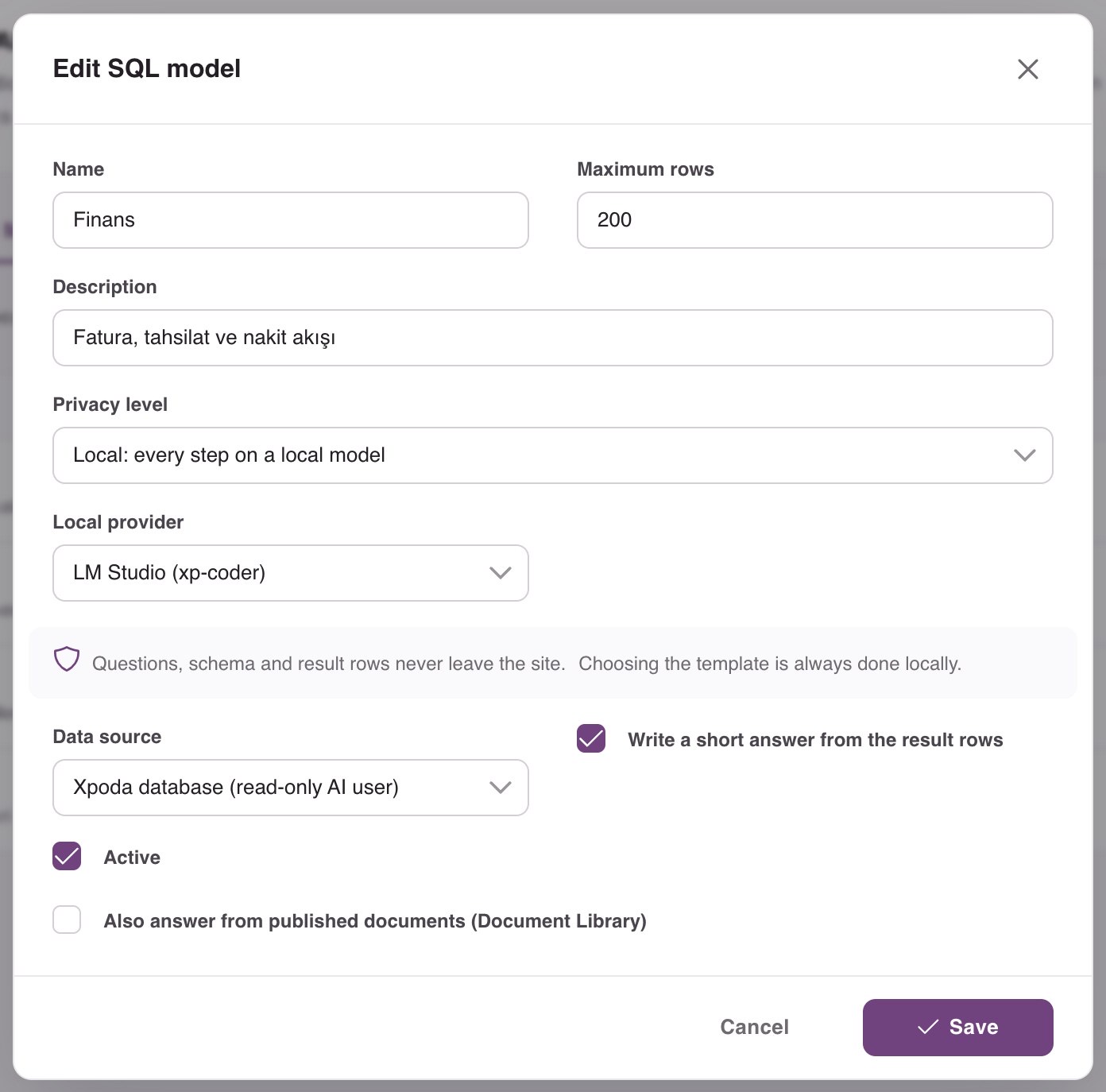
Privacy level:
| Level | Writes the SQL | Writes the answer | Leaves the company |
| Local | Local model | Local model | Nothing |
| Hybrid | Cloud model | Local model | Question, template and column names; no row data |
| Cloud | Cloud model | Cloud model | Question, template and result rows (within the row limit) |
At every level the template is chosen locally; the question does not leave before the privacy decision. Studio does not let you choose a provider that does not fit the level (e.g. the cloud provider is disabled for a Local model). The default level is Local.
Local provider / Cloud provider: The providers this model uses.
Data source: The Xpoda database (with the read-only AI user) or an external database. Give the external connection string with a read-only user; it is stored encrypted.
Maximum rows, Timeout (seconds): The most rows and the longest time a question may take.
Write a short answer from the result rows: If off, the result is shown only as a table and chart and no rows go to any model.
Also answer from published documents (Document Library) + Document types: If on, the model also answers from published documents of the selected types (see 3.5).
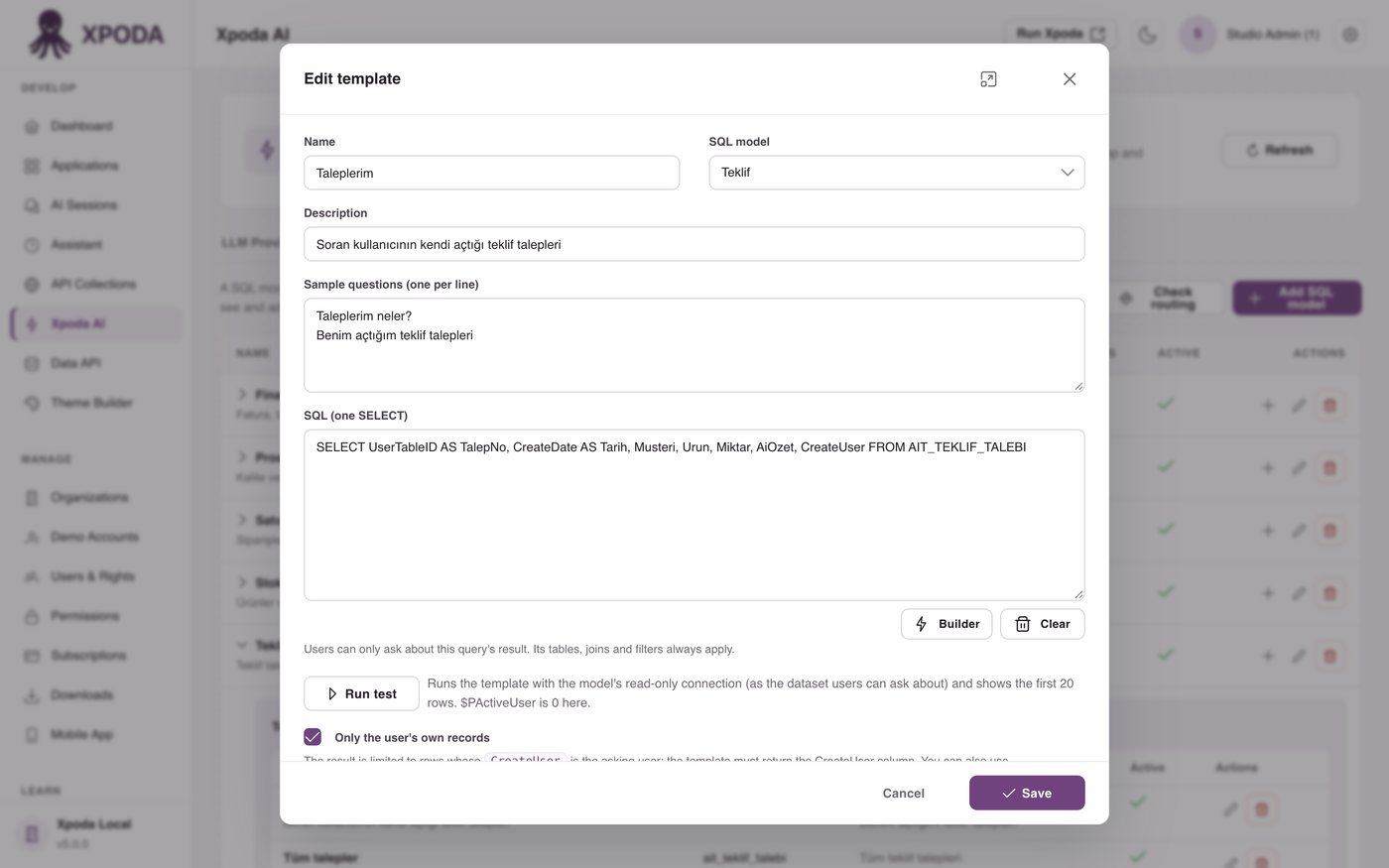
A template is an approved query inside a data model, and it is all the data the AI can see. The template's result becomes a data set named T; the AI can only write a SELECT on T (filtering, sorting, grouping, top N). The template's tables, joins and WHERE conditions always apply.
SQL (one SELECT): A single SELECT. Tables, views and table-valued functions can be used; the Service grants the AI user the read and execute permission it needs.
Description, Sample questions (one per line): Describe what the template returns; the right template is chosen from these texts. Write 3–5 realistic questions. Because the choice is made from the words in the question, write the sample questions in the language users will ask in (Turkish and English if needed).
Column descriptions: Meaning, unit and code values of a column (e.g. "Status: 1 open, 2 closed"). The SQL and the comment are written with these descriptions.
Confidential columns: The values of these columns never go to a language model. The user sees the value in the table; it is not used in the comment.
Only the user's own records: The result is limited to records created by the asking user; the template must return the CreateUser column. The template can also use the $PActiveUser parameter for the asking user.
Run test: Runs the template with the model's read-only connection and shows the first 20 rows ($PActiveUser is 0 here). The query can also be built visually with Builder.
Approved examples: Question–query pairs liked in the chat or approved in the Log. They are used as examples for similar questions; accuracy grows with use.
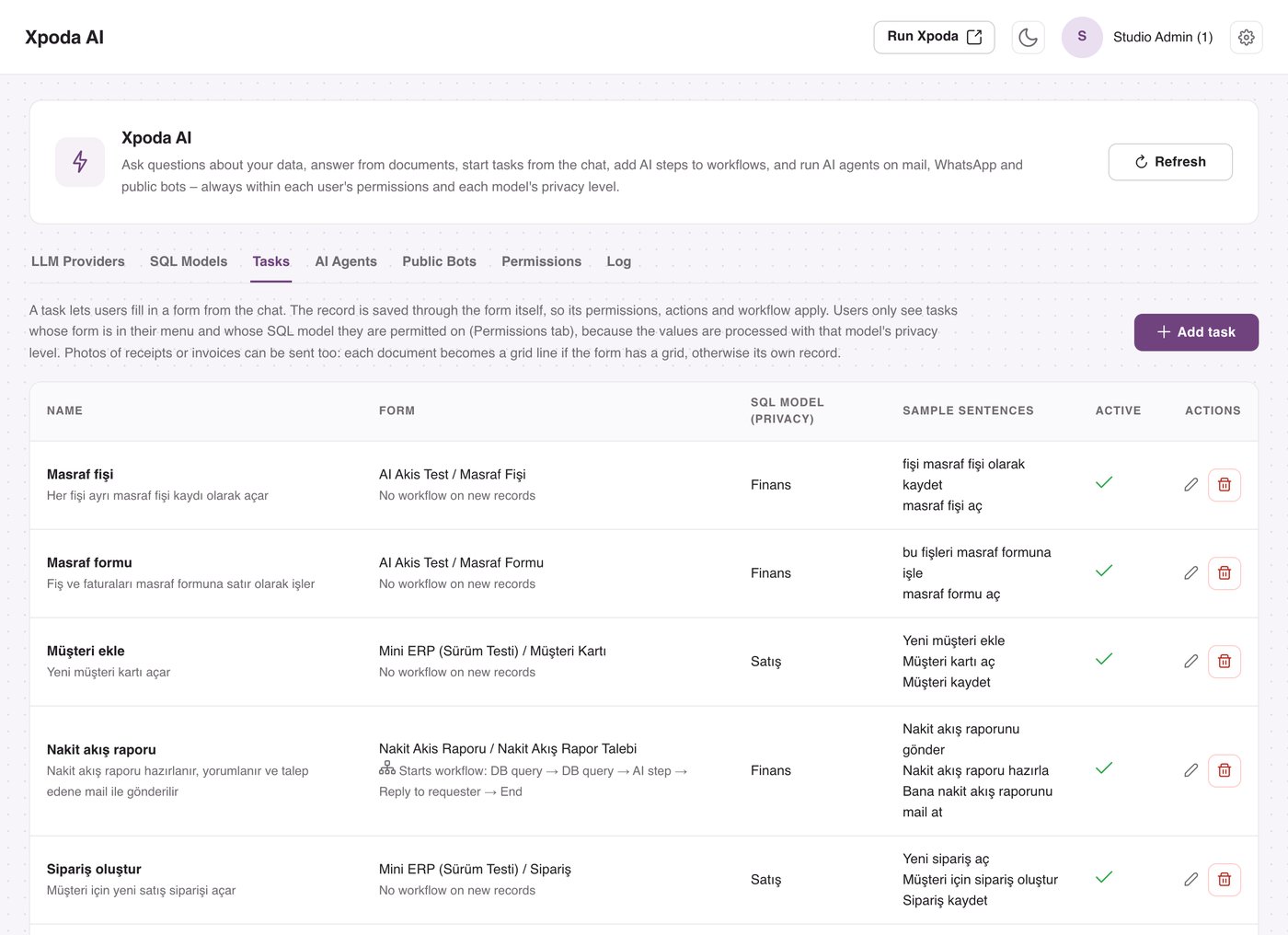
2.3 Tasks (creating records from the chat)
A task lets a form be filled in from the chat. The record is saved through the form itself and with the asking user's form permissions; the form's actions and workflow apply. Users see only the tasks whose form is in their menu.
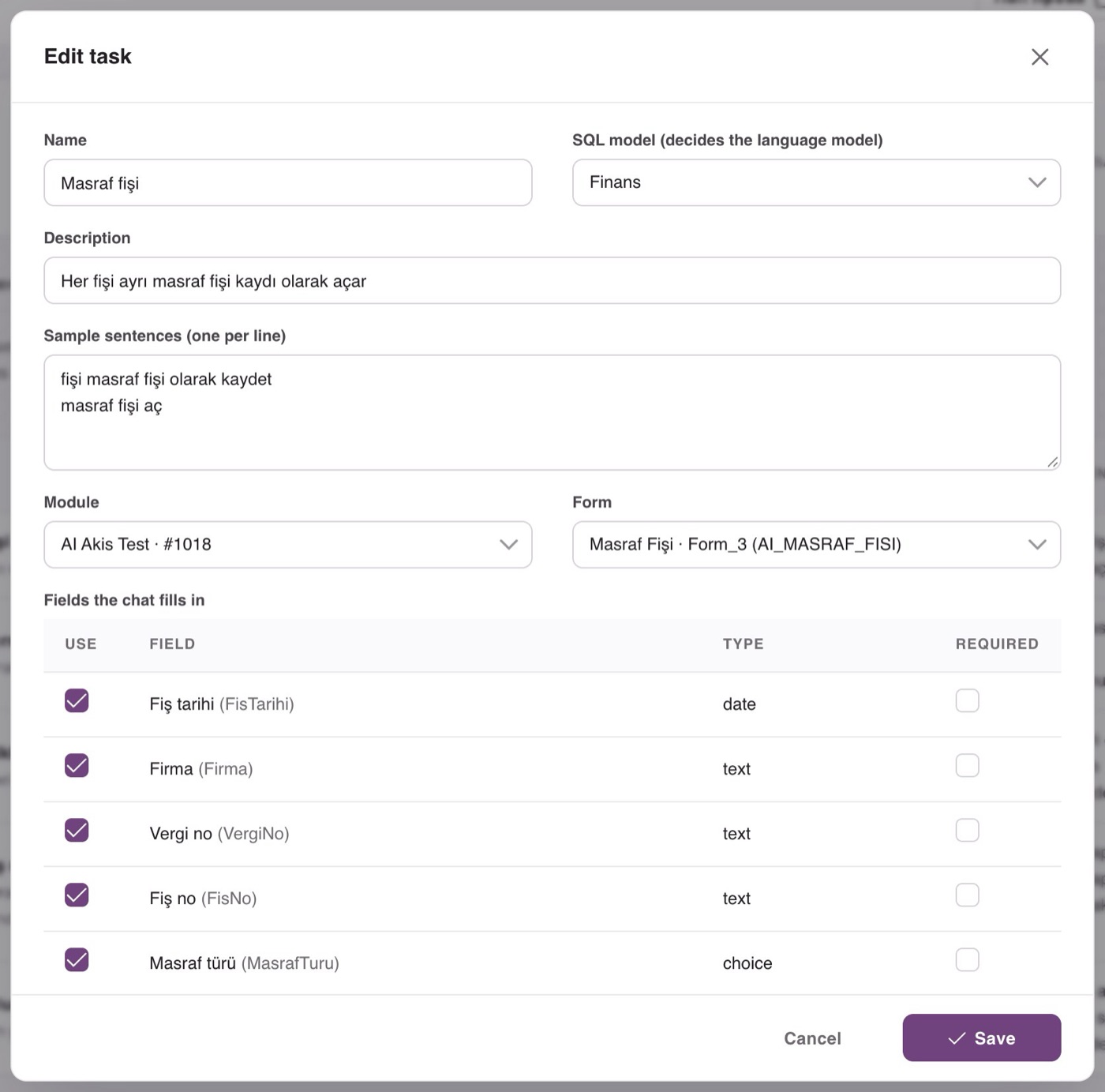
Module, Form: The form to fill in. Forms are listed with their display names, as in the Client admin panel.
Fields the chat fills in: The fields the chat fills. Fields are listed with their form labels and the table column name in brackets; mark the required ones. If a required field is missing the chat asks for it. Clear the fields the workflow fills (e.g. an AI summary).
Sample sentences: Example sentences that start this task (e.g. "create a new customer record").
SQL model (decides the language model): Decides which language model the task uses and the privacy level.
The list shows the form's workflow ("Starts workflow: AI step → Approval → End"). The task fills in and saves the form; the form itself starts the workflow: if the form's workflow does not start on new records, a record created from the chat does not start it either.
Photos can be sent too: each document in a receipt or invoice photo becomes a grid line if the form has a grid, otherwise its own record.
2.4 AI Agents (digital employees) and their workflows
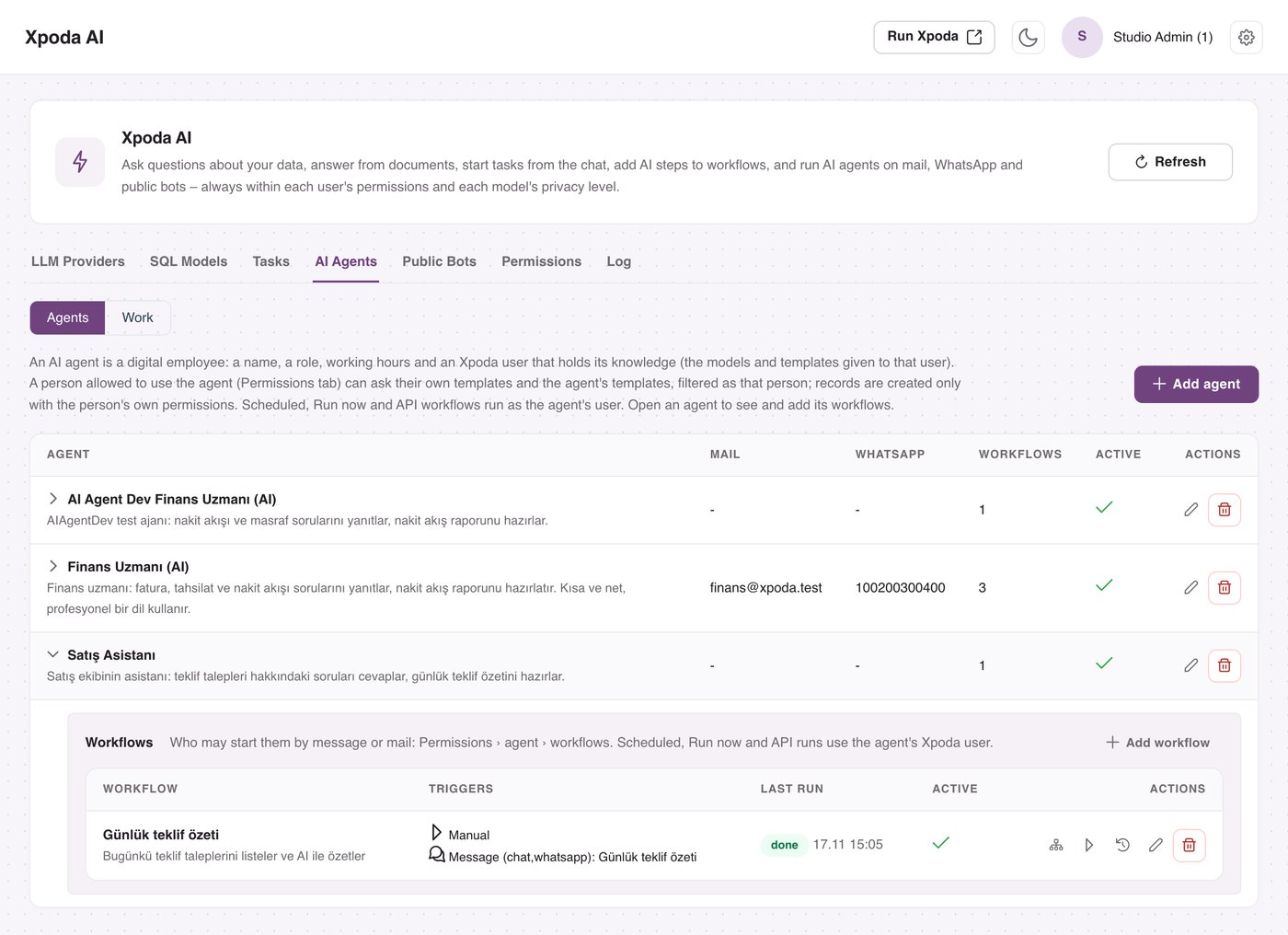
A digital employee is a name, a role, working hours and an Xpoda user. The agent's knowledge is the models and templates given to that user on the Permissions tab. The Xpoda user is required; create a separate, non-admin user for the agent (e.g. "Sales Assistant (AI)").
Role and responsibilities: The agent's job description; it sets the tone and scope of its answers.
Workflows: Click the agent's row to list its workflows below it. Add workflow creates a workflow (the agent is preselected); Save and design steps opens the designer. Row buttons: design, Run now, Runs, edit (name and triggers), delete. The Last run column refreshes by itself while a run is in progress.
Mail and WhatsApp: To give an agent work by mail, add a mail trigger to its workflow (see 4.2). The company WhatsApp number is connected in Client › Admin › WhatsApp; users write from the mobile number on their user card. A user with several agents can start the message with the agent's name ("Sales Assistant: today's quotes").
Work queue (Work): Every request to an agent (chat, mail, WhatsApp, workflow step) enters a queue and starts when the agent has free capacity and is within working hours. The Work view shows running, waiting, finished-today and failed work, average duration and provider load. Work settings: number of jobs at the same time, pause, working days and hours, out-of-hours behaviour, channel priority.
2.5 Permissions
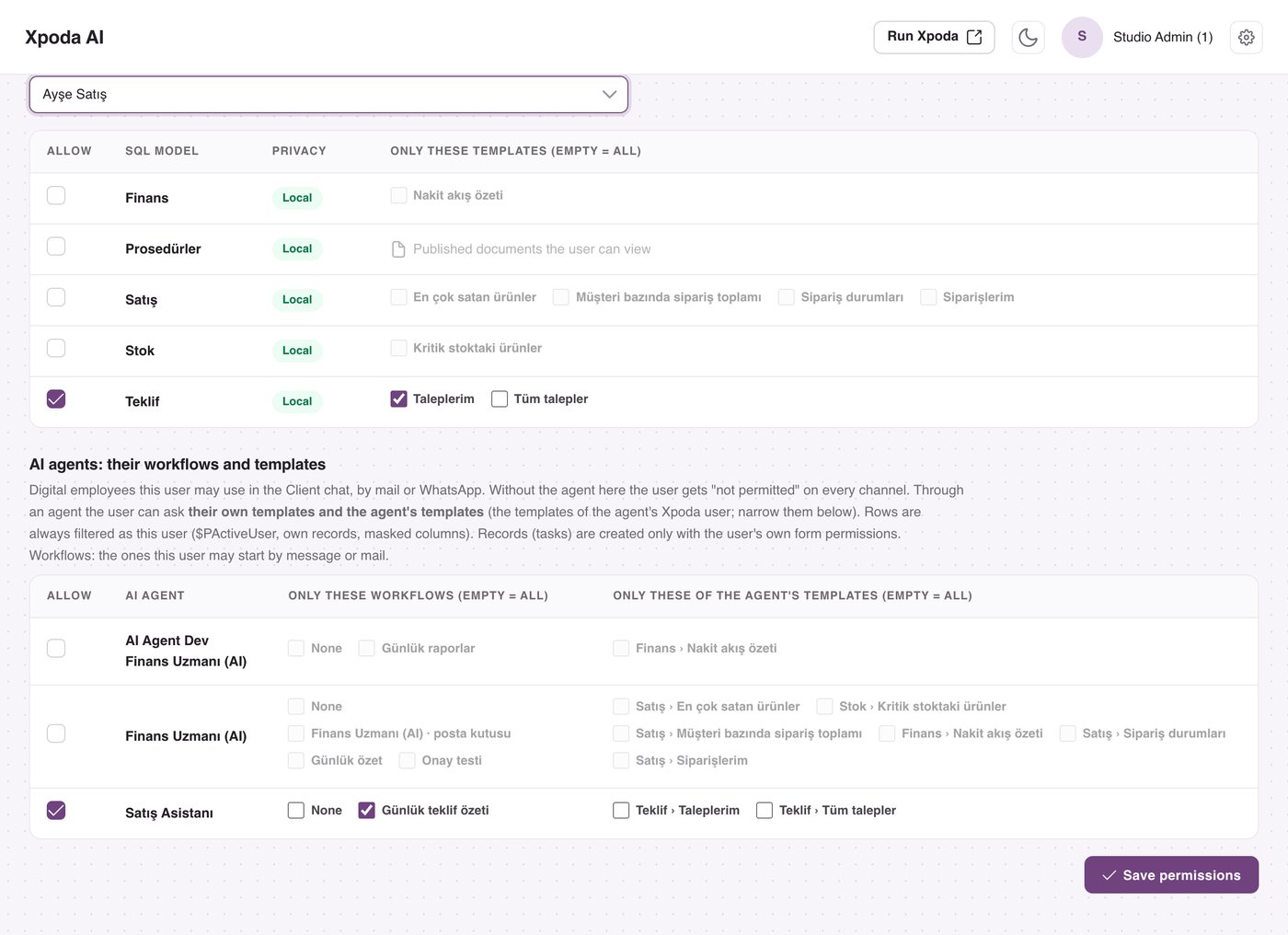
A user without permission cannot ask anything. Select the user (search by name or user name), tick the data models they may use, optionally limit a model to some of its templates, and click Save permissions. For a model that answers from documents, users see only the documents they may view in the Document Library.
AI agents: their workflows and templates: Below the models, tick the digital employees the user may give work to in the chat, by mail or WhatsApp. Each row has two choices:
- Only these workflows (empty = all): The workflows the user may start by message or mail. Empty means all of the agent's workflows; None means none (the user may use the agent's templates but cannot start its workflows).
- Only these of the agent's templates (empty = all): Which of the agent's templates this user may use.
How permissions combine: When talking to an agent, a user uses their own templates and the agent's templates together (union). Rows are always filtered as the asking user: an "Only the user's own records" template returns the user's own records, $PActiveUser is the asking user, and confidential columns stay confidential. Records (tasks) are created only with the user's own form permissions; an agent never creates a record the user could not create.
| On whose behalf | With which permissions |
| User asks in the chat without choosing an agent | Only their own templates |
| User asks through an agent (chat, mail, WhatsApp) | Own templates ∪ the agent's templates (narrowed per person); rows filtered as the user |
| Workflow started by message or mail | The user who started it; they need the agent › workflow permission |
| Workflow started by schedule, Run now or API | The agent's Xpoda user |
| Subflow | Whoever runs the parent workflow |
The chat icon in Client appears, in an organization with the license, for users with at least one model or agent permission or an active task form in their menu.
2.6 Log
Every question and task is recorded: time, user, question, model/template, status, row count, whether data went to the cloud, and duration. Click a row for details: the query that ran, candidate templates and the language models used. A question that was answered correctly can be added to the template's approved examples here.
3. Using it in Client: the chat panel
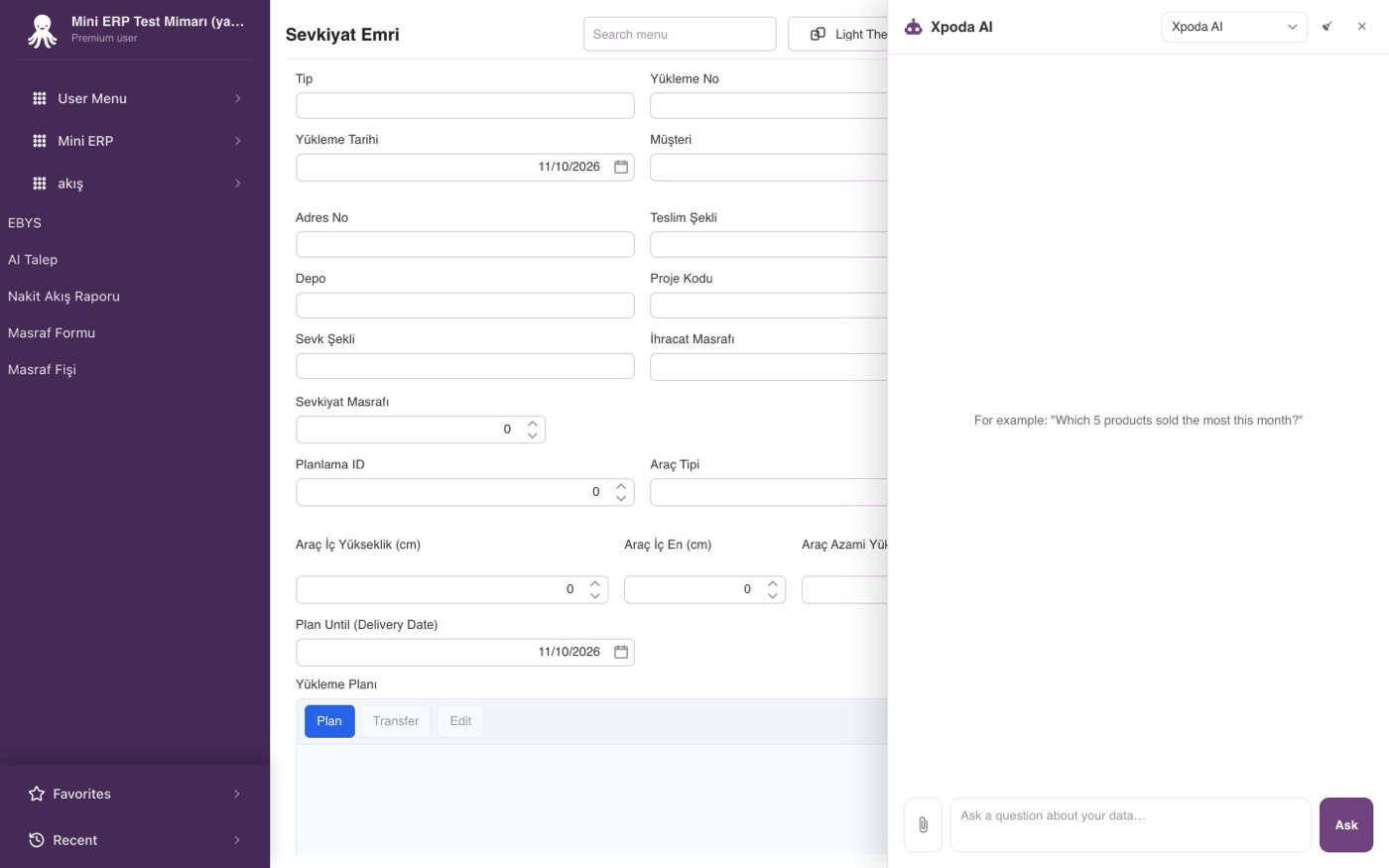
A permitted user opens the panel with the Xpoda AI icon in the top menu; it opens on the right side of the page. The list below the input box selects Xpoda AI or a digital employee; the broom icon clears the chat.
The panel remembers recent messages: follow-ups such as "and last month?" are answered relative to the previous question. The full-screen button enlarges the panel. On phones and tablets the camera button takes a photo directly. "What can you do?" lists what the user can do with their permissions.
Formatting in answers (bold, lists, headings, tables) is displayed properly in the panel; HTML in the text does not run.
3.1 Asking about data
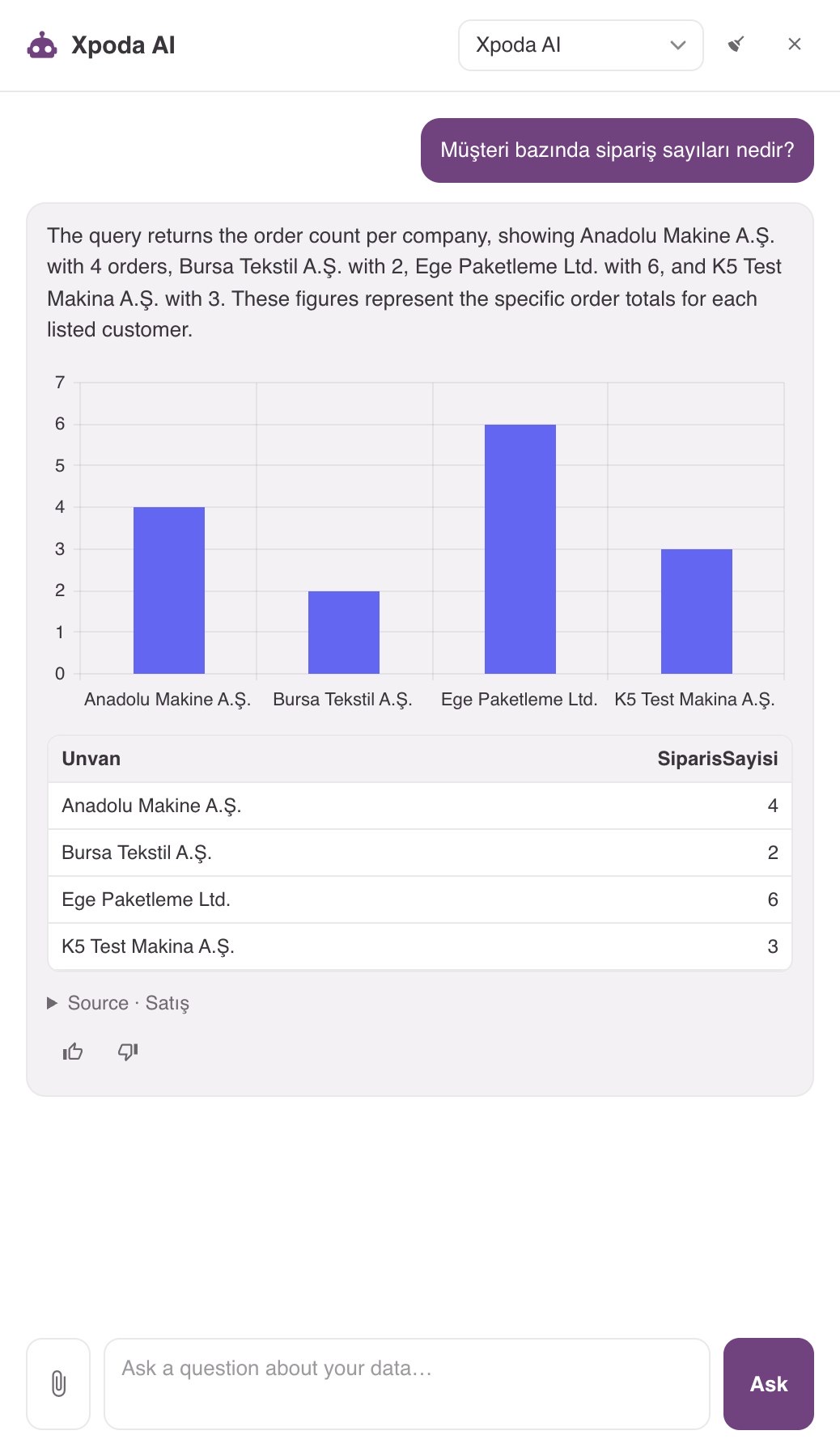
Write the question in your own words. The answer contains the result table, a chart where suitable, and a short comment. The table and chart come directly from the query result; the language model only writes the comment.
The Source section below the answer shows the data model used. Admin users also see the template, tables, the models that wrote the query and the answer, whether result rows left the company, and the SQL that ran. Give feedback with 👍 / 👎; liked answers become examples with the admin's approval.
If a user asks a question belonging to a template they are not permitted on, the answer comes from their permitted templates; if there is none, the answer is "not permitted". Data never goes beyond the permissions.
3.2 Creating a record from the chat
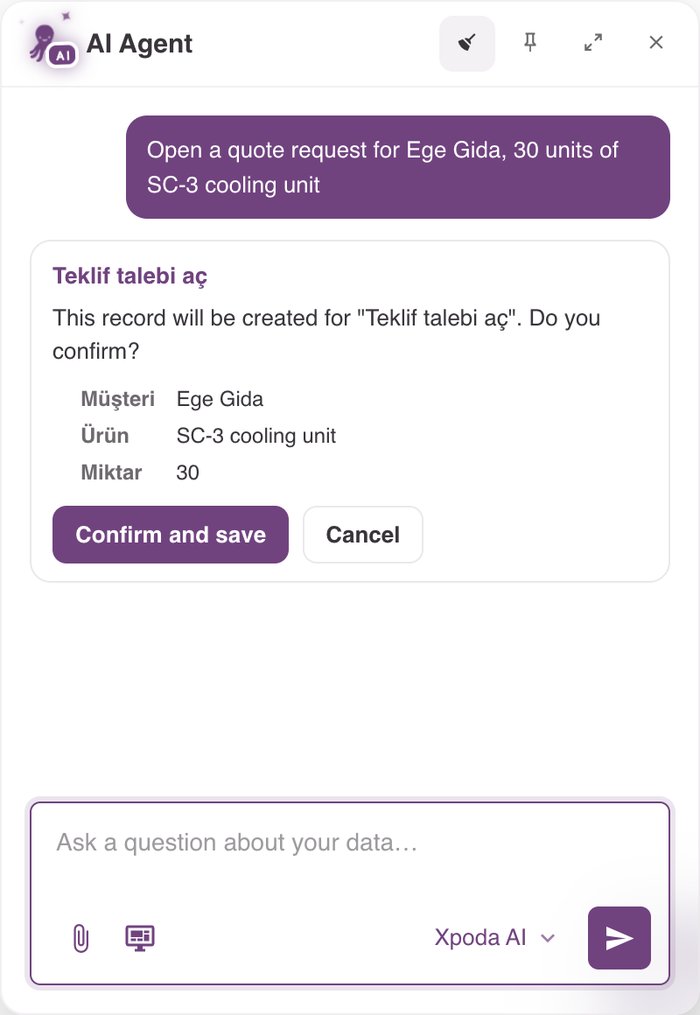
Write a sentence such as "create a new ... record for ...". If the open form is a task form it is used; otherwise the task that best fits the sentence is found. The chat asks for missing required fields, checks drop-down values against the form's own list and shows the filled fields in a summary. Confirm and save creates the record with the form's own save; the Open record link shows it. If the form has a workflow (e.g. AI summary and approval) it starts with the record.
If a message fits several jobs (tasks or workflows) equally, the chat asks which one you want; choose by clicking, typing the number (1, 2, 3) or the option's name.
3.3 Files and photos
Up to 4 files (10 MB each) can be added with the paperclip or by drag-and-drop/paste: Excel, CSV, Word, PDF and photos.
- Excel/CSV: The question runs on the file's rows; calculations are done by a query, the model only comments.
- Word/PDF: Summary and question-answer over the text.
- Receipt/invoice photo + "enter it into the expense form": The provider's vision model reads the document, values are checked against field types, unreadable fields stay empty and show as "?" in the summary. After confirmation the record is created through the form.
3.4 The open screen ("This screen")
The This screen button answers the question from the data on the open page (list, grid, Xpoda BI). With Xpoda BI open, requests such as "filter by region" or "add a monthly sales chart" change the view. The change is not saved; Undo restores it; save from the BI designer to keep it.
This screen is off by default. When on, questions are answered only from the screen's data and a coloured glow appears around the screen.
Filling the open form from the chat: With This screen on and a form open, a sentence such as "customer ABC Ltd, city Izmir, 30 days term" writes the values into the form's fields; no task is needed. "new" clears the form, "save" runs the form's own save. Undo restores the written values.
3.5 Answers from documents
In a model that uses documents, document-related questions are answered from the published documents in the Document Library, with numbered citations. The Source documents link opens the document in the viewer. Questions the documents do not cover are not made up: the answer says the documents do not cover the topic.
3.6 Step-by-step entry
A request such as "enter a record in the sales order form" opens the form (if it is in your menu) and the chat asks the fields one by one, in Studio's Enter order or else the screen layout, required fields first. Drop-downs offer the form's own options as buttons; answers such as "today" or "three thousand" are converted to the field type. Commands: Skip, Back, Save, Finish.
4. Xpoda AI in workflows
The Studio flow designer has three nodes and one form action.
| Node / action | What it does | Settings |
| AI Step (a33) | Holds the flow, runs the language model in the background, writes the result to the record and continues the flow | Instruction (record values with $PColumn$), result column, SQL model (from the list; privacy and language model come from it). Modes: Write, Classify, Extract, Knowledge search, Ask a template |
| Reply to Requester (a34) | Sends the answer to the channel the request came from (chat, mail reply, WhatsApp); without a channel, mails the record's creator | Message (with $P), optional subject |
| Call API (a35) | Calls an API from API Collections and writes the response to the record (no AI license needed) | Collection and API, parameter query, "ResponseColumn = RecordColumn" mapping |
| Action 7 · AI Completion | Sends text from a form button to a language model and writes the answer to a field | Query type "AI Completion" + LLM Provider |
The SQL model is required (except in Ask a template mode): if none is selected the field shows a red "required" and the flow check reports an error; such a step fails at runtime with "SQL model not found" and takes its error outcome. If there is only one active model it is selected automatically for a new step.
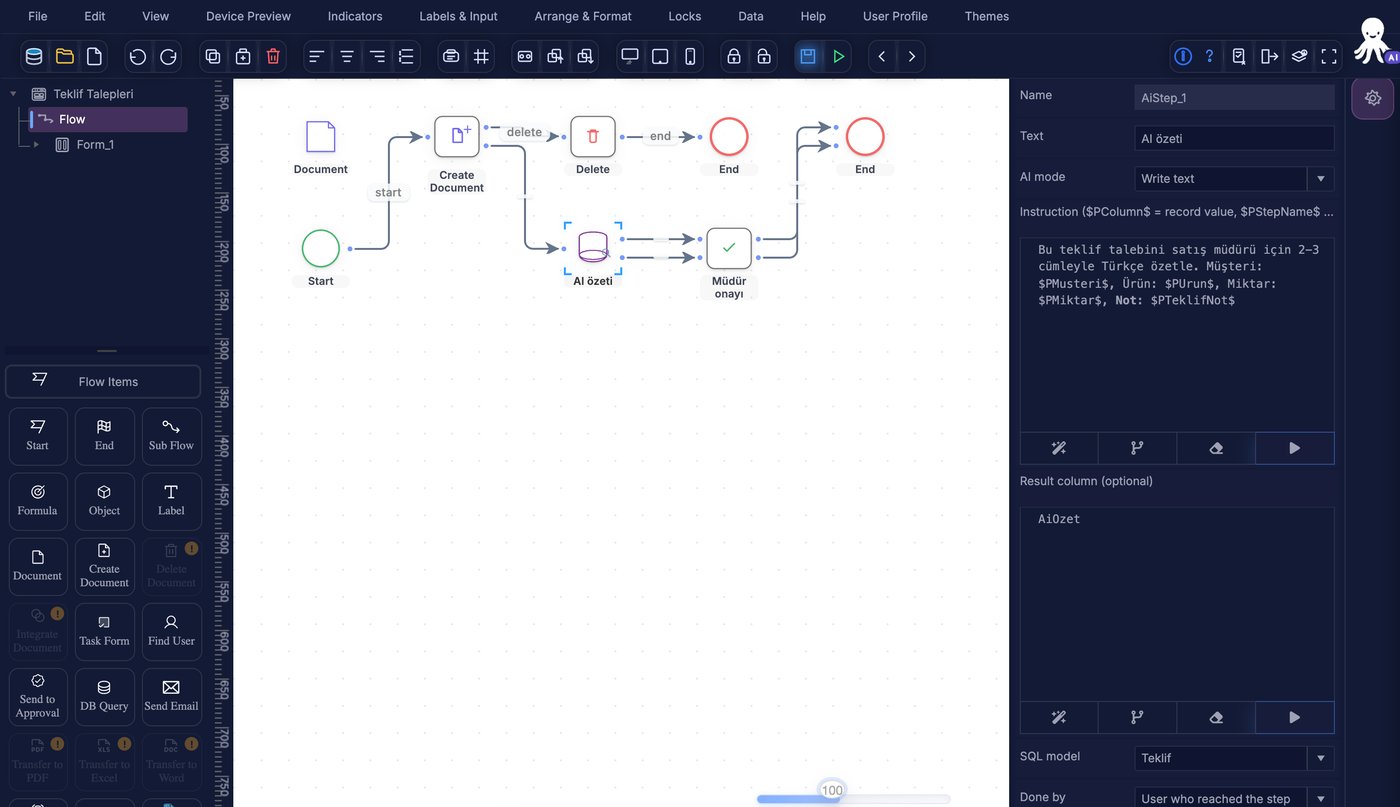
AI Step and Call API have two outcomes: success and On error. If the language model cannot be reached the job is retried 3 times; then the flow takes the error outcome, or waits at the node if there is none. The AI step writes on behalf of the user who brought the flow to it.
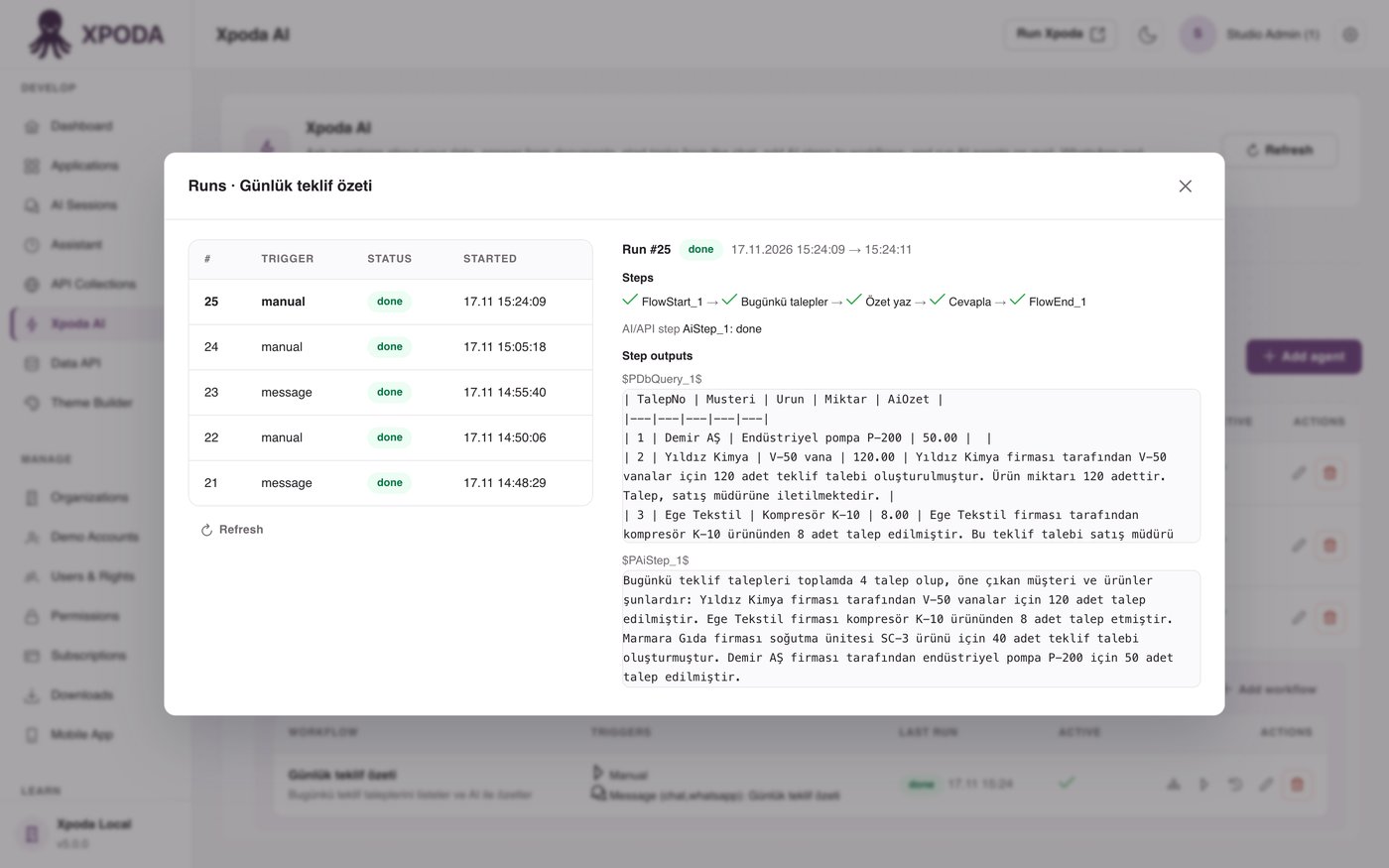
Step outputs: Later steps can use earlier results: $PAiStep_N$ is the answer of the Nth AI step, $PDbQuery_N$ the result of the Nth query step (a single value or a table). An empty query result is sent to the model explicitly as "(no data)", so the model does not invent data. Decimal columns are written plainly in texts ("120", not "120.000000").
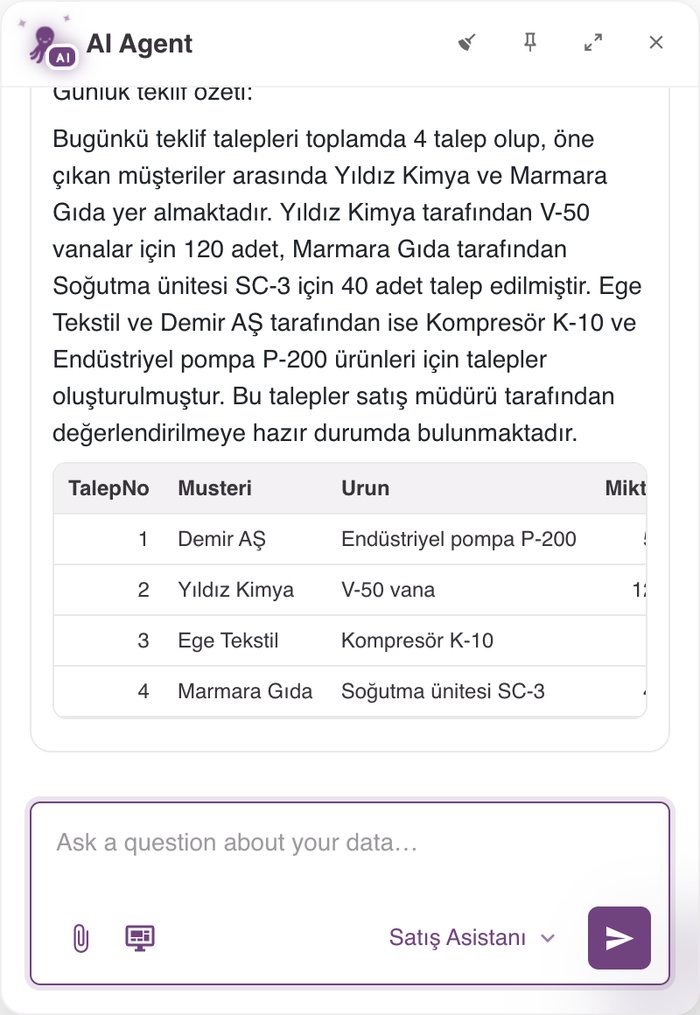
How answers look on each channel: Formatting in Reply to Requester and agent answers is converted per channel:
- Chat: formatted text; tables look like the panel's result tables.
- Mail: paragraphs, lists and tables (number columns right-aligned).
- WhatsApp:
*bold*,_italic_, • bullets; tables become a numbered row list ("1. Customer: … · Product: …", at most 20 rows).
4.1 AI workflows
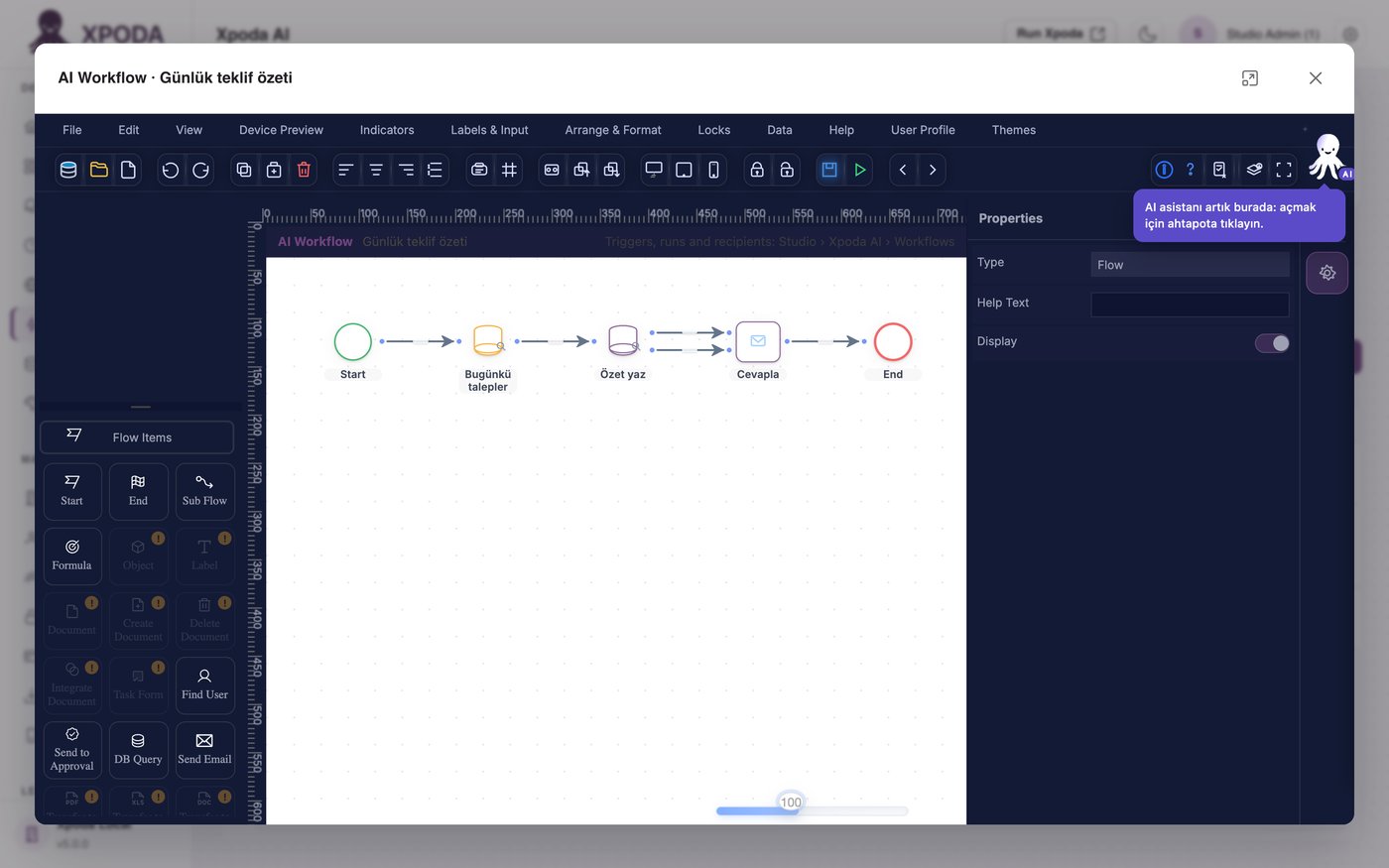
Workflows that are not bound to a form are set up under an AI agent (see 2.4). They are drawn in the same designer as form workflows; the designer opens in a resizable window inside Studio. Checkout and Close (or File › Close) asks about unsaved changes and closes the window; the window's X closes without asking, so save first.
Available steps: DB Query, AI step, Call API, e-mail, formula, find user, mobile notification, SMS, Reply to requester, Send to approval and Subflow. Steps that need a record (task form, document management, etc.) are dimmed and locked in AI workflows.
Runs: Shows each run's trigger, steps, step outputs and errors. A run waiting for an approval is "waiting".
4.2 Triggers
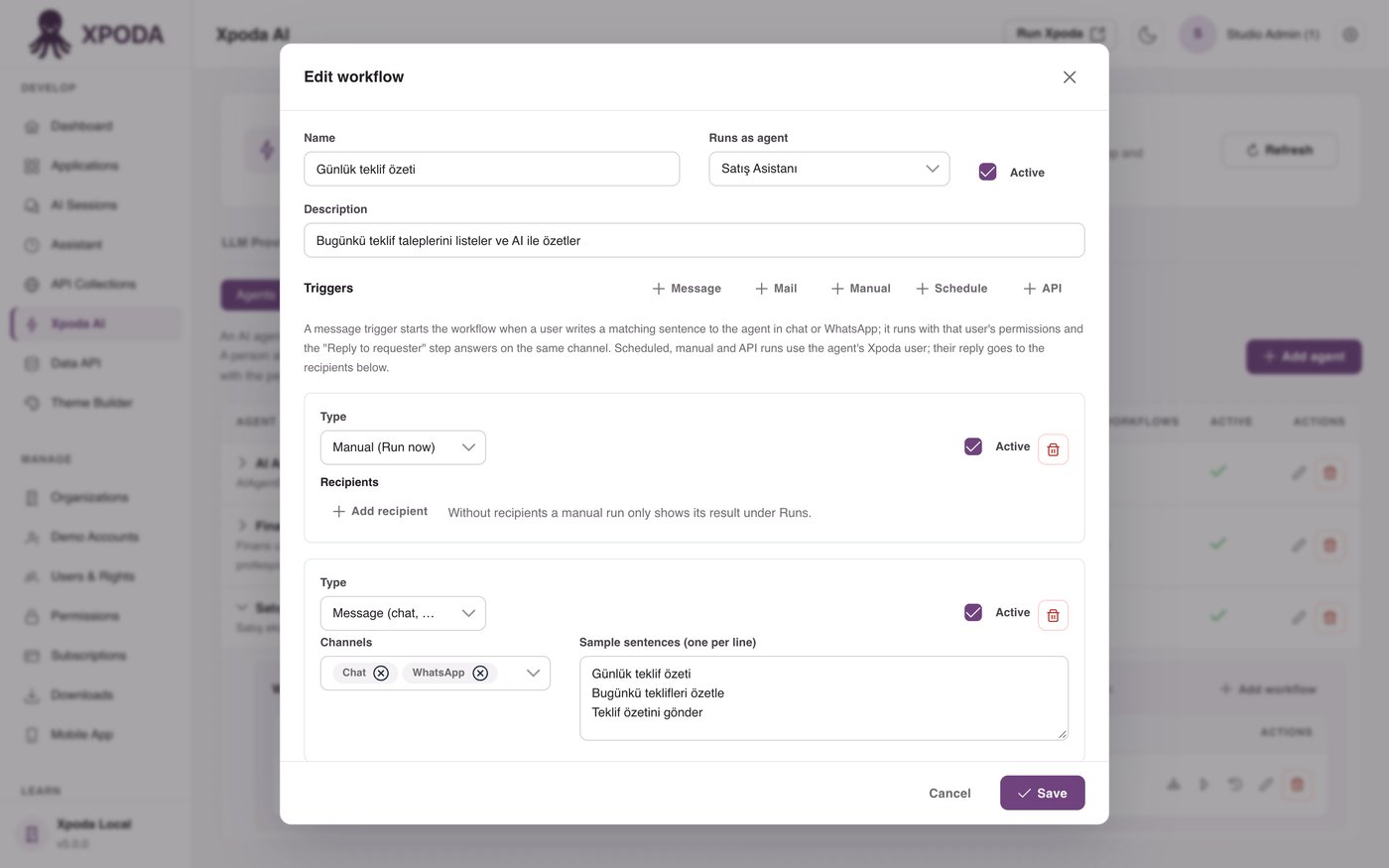
A workflow can have several triggers; the answer returns to the channel that started it.
| Trigger | How it works |
| Message | A chat or WhatsApp message matching the sample sentences, with the agent selected, starts the workflow; it runs as the user who wrote the message and the answer comes back to the same chat or number. The user needs the agent › workflow permission. Check routing also checks workflow sample sentences. |
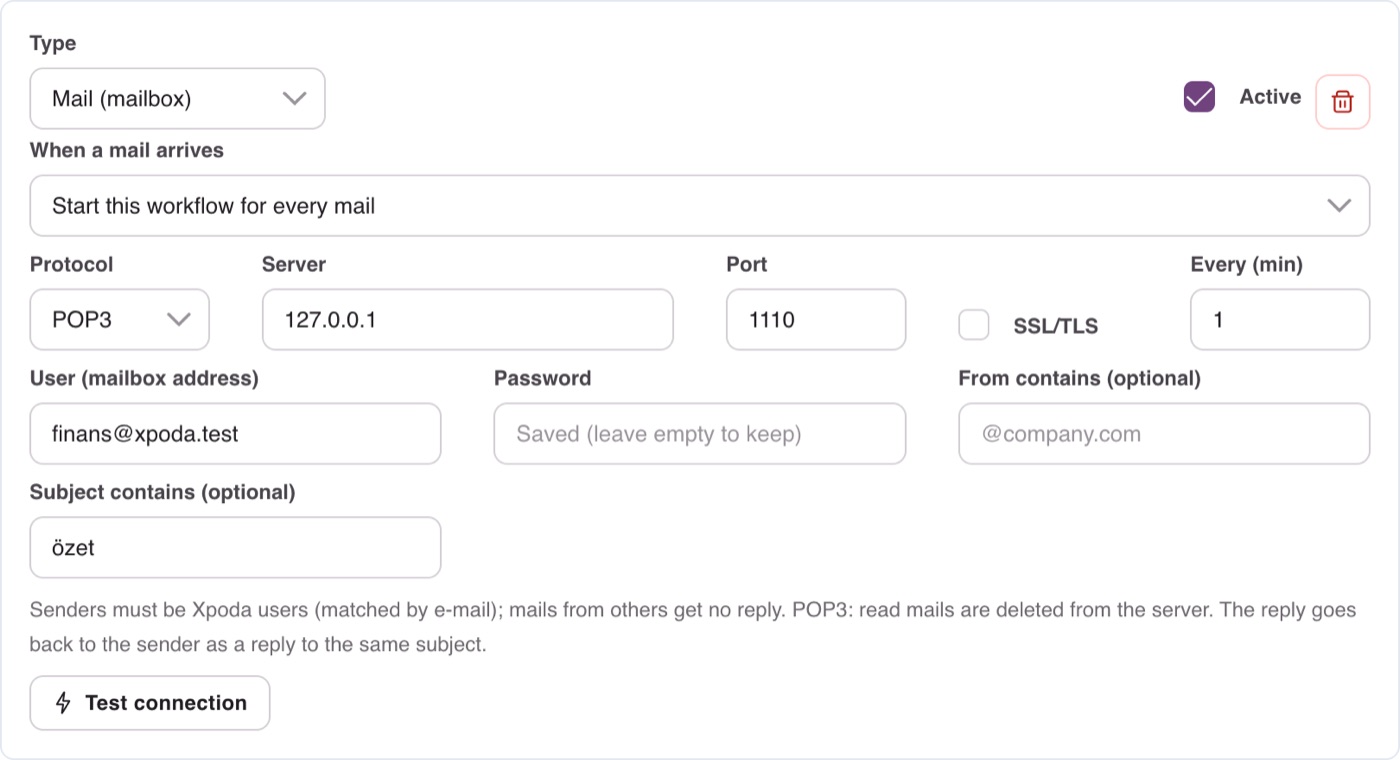
| The mailbox (IMAP/POP3, server, polling interval, sender and subject filter, what to do after reading) is set on the trigger and tried with Test connection. Choose Start this workflow for every mail or Let the agent decide. The sender's address must match an Xpoda user who has the workflow permission. | |
| Schedule | Hourly, every 30 minutes, every day at 09:00, etc.; optional days and time window. Runs as the agent's Xpoda user. |
| Manual | Started by hand with Run now; runs as the agent's Xpoda user. |
| API (webhook) | A secret address for the workflow: POST /AiAgent/Workflow/{key}. The body is passed as $PBody$, JSON fields as $PField$. The response is 202 with the run number; the status is read with GET /AiAgent/Workflow/{key}/runs/{RunID}. |
The answer of scheduled, manual and API runs goes to the recipients chosen on the trigger by Mail, WhatsApp or Notification (Xpoda mobile app).
4.3 Ask a template
This AI step mode answers the step's question with Xpoda AI templates, as in the chat (the permissions of the user doing the step and the confidential column rules apply). A template can be chosen; if empty, the best of the user's permitted templates is used. The answer and the result table (up to 50 rows) pass to later steps as $PStepName$.
4.4 Approval and subflow
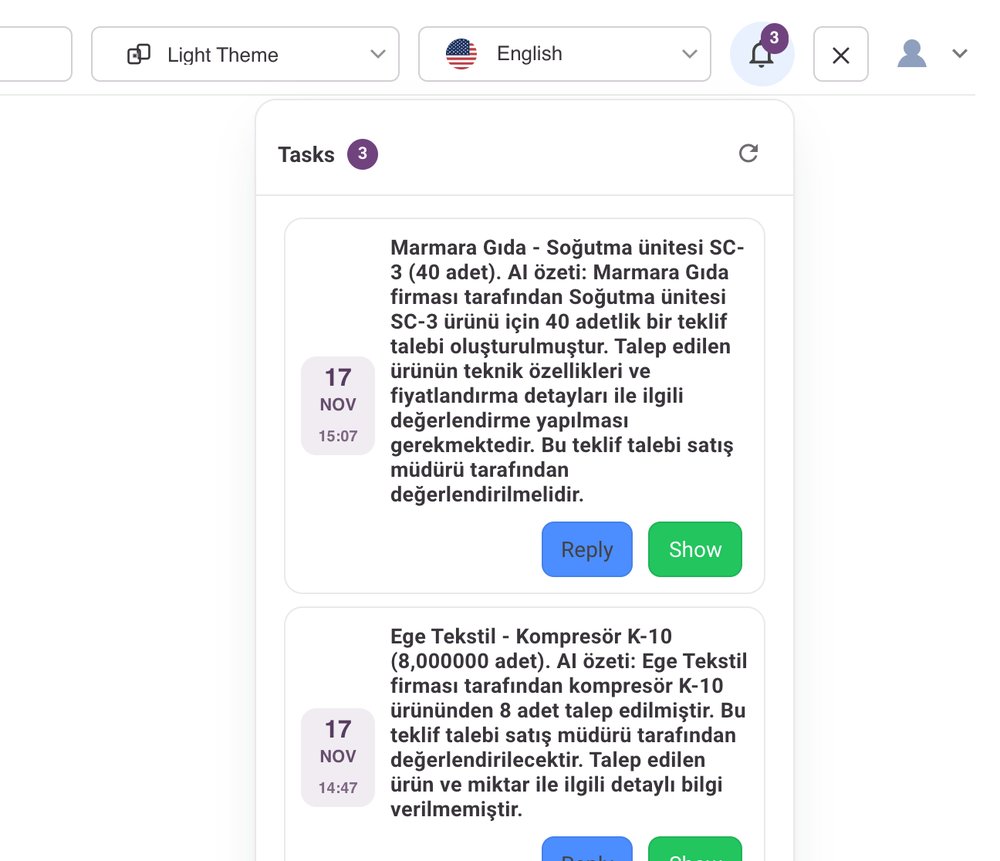
Send to approval: Approvals, in form workflows and AI workflows alike, appear in Client's task list (bell icon); the approver clicks Reply, writes a note and approves or rejects. A mail with buttons (and WhatsApp if enabled on the step) is sent as well. AI workflow approvals have no form to open, so there is no "Show" button. The flow continues on the matching branch with earlier step outputs kept.
Subflow: Starts another AI workflow with this run's variables and step outputs; the subflow runs as the user running the parent workflow. The parent does not wait. The chain is at most 5 levels deep.
Setup note (admin): Schedules and mailbox reading run on a single Service instance. With several Services, enable Ai:RunWorkflowSchedules on only one; if it is not set, AppSettings:RunAssistantJobs is used.
5. Website bot (Public Bots)
A question-answer window embedded in your website, without sign-in.
Account: The Xpoda account the bot uses; the bot works only with this account's AI permissions and only reads. An admin account cannot be chosen.
Allowed sites (one per line): Sites where the bot may be embedded; it does not open on other sites.
Welcome message: The opening message.
Add the embed code given after saving to your site. The bot does not create records; the query, table and provider details are not shown to visitors. Questions are limited to 6 per minute and 100 per day per IP.
6. Security and privacy summary
- The AI sees only the results of permitted templates; it cannot reach tables outside the template.
- For questions through an agent, rows are still filtered as the asking user; records are created only with the user's own form permissions.
- Queries run with the
xpoda_ai_readerdatabase user, which cannot sign in and only has a read role. Every query is parsed before it runs; write commands, multiple statements and tables outside the template are rejected. - The DB Query step in workflows does not check template permissions; who may start which workflow is limited by the agent › workflow permission.
- API keys and external connection strings are stored encrypted in the customer's database, never in the Studio database.
- Confidential column values never go to a model. Every operation is logged, including whether data went to the cloud.
7. Troubleshooting
| Symptom | Cause / solution |
| "Xpoda AI is not included in this organization's license" in Studio | AI_Skills is off in the license. A new license is needed. |
| "This organization's Xpoda Service needs an update" in Studio | The Service is older than 5.0. Update the Service. |
| No chat icon in Client | License off, or the user has no model/agent permission and no task form in the menu (2.5). |
| "Not permitted" answer | The user has no permission for this question's template; when asking through an agent, the agent's user has none either. |
| "You are not permitted to use the digital employee '…'" | Permissions › AI agents › the agent is not ticked. |
| A workflow does not start from a message | Is the agent selected in the chat; the user's agent › workflow permission (None may be ticked); the trigger's sample sentences; SQL Models › Check routing. |
| A task does not appear or the record is not created | Is the form in the user's menu; does the user have the task model's permission; is the task active. |
| The AI field stays empty in a form workflow | Is an SQL model selected on the AI step (if not, the panel shows a red "required"; the Log says "SQL model not found" and the flow continues on the error branch). |
| "I could not find a query template for this question" or the wrong template | Clarify the template description and sample questions; add sample questions in the language of the question; add correct answers as approved examples. |
| No answer, timeout | The language model provider cannot be reached. Check with LLM Providers › Test. A Local model never falls back to a cloud model (privacy). |
| A run stays "waiting" | A pending approval (task list) or a queued AI/API job (AI Agents › Work). |
| A scheduled AI workflow does not run or the mailbox is not read | Does the agent have an Xpoda user; is Ai:RunWorkflowSchedules (or AppSettings:RunAssistantJobs) on for that Service; try the mail trigger with Test connection. |
8. Setup summary
- LLM Providers: at least one provider, Test.
- SQL Models: a model (privacy level) and templates under it, Run test.
- Tasks: forms to be created from the chat (the form must be in users' menus).
- AI Agents: an agent (with its Xpoda user) and its workflows and triggers.
- Permissions: models/templates for the agent's user; own templates and agent › workflow/template permissions for people.
- Try it in Client; check the Log.
9. Example: quote requests
A sales team keeps quote requests in Xpoda. Setup and result:
| Step | What is done |
| Users (Client › Admin) | "Sales Assistant (AI)" (the agent's user), "Ayşe" (sales rep), "Mehmet" (sales manager, approver). The quote form in all three menus. |
| Form and workflow (Studio) | "Quote request" form: Customer, Product, Quantity, Note, AI summary. Workflow: Create document → AI step (SQL model "Quote", result column AI summary) → Send to approval (Mehmet) → End. |
| SQL model "Quote" (Local) | Templates: "All requests" and "My requests" (Only the user's own records). |
| Task | "Open quote request": Customer, Product, Quantity required; AI summary unticked. |
| Agent | "Sales Assistant" with user "Sales Assistant (AI)". Its workflow "Daily quote summary": DB Query (today's requests) → AI step (summary) → Reply to requester; triggers Message + Manual. |
| Permissions | Sales Assistant (AI): Quote model (all). Ayşe: Quote › only My requests; Sales Assistant › workflow: Daily quote summary. |
Result:
- Ayşe writes "Open a quote request for Demir, 50 units" in the chat; the missing Product is asked, and the record is created with the confirmation card. The form's workflow writes the AI summary to the record and an approval with the summary appears in Mehmet's task list.
- Without choosing an agent, "What are my requests?" → only Ayşe's requests. "All quote requests" → still only the permitted template (My requests).
- With Sales Assistant selected, "All quote requests" → all requests through the agent's template (union).
- With Sales Assistant selected, "Daily quote summary" → the workflow runs as Ayşe and the summary and table come to the chat. Run now in Studio runs it as the agent's user.
- If Ayşe's agent permission is removed: "You are not permitted to use the digital employee '…'". If None is ticked in the workflow list, the workflow does not start and questions are answered with the agent's templates.
 AI Assistant