Send Notificationv5
This control sends a record's notification over several channels in one step: mobile push, SMS, e-mail, WhatsApp, Telegram and webhook (Microsoft Teams, Slack or your own system). Channels, message and recipients are set per step.
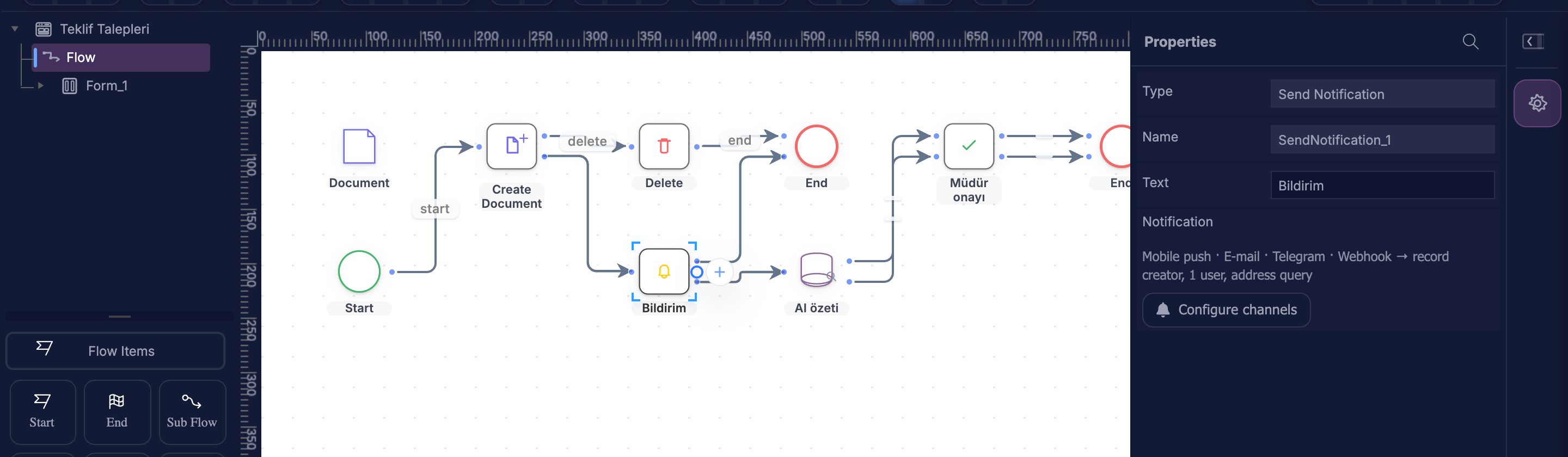
Send Notification step in the flow and its properties
Notes
The step has a normal connection at the end; the flow continues from it after the notifications are sent. You can add a second connection with the source result On error: if sending fails on any channel, the flow continues on that branch. Without an error branch the flow continues on the normal connection.
If one channel or recipient fails, the others are still sent. A recipient without an address for a channel (e.g. a user with no phone number) is skipped on that channel.
On a copy (test) database nothing is actually sent; deliveries are only logged.
Settings
When the step is selected, the properties panel shows a summary of its channels and recipients. Configure channels (or a double click on the step) opens the settings window. Tabs of active channels show a green dot.
Message
Title: The heading of the notification. Empty = the form's display name.
Message: The common message. Every channel without its own text sends it.
Record link: Adds a link or button that opens the record (uses General Settings › Client Address).
Link text: The text of the link.
In every text, record values are written as $PColumn$ (e.g. $PCustomer$); the record number is $PUserTableID$.
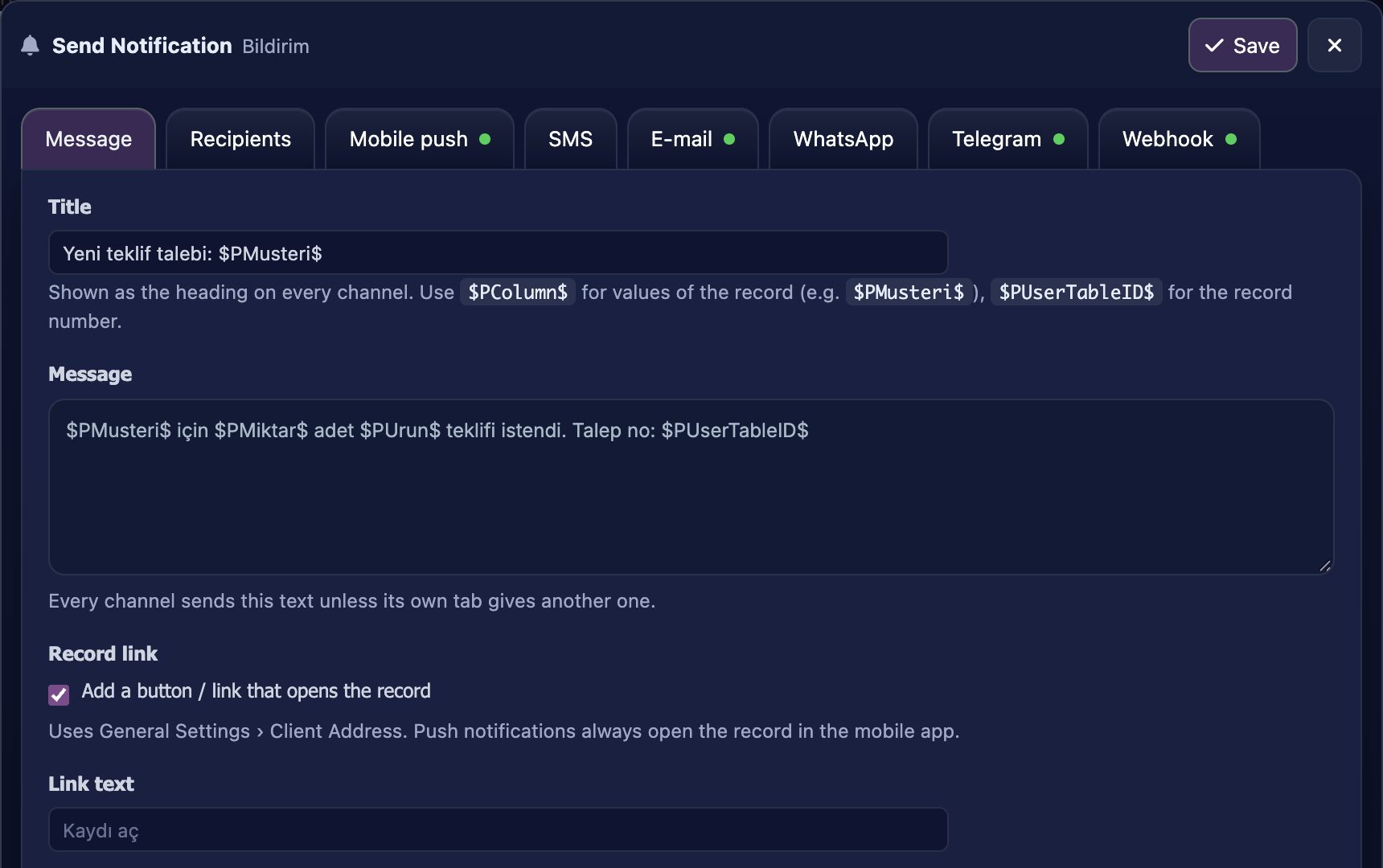
Message tab
Recipients
All options below are combined; each person gets the notification once per channel.
Record creator: The user who created the record.
Users found by the previous "Find User" step: The users found by the Find User step before this one.
Users: User names, full names or IDs, separated by commas.
User query (SQL): A query whose first column is the UserID.
Address query (SQL): Recipients who are not Xpoda users (customers, suppliers, groups). First column: address; second column (optional): channel — email, sms, whatsapp or telegram. Without a channel column, e-mail addresses and phone numbers are recognized automatically.
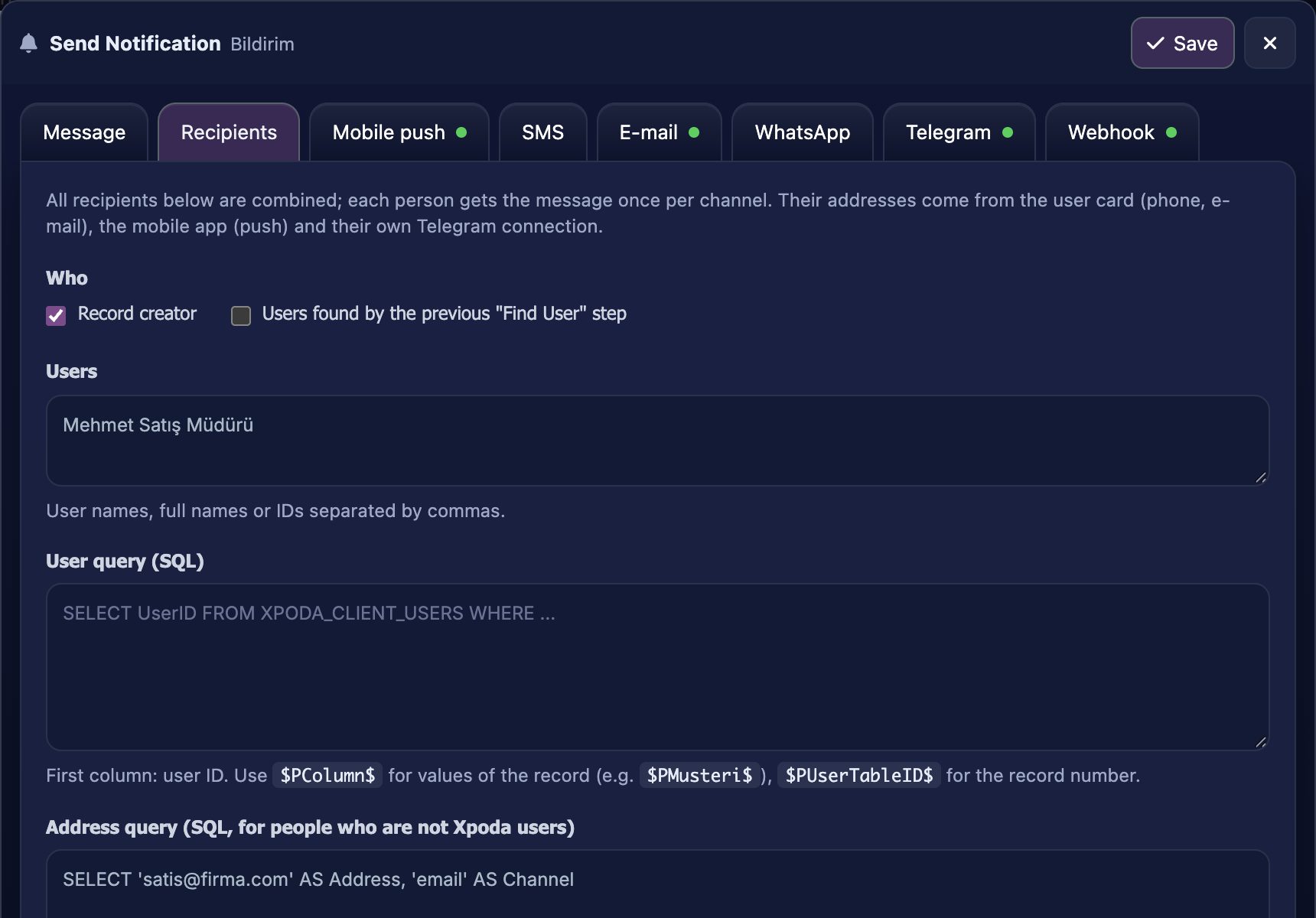
Recipients tab
Channels
Each channel is turned on in its own tab. If a channel has no message of its own, the common message is sent. Connection settings come from the existing settings; the step only selects the channels to use.
| Channel | Connection settings | Recipient address | Note |
|---|---|---|---|
| Mobile push | General Settings › OneSignal | Mobile devices where the user is signed in | Tapping the notification opens the record. |
| SMS | General Settings › SMS | Phone on the user card | |
| General Settings › SMTP, mail template | E-mail on the user card | The subject can be set separately. | |
| Client › Admin › WhatsApp | Phone on the user card | Sent with a template approved by Meta. The default xpoda_bildirim template ({{1}} title, {{2}} message) is submitted to Meta during WhatsApp setup. You can also enter your own template and its values. | |
| Telegram | Client › Admin › Notifications | The user's connected Telegram account; chat ID for groups | The record link is added as a button (Client Address must be HTTPS). |
| Webhook | Address in the step | One call per step | Teams, Slack or generic JSON (title, message, link, record, recipients). |
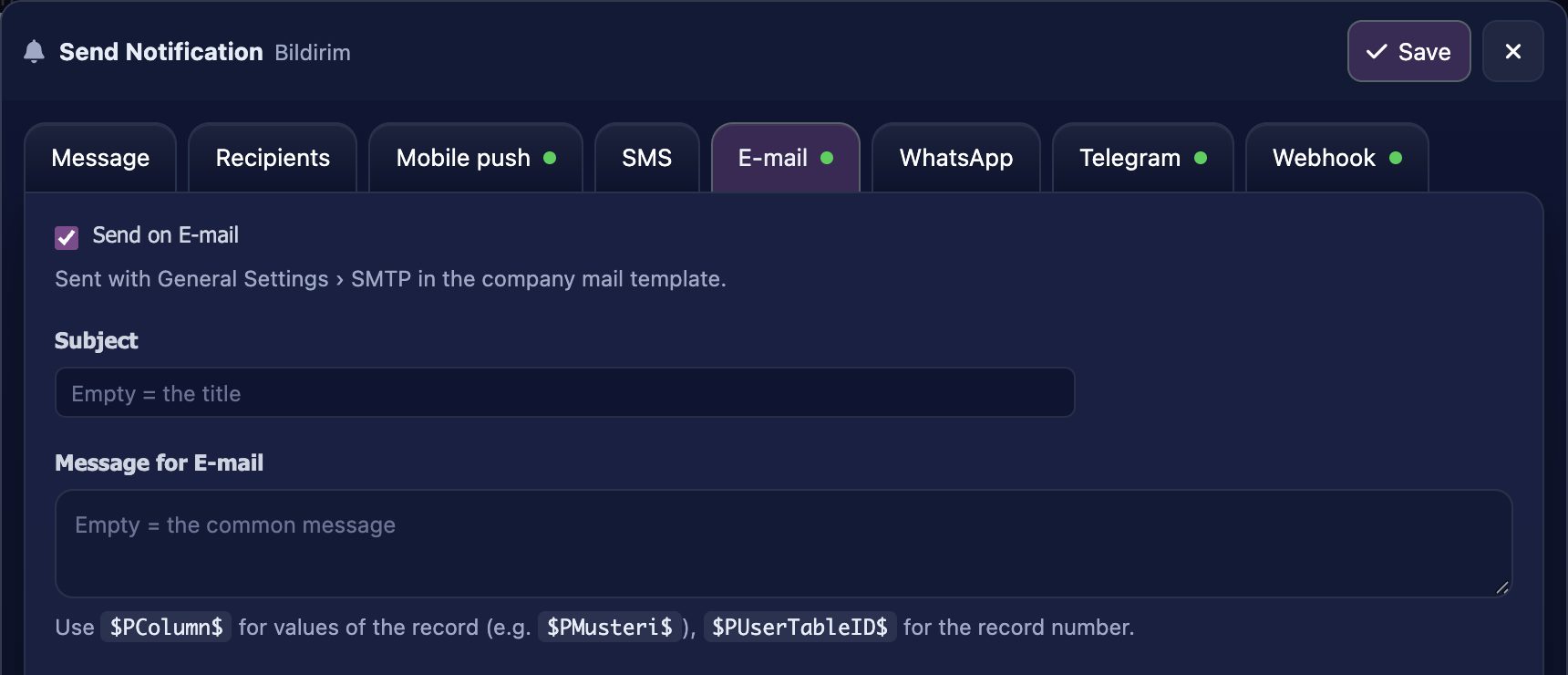
E-mail tab
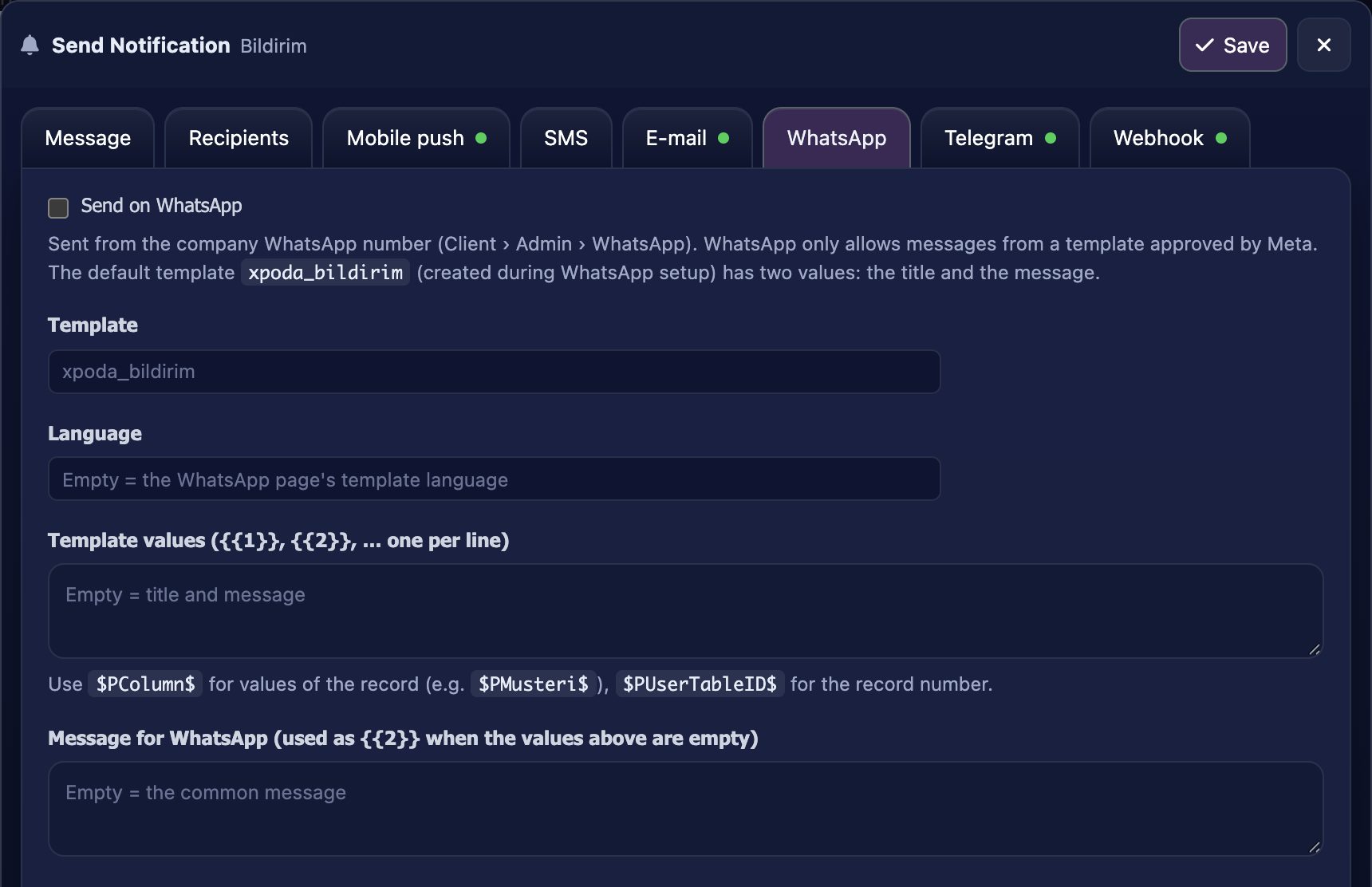
WhatsApp tab
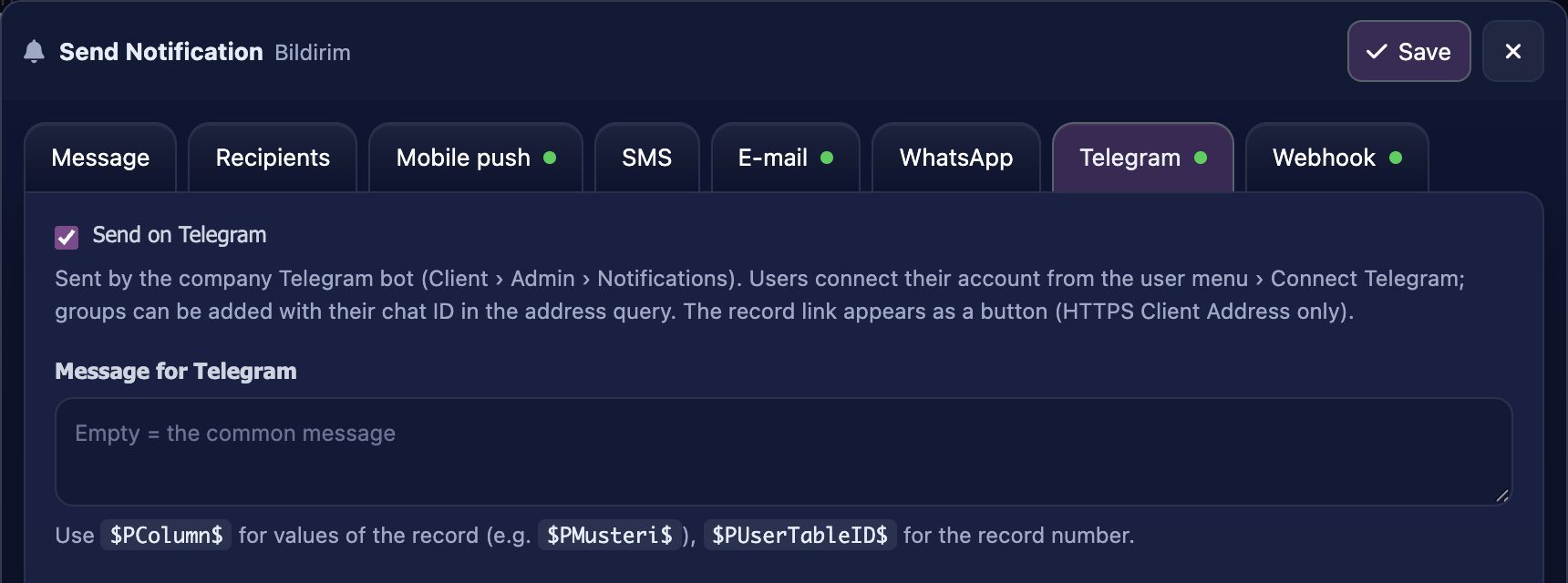
Telegram tab
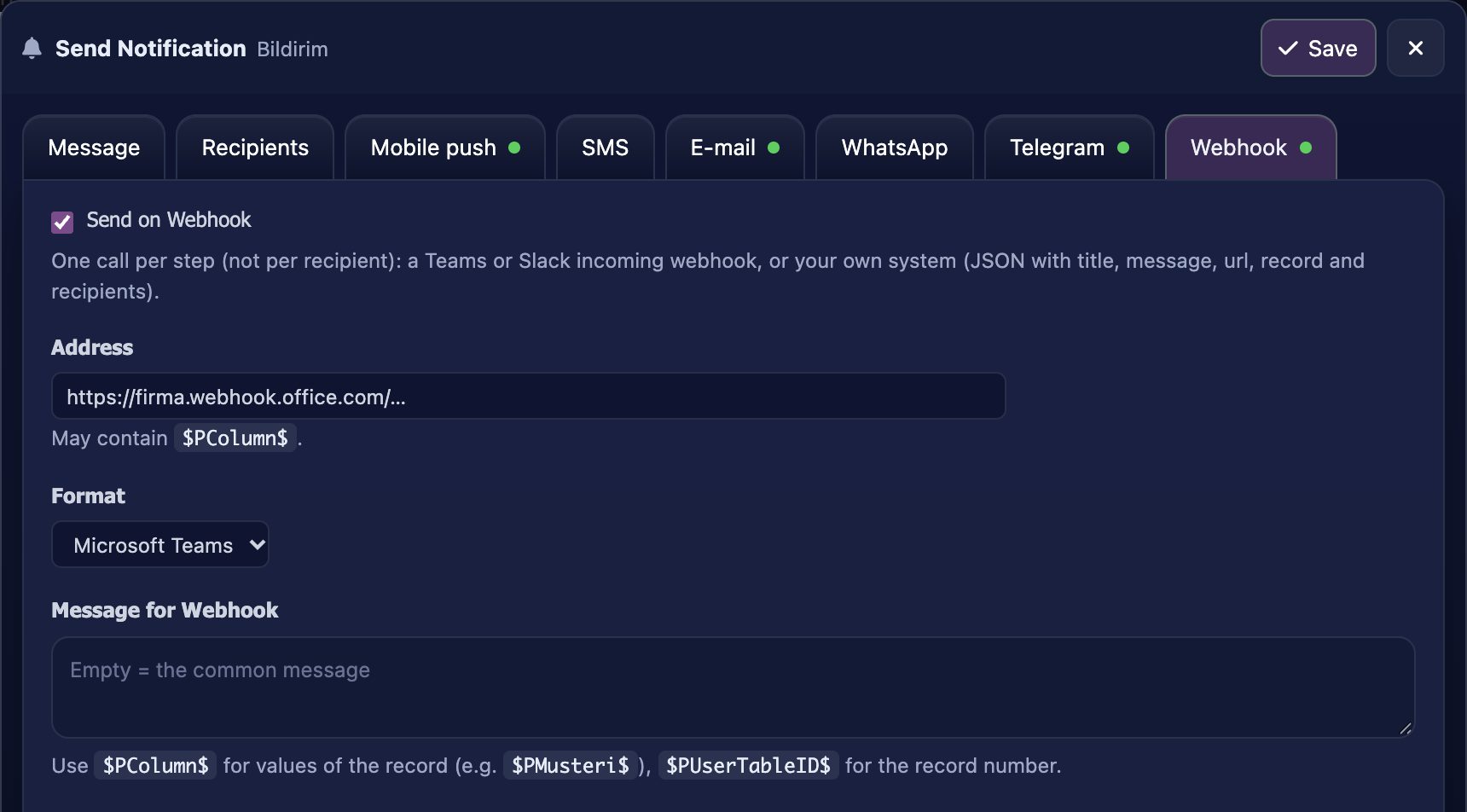
Webhook tab
Telegram setup
1. In Telegram, create a bot with @BotFather (/newbot) and copy the token it gives.
2. In Client › Admin › Notifications, enter the token and select Save and connect. The bot name is read; if General Settings › Client Address is a public HTTPS address, the webhook is set up automatically.
3. Users connect their own account from the user menu (top right) › Connect Telegram: Telegram opens and they just tap Start in the bot.
4. To send to a group, add the bot to the group and enter the group's chat ID (e.g. -100…) in the address query with the telegram channel.
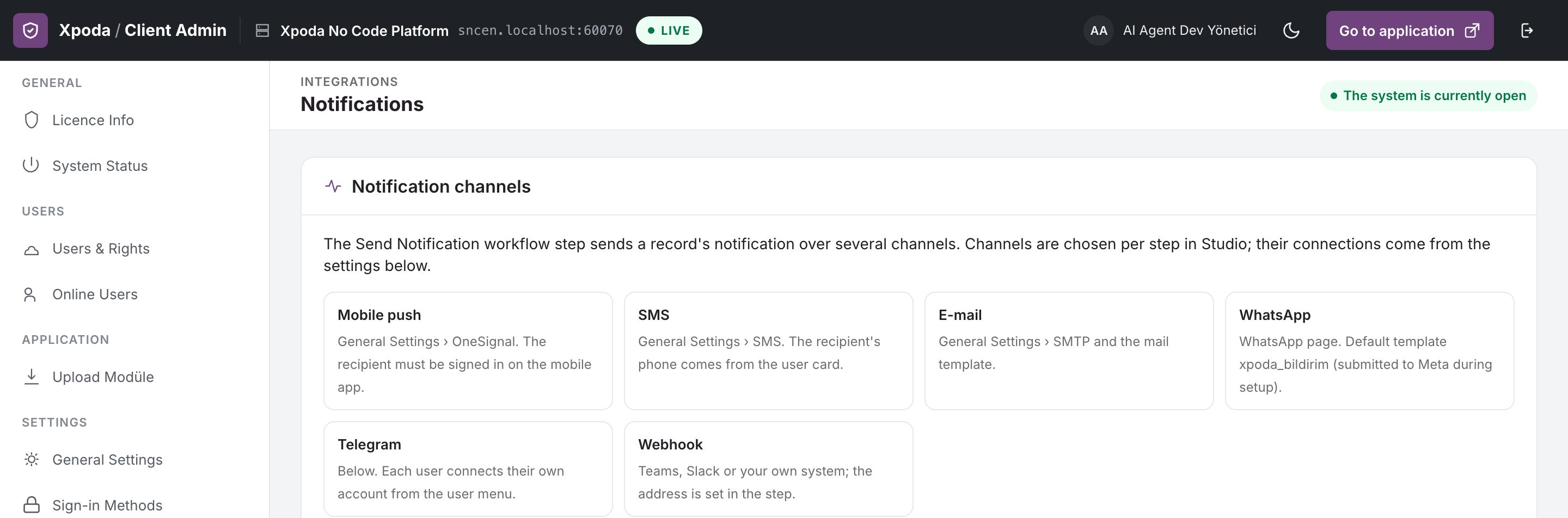
Client › Admin › Notifications
Delivery log
Every delivery appears in Client › Admin › Notifications › Recent deliveries: time, channel, recipient (masked), status (Sent, Skipped, Error), record and details. The reason for a skipped or failed delivery is shown in the details (e.g. the user has no registered mobile device, or has not connected Telegram).
Example Usage
When a quote request record is created (Create Document), the Send Notification step runs. Title New quote request: $PCustomer$, message $PQuantity$ x $PProduct$ requested for $PCustomer$. Request no: $PUserTableID$. Recipients: the record creator, the sales manager and, through the address query, the sales team's shared e-mail address. Channels: mobile push, e-mail, Telegram and a Teams webhook. If a Telegram chat fails, the flow goes to the end through the "On error" connection; otherwise it continues to the AI summary and approval steps.
In v5 this step replaces the former "Send Mobile Notification" step. Send SMS and the notification options of the approval step keep working as before.
 AI Assistant