Task Formv5
This control sends a task to the selected users.

Flow Items view

Design screen view
Notes
This control has two Connections at the end of this step.
One of them is When the operation is completed as the source result. After the connection, when a document is created, the next step is specified with any flow control. For example, the Send E-mail flow control can be used.
The other one is When rejected as the source result. For example, when a document is rejected after this connection, the next step is specified as the End flow control.
Properties
Name: The name displayed in the FlowItemName column of the XPODA_WORK_FLOWS table.
Text: The text displayed on the screen is entered here.
Document: The form is selected from the form list.
Description: The information to be sent is entered. Existing data can be selected with $P.
Mapping: This is the section where the connection settings between the task form and the flow form are configured.
Subject: The main subject to be sent is entered.
Existing Document: This is the section that specifies that the form to be sent for the task will be the flow form.
Confirmation after recording: This is the section where the flow continues after the task form is saved for user approval.
Send Task Mail: This is the section where it is specified whether the task form is sent together with an e-mail.
Make Mobile Notification: Mobile notification can be enabled or disabled.
Make Sms Notification: SMS notification can be enabled or disabled.
Notification Message: The content of the information to be sent is defined.
Re-Notification Tap (min.): The number of minutes after which the information will be notified again if no action is performed on the task form is entered.
Number Of Information: The number of times the notification will be sent is entered.
Routing to the following user when the number of info..: When the number entered in the notification count is exceeded, the task form is routed to the selected users.
User Actions: This is the section containing the users to whom the approval will be sent.
E-mail Content: The e-mail content is written here.
Example Usage
For example; since the Send Task Mail property of the Task Form flow item is selected as active, an approval e-mail is sent for the task. After approval, an information e-mail is sent. If it is rejected, the flow ends.
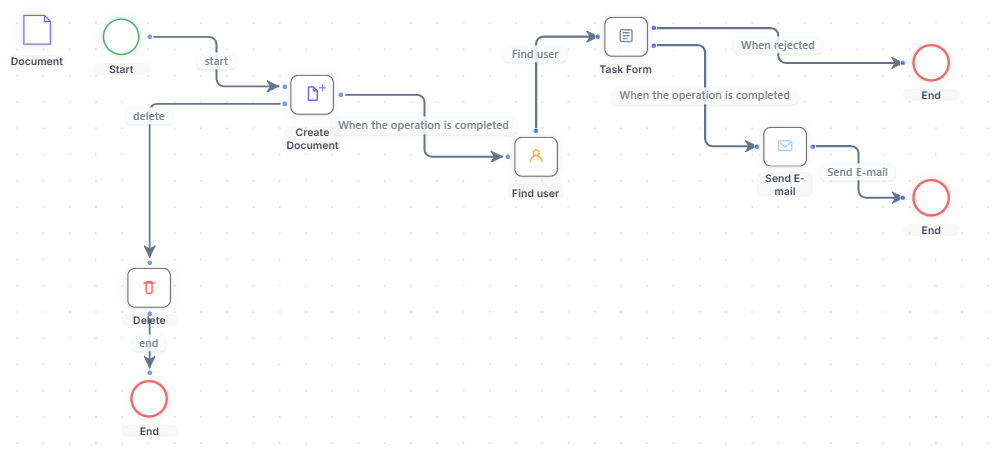
Flow screen
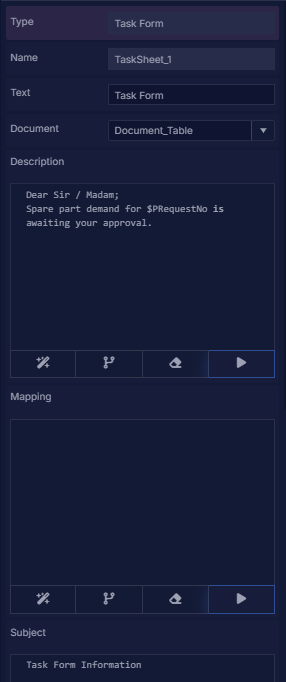
This control enables a task to send an e-mail or notification to users on the client according to the Find User control when the Send Task Mail property is selected as active.

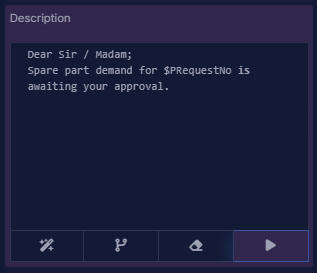
The Description property is written as shown below. $P represents the control type of the related form.
 AI Assistant